ESP-32 및 LVGL 그래픽을 사용한 고급 기술 - 4부
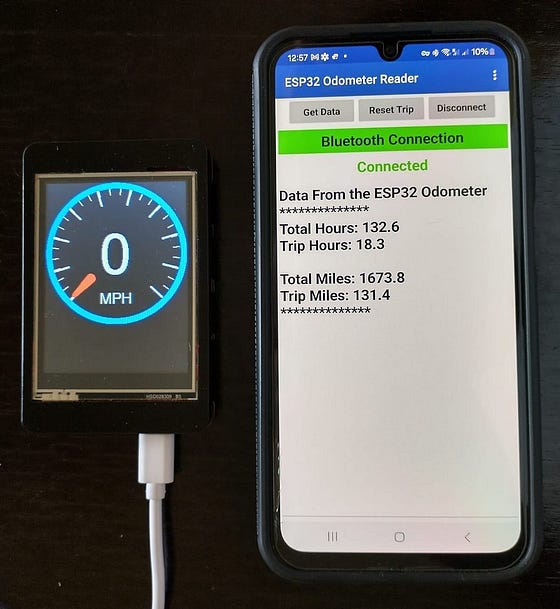
이 레슨은 매우 짧고 간단할 것으로 예상했습니다. 블루투스 서비스를 추가하고 주행 거리계 내용을 표시하고, 주행 거리계를 재설정하고, 마일과 킬로미터 사이에서 거리 표시를 전환하는 데 필요한 동작을 정의하는 데 필요한 코드는 매우 간단합니다. 하지만 레슨 3의 이전 코드에 새 코드를 추가하고 실행하려고 했을 때 이상한 일이 발생했습니다. 디스플레이가 1초에 한 번씩 깜빡이기 시작했습니다. 시리얼 모니터를 열었더니 ESP32가 계속해서 재부팅되는 것을 볼 수 있었습니다. 메시지가 계속 스크롤되어 읽을 수 없었기 때문에 USB 케이블을 뽑아 새 메시지가 들어오는 것을 막고 뒤로 스크롤하여 원인을 찾았습니다.
문제가 된 메시지는 "assert failed: vQueueDelete queue.c:2355 (pxQueue)" 였습니다 . 무슨 뜻인지 전혀 모르겠습니다. 하지만 Google 검색에 붙여넣고 "tft_espi bluetooth"로 검색하여 단서를 찾았습니다. ESP32 기기에서 TFT_eSPI 루틴을 블루투스 또는 Wi-Fi 서비스와 동시에 실행할 때, 특히 스프라이트를 사용할 때 문제가 발생한다는 보고가 있었습니다. 블루투스와 Wi-Fi 서비스가 메모리를 많이 사용하는 것 같습니다. TFT_eSPI 루틴은 화면 표시를 메모리에 표현하는 스프라이트를 생성할 때도 많은 메모리를 사용합니다. 제 프로그램이 너무 많은 메모리를 동적으로 할당하려고 해서 재부팅 문제가 발생한 것 같습니다.
그래픽 코드를 수정하여 문제를 해결할 수 있었습니다. 2과에서 바늘이 부드럽게 연속적으로 움직이는 동작을 구현하기 위해 디스플레이 함수에 스프라이트 3개를 사용했던 것을 기억하실 겁니다.
- 다이얼 배경 이미지를 담고 있는 다이얼이라는 스프라이트.
- 속도계 바늘의 이미지를 담고 있는 'needle'이라는 스프라이트입니다.
- 디스플레이에 앞서 메모리에 업데이트된 화면 이미지를 생성하는 데 사용되는 디스플레이라는 스프라이트입니다.
새로운 화면 이미지가 나올 때마다 프로그램은 다이얼 이미지를 디스플레이 스프라이트에 밀어 넣고, 그 위에 속도 숫자와 바늘 이미지를 배치했습니다. 그런 다음 디스플레이 스프라이트를 한 번에 화면(TFT)에 배치하여 깜빡임 없이 부드러운 애니메이션을 구현할 수 있었습니다.
하지만 속도계의 최종 버전에서는 화면 이미지를 초당 두 번만 업데이트하여 깜빡임 문제가 발생하지 않도록 했습니다. 프로그램 흐름을 변경하여 디스플레이 스프라이트를 제거할 수 있었습니다. 새 코드에서 새로운 화면 이미지가 추가될 때마다 drawBackground () 루틴에서 다이얼 스프라이트를 렌더링한 후, 속도계 숫자와 회전된 바늘을 맨 위로 밉니다. 그런 다음 다이얼 스프라이트를 단일 명령으로 화면(TFT)에 푸시합니다. 초당 두 프레임만 생성하므로 각 프레임마다 다이얼 스프라이트를 다시 생성할 수 있습니다. 이 새로운 코드를 시도해 보니 모든 것이 잘 작동했습니다. 메모리 문제도 발생하지 않았습니다.
이 이야기를 수업에 포함시킬지, 아니면 수업 2 코드를 수정해서 이 문제에 맞게 할지 고민했습니다. 하지만 때로는 견뎌내야 하는 과정을 생각해 보는 것이 유익할 것 같습니다. 하드웨어 성능, 프로그램 기능, 안정성, 그리고 유지되어야 하는 코드 복잡성 사이에는 균형이 필요합니다. 때로는 다른 것보다 더 어려울 수 있습니다.
이제 블루투스 기능을 추가하는 데 필요한 새로운 코드에 집중하고, 수업이 끝나면 이를 수정된 그래픽 코드와 병합하겠습니다.
코딩 접근 방식
새로운 인터페이스를 구축하기 위해 BluetoothSerial이라는 레거시 블루투스 서비스를 활용할 것입니다. 이 서비스는 ESP32 장치와 다른 블루투스 호환 장치 사이에 직렬 연결을 생성합니다. 이 연결은 ESP32와 Arduino IDE의 직렬 모니터 간의 직렬 연결과 매우 유사합니다. ESP32는 연결된 장치로부터 ASCII 데이터를 수신하고 응답으로 ASCII 데이터를 전송할 수 있습니다. 인터페이스를 구현하기 위해 ESP32가 응답할 수 있는 한 문자 명령 세트를 정의할 것입니다. 구체적으로는 다음과 같습니다.
명령 = 0 — ESP32에 장치에 기록된 실행 시간 및 거리 값에 대한 정보를 보내도록 요청합니다.
명령 = 1 — ESP32에 트립 값을 0으로 재설정하도록 요청합니다.
명령 = 2 — ESP32에 마일과 킬로미터 사이의 거리 단위를 전환하도록 요청합니다.
명령 = 3 — ESP32에 블루투스 링크 연결을 끊으라고 요청합니다.
프로젝트에 코드를 추가하여 이러한 명령을 구현한 후, Android 휴대폰의 표준 앱인 Serial Bluetooth를 활용하여 기능을 테스트해 보겠습니다. Serial Bluetooth 인터페이스를 구성하여 Android 기기에 명령과 응답을 표시할 수 있습니다. 다음 레슨에서는 속도계 기기를 제어하는 맞춤형 Android 앱을 처음부터 만들어 보겠습니다.
코딩 추가
아래 코드는 이러한 기능을 프로젝트에 추가하는 데 사용됩니다.
// code added to includes section
#include "BluetoothSerial.h" // library to use ESP32 bluetooth

// ... other code

// code added to create objects section
BluetoothSerial SerialBT;

// .. other code

// code added to setup routine
SerialBT.begin("Odometer"); //Bluetooth device name
delay(100);
Serial.println("The device started, now you can pair it with bluetooth!");

// ... other code

// code added to loop routine
// check to see if bluetooth command is ready to process
  checkBlueTooth();

// ... other code

void checkBlueTooth()
  {
    if (SerialBT.available())
    {
      char incomingChar = SerialBT.read();
      if (incomingChar == '0') // send odometer info to bluetooth client
      {
        SerialBT.println("Data From Odometer");
        SerialBT.println("**************");
        SerialBT.print("Total Hours:  ");
        SerialBT.println(hoursElapsed,1);
        SerialBT.print("Trip Hours: ");
        SerialBT.println(hoursTrip,1);
        SerialBT.println("");
        if (distMode == MI)
          {
            SerialBT.print("Total Distance: ");
            SerialBT.print(distElapsed,1);
            SerialBT.println(" Miles");
            SerialBT.print("Trip Distance: ");
            SerialBT.print(distTrip,1);
            SerialBT.println(" Miles");
          }
        else
          {
            SerialBT.print("Total Distance: ");
            SerialBT.print(distElapsed * 1.609,1);
            SerialBT.println(" Kilometers");
            SerialBT.print("Trip Distance: ");
            SerialBT.print(distTrip * 1.609,1);
            SerialBT.println(" Kilometers");
          }
        SerialBT.println("**************");
        delay(100);
      }
      if (incomingChar == '1') // reset trip values to zero
        {
          hoursTrip = 0.0;
          preferences.putFloat("hoursTrip",hoursTrip);
          distTrip = 0.0;
          preferences.putFloat("distTrip",distTrip);
          SerialBT.println("Trip Reset to Zero");
        }
      if (incomingChar == '2') // toggle MI/KM distance mode
        {
          if (distMode == MI)
          {
            distMode = KM;
            preferences.putInt("distMode", KM); // set dist mode for restart
            SerialBT.println("Distance Units Set to KM");
          }
          else if (distMode == KM)
          {
            distMode = MI;
            preferences.putInt("distMode", MI); // set dist mode for restart
            SerialBT.println("Distance Units Set to MI");
          }
        }
      if (incomingChar == '3') // disconnect bluetooth client
        {
          SerialBT.disconnect();
        }
     }
  }
코드 시작 부분에서 프로젝트에 BluetoothSerial 라이브러리를 추가한 다음 SerialBT라는 BluetoothSerial 객체를 생성합니다. 설정 루틴에서 SerialBT.begin("Odometer")를 사용하여 Bluetooth 직렬 링크를 Odometer라는 Bluetooth 이름으로 초기화합니다. 이렇게 하면 Android 기기에서 해당 링크를 식별할 수 있습니다. 루프 루틴에서 루프를 통과할 때마다 checkBlueTooth() 라는 함수를 호출하는 줄을 추가합니다 . 이 루틴의 코드는 다음과 같습니다. 들어오는 명령을 읽고 요청된 작업을 완료하기 위해 적절한 단계를 수행하는 것을 볼 수 있습니다.
명령이 0이면 인쇄 명령을 사용하여 연결된 장치로 주행거리계 데이터를 전송하고, 거리 정보를 표시하기 전에 distMode가 MI인지 KM인지 확인합니다.
명령이 1이면 hoursTrip 및 distTrip 값이 0으로 재설정되고 preference 객체를 사용하여 플래시 메모리가 업데이트됩니다.
명령이 2이면 distMode를 전환하고 새 값을 플래시 메모리에 저장하므로 재부팅 시 이 모드를 사용합니다.
명령이 3이면 serialBT.disconnect()를 사용하여 블루투스 연결을 끊습니다.
이제 새 코드를 이전 코드에 추가하여 프로젝트를 완료할 수 있습니다.
// code for Gauge_CrowPanel_Lesson4.ino

// add define statements for speedometer fuctions
#define WHEELDIA 17.0 // wheel diameter in inches
#define MI 0 // display distance in miles
#define KM 1 // display distance in kilometers

// add includes for Arduino libraries
#include <SimpleTimer.h> // library for interupt timer
#include <Preferences.h> // library to use flash memory for variables
#include "BluetoothSerial.h" // library to use ESP32 bluetooth

// add variable definitions for odometer functions
float hoursElapsed;
float hoursTrip;
float distElapsed;
float distTrip;
int distMode = MI;

// setup for hall effect sensor & speed data
const byte intPin = 32;
const float wheelDia = WHEELDIA;
float rpm;
float speedMPH;
volatile int startTime = 0;
volatile int revTime = 0;
volatile int wheelCount = 0;


// define new objects related to speedometer functions
Preferences preferences; // set up non-volatile storage object
BluetoothSerial SerialBT; // set up the bluetooth service
SimpleTimer HourTimer;  // set up the timer for elepased time

// setup for LCD screen
#include <TFT_eSPI.h> // include graphics library
#define DEG2RAD 0.0174532925
#define COLOR_BORDER TFT_BLUE
#define COLOR_NEEDLE TFT_RED
#define BACKGROUND TFT_DARKGREY

// constants for the display geometry
const int lcdWidth = 240;
const int lcdHeight = 320;
const int gaugeRad = 110;
const int gaugeWidth = 25;
const int gaugeWidth2 = 10;
const int xLoc = lcdWidth / 2;
const int yLoc = lcdHeight / 2;
const int numOffset = 40;

// define TFT objects for display
TFT_eSPI tft = TFT_eSPI(); // Device display
TFT_eSprite dial = TFT_eSprite(&tft); // Sprite for dial background
TFT_eSprite needle = TFT_eSprite(&tft); // Sprite for needle

// setup constants for the speedometer app
const float minSpeed = 0;
const float maxSpeed = 24;
const float speedRange = maxSpeed - minSpeed;
String speedLabel;

void getFlashData()
{
  preferences.begin("logData", false);
  hoursElapsed = preferences.getFloat("hoursElapsed", 0);
  hoursTrip = preferences.getFloat("hoursTrip", 0);
  distElapsed = preferences.getFloat("distElapsed", 0);
  distTrip = preferences.getFloat("distTrip", 0);
  distMode = preferences.getInt("distMode", 0);
}

void checkTimer()
{
  if (HourTimer.isReady())
    {
        Serial.println("Called every 6 minutes");
        hoursElapsed += 0.1;
        hoursTrip += 0.1;
        preferences.putFloat("hoursElapsed",hoursElapsed);
        preferences.putFloat("hoursTrip",hoursTrip);
        Serial.print("Total Hours: ");
        Serial.println(hoursElapsed,1);
        Serial.print("Trip Hours: ");
        Serial.println(hoursTrip,1);
        HourTimer.reset();
    }
  }

// interrupt routine to get revolution time and count
void IRAM_ATTR wheelRev()
{
  noInterrupts();
  if (millis() - startTime < 100){return;}
  revTime = (millis() - startTime);
  wheelCount += 1;
  interrupts();
  startTime = millis();
}

void drawBackground(String label)
{
  // draw outline and labels onto the dial display object
  dial.setPivot(lcdWidth/2, lcdHeight/2);
  dial.fillScreen(BACKGROUND);
  dial.fillCircle(lcdWidth/2, lcdHeight/2, gaugeRad + 10, COLOR_BORDER);
  dial.fillCircle(lcdWidth/2, lcdHeight/2, gaugeRad, TFT_BLACK);
  //dial.fillCircle(lcdWidth/2, lcdHeight/2, 10, TFT_WHITE); // mark dial center
  dial.setTextDatum(MC_DATUM); // locate text graphics by center position
  dial.drawString(label,120,240,4); //label gauge
  //draw major and minor tick marks - 3 minor ticks per major mark
    for (float i = 45; i < 316; i+=(3*270/speedRange)) // major marks
    {
      float sx = cos((i - 270) * DEG2RAD);
      float sy = sin((i - 270) * DEG2RAD);
      uint16_t x0 = sx * (gaugeRad - gaugeWidth -1) + xLoc;
      uint16_t y0 = sy * (gaugeRad - gaugeWidth -1) + yLoc;
      uint16_t x1 = sx * (gaugeRad-1) + xLoc;
      uint16_t y1 = sy * (gaugeRad-1) + yLoc;
      dial.drawWideLine(x0, y0, x1, y1,3,TFT_WHITE);
    }
    for (float j = 45; j < 315; j+=(270/speedRange)) //minor marks
    {
      float sx = cos((j - 270) * DEG2RAD);
      float sy = sin((j - 270) * DEG2RAD);
      uint16_t x0 = sx * (gaugeRad - gaugeWidth2-1) + xLoc;
      uint16_t y0 = sy * (gaugeRad - gaugeWidth2-1) + yLoc;
      uint16_t x1 = sx * (gaugeRad-1) + xLoc;
      uint16_t y1 = sy * (gaugeRad-1) + yLoc;
      dial.drawLine(x0, y0, x1, y1, TFT_WHITE);
    }
}

void createNeedle()
{
  needle.setColorDepth(8); // use 8 bit colors to reduce memory rqd
  needle.createSprite(20,120); // make a sprite 20 by 120 pixels
  needle.fillSprite(TFT_TRANSPARENT); //make sprite background transparent
  //needle.drawWedgeLine(10,0,10,110,6,2,COLOR_NEEDLE,TFT_TRANSPARENT); // define needle geometry
  needle.drawWedgeLine(10,70,10,110,8,4,COLOR_NEEDLE,TFT_TRANSPARENT);  // define needle geometry
  needle.setPivot(10,10); // set pivot point at needle axis
}

void updateGauge(float speed)
{
  // calculate needle angle based on speed
  int angle = (speed-minSpeed)*270/(maxSpeed-minSpeed) + 45; // calculate needle angle
  // update the speedLabel
  if (distMode == KM){speedLabel = "KPM";}
  else {speedLabel = "MPH";}
  drawBackground(speedLabel);
  dial.setTextDatum(MC_DATUM); // place text based on middle center origin
  dial.drawNumber(displaySpeed(speed), 120, 160, 8); // insert the speed text
  needle.pushRotated(&dial,angle, TFT_TRANSPARENT); // add the needle to display sprite at correct angle
  dial.pushSprite(0,0); // push the display sprite to the screen
}

void updateWheel()
{
  if (wheelCount > 119) //check for 0.1 mile distance
    {
      distElapsed += 0.1;
      distTrip += 0.1;
      preferences.putFloat("distElapsed", distElapsed);
      preferences.putFloat("distTrip", distTrip);
      wheelCount = 0;
    }

  if (revTime > 0)
    {
    rpm = float(60000/revTime);
    speedMPH = wheelDia * PI * rpm * 60 / (12 * 5280);
    if (speedMPH < maxSpeed)
    {
      updateGauge(int(speedMPH));
      yield();
    }
  }
}

int displaySpeed(float speedMPH)
{
  if (distMode == KM)
    {
      speedLabel = "KPH";
      return int(speedMPH * 1.609);
    }
  else
    {return int(speedMPH);}
}

void checkBlueTooth()
  {
    if (SerialBT.available())
    {
      char incomingChar = SerialBT.read();
      if (incomingChar == '0') // send odometer info to bluetooth client
      {
        SerialBT.println("Data From Odometer");
        SerialBT.println("**************");
        SerialBT.print("Total Hours:  ");
        SerialBT.println(hoursElapsed,1);
        SerialBT.print("Trip Hours: ");
        SerialBT.println(hoursTrip,1);
        SerialBT.println("");
        if (distMode == MI)
          {
            SerialBT.print("Total Distance: ");
            SerialBT.print(distElapsed,1);
            SerialBT.println(" Miles");
            SerialBT.print("Trip Distance: ");
            SerialBT.print(distTrip,1);
            SerialBT.println(" Miles");
          }
        else
          {
            SerialBT.print("Total Distance: ");
            SerialBT.print(distElapsed * 1.609,1);
            SerialBT.println(" Kilometers");
            SerialBT.print("Trip Distance: ");
            SerialBT.print(distTrip * 1.609,1);
            SerialBT.println(" Kilometers");
          }
        SerialBT.println("**************");
        }
      if (incomingChar == '1') // reset trip values to zero
        {
          hoursTrip = 0.0;
          preferences.putFloat("hoursTrip",hoursTrip);
          distTrip = 0.0;
          preferences.putFloat("distTrip",distTrip);
          SerialBT.println("Trip Reset to Zero");
        }
      if (incomingChar == '2') // toggle MI/KM distance mode
        {
          if (distMode == MI)
          {
            distMode = KM;
            preferences.putInt("distMode", KM); // set dist mode for restart
            SerialBT.println("Distance Units Set to KM");
          }
          else if (distMode == KM)
          {
            distMode = MI;
            preferences.putInt("distMode", MI); // set dist mode for restart
            SerialBT.println("Distance Units Set to MI");
          }
        }
      if (incomingChar == '3') // disconnect bluetooth client
        {
          SerialBT.disconnect();
        }
     }
  }

void setup(void)
{
  // start the serial monitor
  Serial.begin(115200);
  delay(100);
  // load the flash data values into memory
  getFlashData();
  // Set an interval to 6 minutes for the timer (0.10 hours)
  HourTimer.setInterval(360000); // interval time is in milliseconds
  // initialize hall sensor for speed
  startTime = millis();
  digitalWrite(intPin, HIGH); // Enable internal pull-up resistor
  attachInterrupt(digitalPinToInterrupt(intPin),wheelRev,FALLING);
  // initialize gauge screen
  tft.begin();
  tft.setRotation(0);
  tft.fillScreen(BACKGROUND);
  //initialize display sprite
  dial.setColorDepth(8);
  dial.createSprite(lcdWidth, lcdHeight);
  dial.setPivot(lcdWidth/2, lcdHeight/2);
  //dial.fillSprite(BACKGROUND);
  drawBackground(speedLabel); // create dial sprite
  // delay(100);
  createNeedle(); // create needle sprite
  updateGauge(0);
  SerialBT.begin("Odometer"); //Bluetooth device name
  delay(200);
  Serial.println("The device started, now you can pair it with bluetooth!");
}

void loop()
{
  // check to see if 6 minute timer is done
  checkTimer();
  // check to see if bluetooth command is ready to process
  checkBlueTooth();
  // check to see if wheel is stopped
  if (millis() - startTime > 3500)
  {
    updateGauge(0); // if stopped set gauge to 0
  }
  else
  {
    updateWheel(); // not stopped - update speed display
  }
  delay(500);
}
이제 CrowPanel 기기용 코드의 최종 버전을 복사하여 붙여넣고, 컴파일하고, 다운로드할 수 있습니다. 나머지 구성 및 코딩 작업은 데이터 액세스에 사용할 Android 기기에서 진행됩니다.
직렬 블루투스 설정
주행 거리계 데이터에 접근하는 가장 쉬운 방법은 Serial Bluetooth라는 표준 Android 앱을 설정하는 것입니다. Android 기기에 아직 설치되어 있지 않다면 Google Play 스토어에서 다운로드하여 설치할 수 있습니다. "Serial Bluetooth Terminal"을 검색하세요.
이제 Android 기기에서 설정 > 연결 > Bluetooth를 열면 사용 가능한 기기 아래에 주행 거리계가 표시됩니다 . 해당 기기를 선택하고 페어링하세요. 이제 Serial Bluetooth 앱을 열고 화면 왼쪽 상단에 있는 세 개의 점선을 선택하세요. 기기를 선택하면 주행 거리계가 표시됩니다. 목록에서 기기를 선택하면 연결되었다는 메시지가 표시됩니다.
이제 구성 부분입니다. M1 버튼을 길게 눌러 선택하세요. 이름과 값을 수정할 수 있는 화면이 나타납니다. 이름을 "GetData"로, 값을 0으로 변경합니다. 아래와 같이 편집 모드는 "텍스트"로, 동작 모드는 "보내기"로 둡니다.
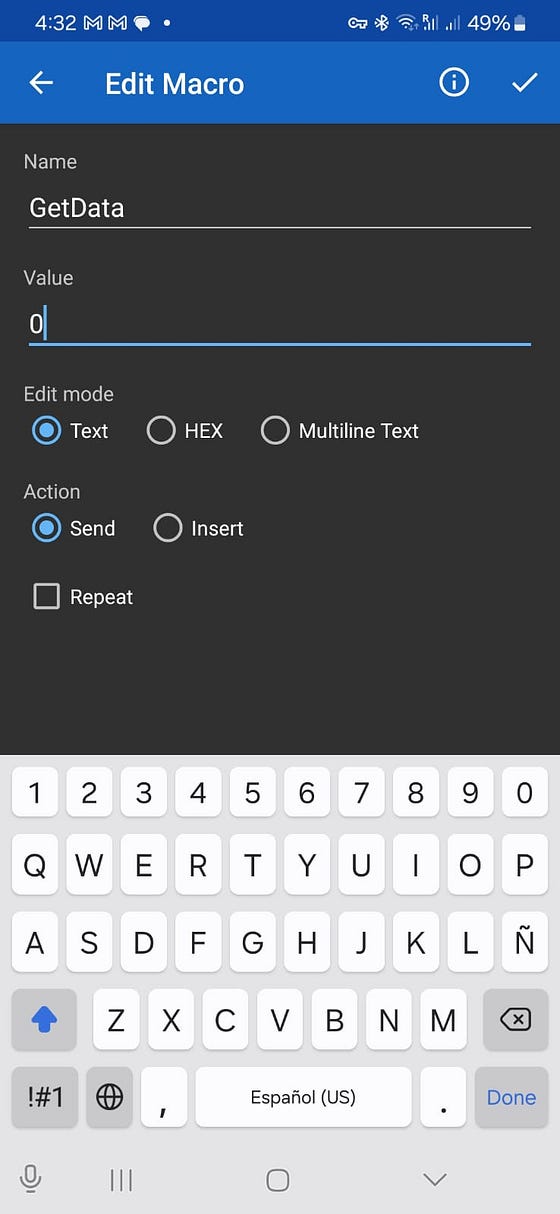
이제 오른쪽 상단의 체크 표시를 선택하여 업데이트를 완료하세요.
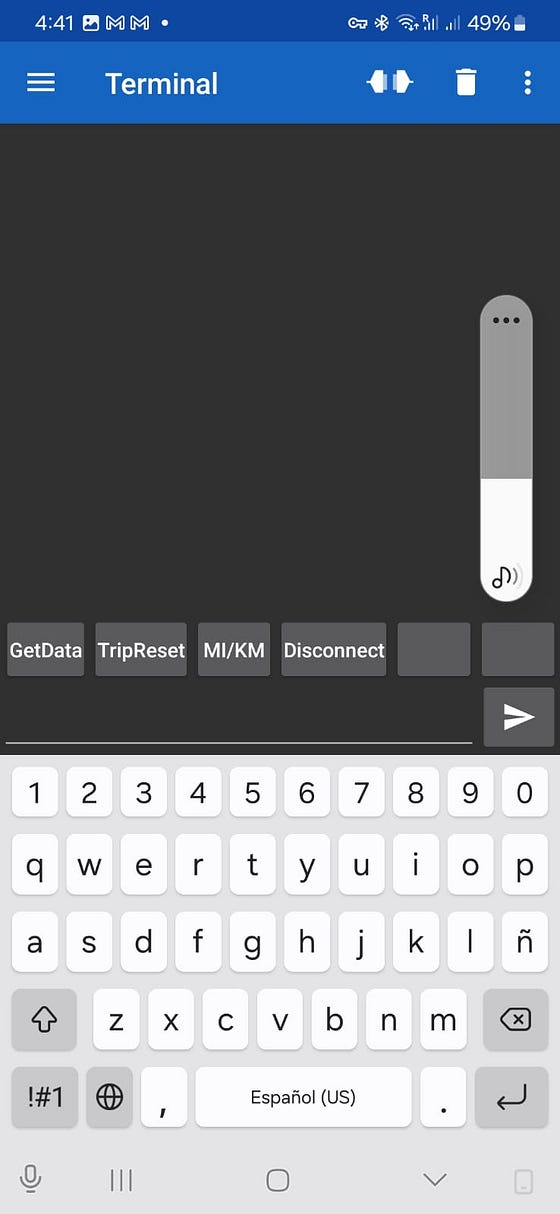
이제 다음 세 개의 버튼을 비슷한 방식으로 업데이트합니다.
M2 — 이름을 TripReset으로 설정하고 값을 1로 설정합니다.
M3 — 이름을 MI/KM으로 설정하고 값을 2로 설정합니다.
M4 — 이름을 Disconnect로 설정하고 값을 3으로 설정합니다.
마지막 두 버튼(M5와 M6)의 경우 이름을 입력하기 위해 스페이스바를 입력하기만 하면 이름 없이 나타납니다.
이제 화면이 다음과 같이 보일 것입니다.
이제 버튼을 눌러보세요. 아래와 같이 장치에서 반응이 나타날 것입니다.
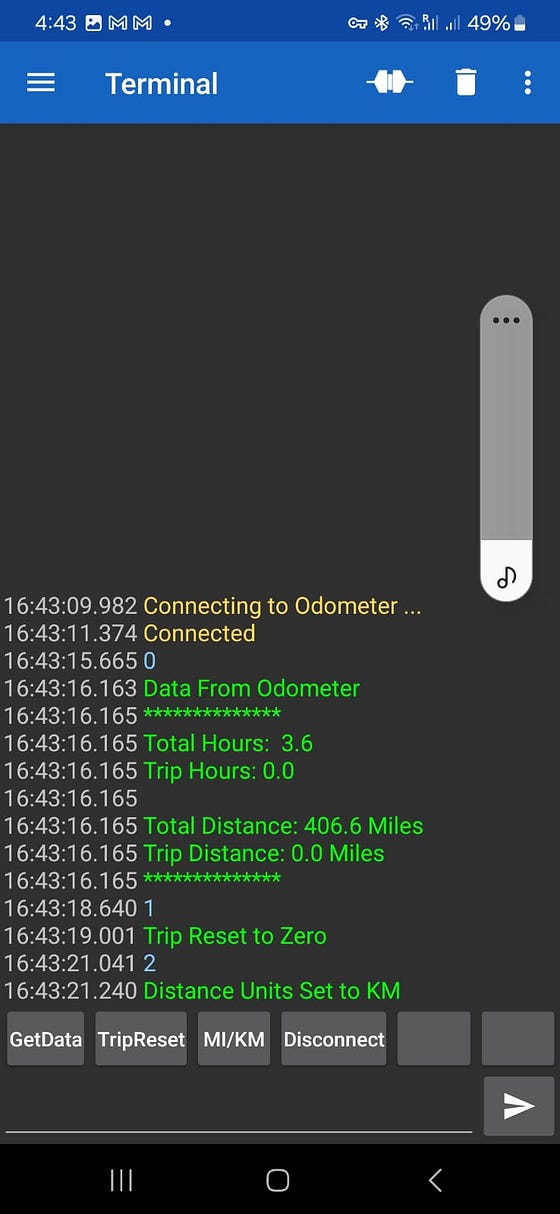
언제든지 기기의 주행거리계 기능에 액세스하려면 Serial Bluetooth 앱을 열고 주행거리계에 연결한 다음 표시된 대로 명령 버튼을 사용하면 됩니다.
이제 프로젝트 에 블루투스 제어 기능을 추가하는 것이 얼마나 쉬운지 알게 되셨기를 바랍니다 . 다음 수업에서는 MIT 앱 인벤터라는 매우 흥미로운 도구를 사용하여 나만의 안드로이드 앱을 만들어 보겠습니다. 앞으로 보시겠지만, 앱 인벤터를 사용하면 매우 복잡하고 전문적인 인터페이스를 만들 수 있습니다. 지금 이 수업이 흥미롭고 유익하기를 바랍니다.
'ESP32' 카테고리의 다른 글
| ESP32 NEO-6M GPS 모듈 문제 해결 가이드 (0) | 2025.11.28 |
|---|---|
| ESP32 NEO-6M GPS 모듈 인터페이스 (0) | 2025.11.28 |
| FreeRTOS ESP32 듀얼 코어를 사용하는 방법 Arduino IDE (0) | 2025.11.27 |
| ESP-32 LVGL 그래픽을 사용한 고급 기술 - 5부 (0) | 2025.11.27 |
| ESP-32 LVGL 그래픽을 사용한 고급 기술 - 3부 (0) | 2025.11.26 |
| ESP-32 LVGL 그래픽을 사용한 고급 기술 - 2부 (0) | 2025.11.26 |
| ESP-32 LVGL 그래픽을 사용한 고급 기술 - 1부 (1) | 2025.11.24 |
| ESP-32 LVGL 그래픽을 사용한 고급 기술 - 소개 (0) | 2025.11.24 |
취업, 창업의 막막함, 외주 관리, 제품 부재!
당신의 고민은 무엇입니까? 현실과 동떨어진 교육, 실패만 반복하는 외주 계약,
아이디어는 있지만 구현할 기술이 없는 막막함.
우리는 알고 있습니다. 문제의 원인은 '명확한 학습, 실전 경험과 신뢰할 수 있는 기술력의 부재'에서 시작됩니다.
이제 고민을 멈추고, 캐어랩을 만나세요!
코딩(펌웨어), 전자부품과 디지털 회로설계, PCB 설계 제작, 고객(시장/수출) 발굴과 마케팅 전략으로 당신을 지원합니다.
제품 설계의 고수는 성공이 만든 게 아니라 실패가 만듭니다. 아이디어를 양산 가능한 제품으로!
귀사의 제품을 만드세요. 교육과 개발 실적으로 신뢰할 수 있는 파트너를 확보하세요.
캐어랩


