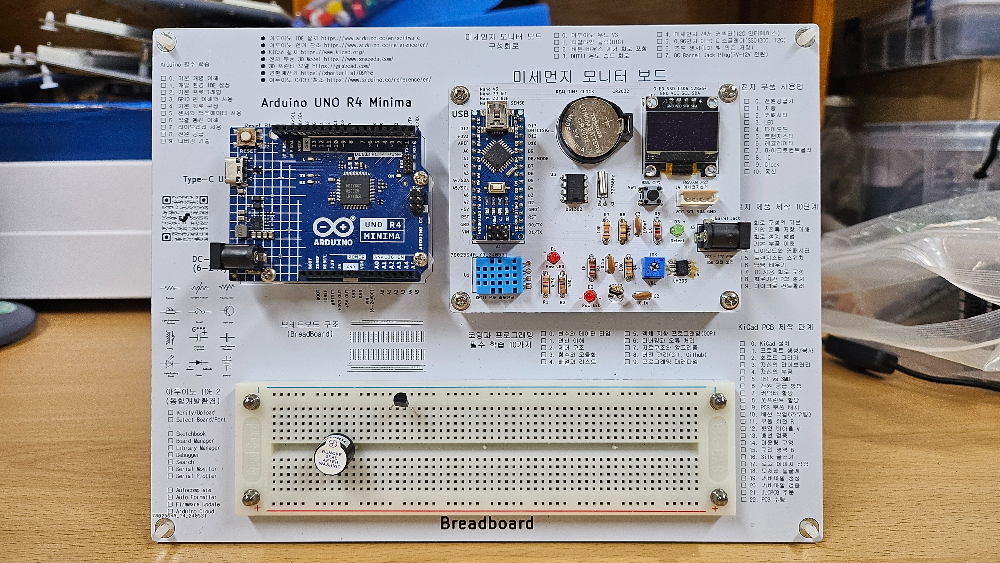
PCB 보드 한글을 영문으로 옮김
| Arduino 필수 학습 □ 0. 기본 개념 이해 □ 1. 개발 환경 IDE 설정 □ 2. 기본 프로그래밍 □ 3. GPIO 핀 이해와 사용 □ 4. 기본 회로 구성 □ 5. 센서와 액추에이터 사용 □ 6. 직렬 통신 이해 □ 7. 라이브러리 사용 □ 8. 전원 공급 □ 9. 디버깅 기술 |
Arduino Essential Learning □ 0. Understanding Basic Concepts □ 1. Setting Up the Development Environment IDE □ 2. Basic Programming □ 3. Understanding and Using GPIO Pins □ 4. Basic Circuit Configuration □ 5. Using Sensors and Actuators □ 6. Understanding Serial Communication □ 7. Using Libraries □ 8. Power Supply □ 9. Debugging Techniques 아두이노 IDE 2(통합개발환경) □ Verify/Upload □ Select Board/Port |
| 아두이노 IDE 2(통합개발환경) □ Verify/Upload □ Select Board/Port □ Sketchbook □ Board Manager □ Library Manager □ Debugger □ Search □ Serial Monitor □ Serial Plotter □ Autocomplete □ Auto Formatter □ Firmware Update □ Arduino Cloud |
Arduino IDE 2 (Integrated Development Environment) □ Installing the Arduino IDE 2 □ Verify/Upload □ Select Board/Port □ Sketchbook □ Board Manager □ Library Manager □ Debugger □ Search □ Serial Monitor □ Serial Plotter □ Autocomplete □ Auto Formatter □ Firmware Update □ Arduino Cloud |
| 전자 부품 이미지 | 전자 부품 이미지 |
| ● 아두이노 IDE 설치 https://www.arduino.cc/en/software ● 아두이노 언어 참조 https://www.arduino.cc/reference/en/ ● KiCad 설치 https://www.kicad.org/ ● 전자 부품 3D Model https://www.snapeda.com/ ● 3D 프린터 모델 https://grabcad.com/ ● 변환계산기 https://shorturl.at/Q9Yh6 ● 아두이노 C/C++ 참조 https://www.arduino.cc/reference/en/ |
코드 깃허브 추가 ● GitHub source code provided https://github.com/kimbongzo/ ● Arduino IDE Installation https://www.arduino.cc/en/software ● Arduino Language Reference https://www.arduino.cc/reference/en/ ● KiCad Installation https://www.kicad.org/ ● Electronic Components 3D Model https://www.snapeda.com/ ● 3D Printer Model https://grabcad.com/ ● Conversion Calculator https://shorturl.at/Q9Yh6 ● Arduino C/C++ Reference https://www.arduino.cc/reference/en/ |
| 브레드보드 구조 이미지 (BreadBoard) |
Breadboard Structure |
| 미세먼지 모니터 보드 구성회로□ 0. 아두이노 나노 V3 □ 1. 리얼타임 클럭(RTC) □ 2. 버튼-바운스 제거 회로 포함 □ 3. DHT11 온도 습도 회로 □ 4. 미세먼지 센서 커넥터(I2C 인터페이스) □ 5. 0.96인치 OLED 디스플레이(SSD1306, I2C) □ 6. 조도 센서(LDR 빛 의존 저항) □ 7. DC Barrel Jack Plug(7V~12V 전원) |
Fine dust monitor board Circuit configuration □ 0. Arduino Nano V3 □ 1. Real-time clock (RTC) □ 2. Button-bounce removal circuit included □ 3. DHT11 temperature and humidity circuit □ 4. Fine dust sensor connector (I2C interface) □ 5. 0.96 inch OLED display (SSD1306, I2C) □ 6. Light sensor (LDR light-dependent resistor) □ 7. DC Barrel Jack Plug (7V~12V power) |
| 전자 부품 사용법 □ 0. 전원공급기 □ 1. 저항 □ 2. 커패시터 □ 3. LED □ 4. 다이오드 □ 5. 트랜지스터 □ 6. 레귤레이터 □ 7. 마이크로컨트롤러 □ 8. IC □ 9. Clock □ 10. 통신 |
How to Use Electronic Components □ 0. Power Supply □ 1. Resistor □ 2. Capacitor □ 3. LED □ 4. Diode □ 5. Transistor □ 6. Regulator □ 7. Microcontroller □ 8. IC □ 9. Clock □ 10. Communication |
| 전자 제품 제작 10단계 □ 0. 회로 구성의 기본 □ 1. 전압 전류 저항 이해 □ 2. 회로 설계 방법 □ 3. 기본 부품 이해 □ 4. 다이오드와 커패시터 □ 5. 트랜지스터 스위치 □ 6. 납땜 배우기 □ 7. IC 사용 회로 구성 □ 8. 회로기판 PCB 설계 □ 9. 마이크로 컨트롤러 |
10 Steps to Making Electronic Products □ 0. Basics of Circuit Configuration □ 1. Understanding Voltage, Current, and Resistance □ 2. Circuit Design Methods □ 3. Understanding Basic Components □ 4. Diodes and Capacitors □ 5. Transistor Switches □ 6. Learning to Solder □ 7. Circuit Configuration Using ICs □ 8. Circuit Board PCB Design □ 9. Microcontroller |
| KiCad PCB 제작 단계 □ 0. KiCad 설치 □ 1. 프로젝트 생성/복사 □ 2. 회로도 그리기 □ 3. 자신의 라이브러리 □ 4. 자신의 부품 □ 5. THT vs SMD □ 6. 전원 공급 방법 □ 7. 커넥터 할당 □ 8. 풋프린트 할당 □ 9. PCB 부품 배치 □ 10. 배선 작업(라우팅) □ 11, 부품 회전 R □ 12. 뒷면 비아홀 V □ 13. 배선 검증 □ 14. 마운팅 구멍 □ 15. 구리 영역 B □ 16. Silk 글쓰기 □ 17. 로고 이미지 삽입 □ 18. 모서리 둘굴게 □ 19. 거버파일 생성 □ 20. 거버파일 검증 □ 21. JLCPCB 주문 □ 22. BOM 출력 □ 23. 부품 발주 □ 24. PCB 입고 조립 |
KiCad PCB Manufacturing Steps □ 0. KiCad Installation □ 1. Create/Copy Project □ 2. Draw Schematic □ 3. Your Own Library □ 4. Your Own Components □ 5. THT vs SMD □ 6. Power Supply Method □ 7. Connector Assignment □ 8. Footprint Assignment □ 9. PCB Components Placement □ 10. Routing □ 11, Component Rotation R □ 12. Back Via Hole V □ 13. Routing Verification □ 14. Mounting Holes □ 15. Copper Area B □ 16. Silk Writing □ 17. Insert Logo Image □ 18. Round Corners □ 19. Create Gerber File □ 20. Verify Gerber File □ 21. JLCPCB Order □ 22. Output BOM □ 23. Order Components □ 24. PCB Incoming Assembly |
| 코딩과 프로그래밍 필수 학습 10가지 □ 0. 변수와 데이터 타입 □ 1. 연산 이해 □ 2. 제어 구조 □ 3. 함수와 모듈화 □ 4. 배열과 리스트 □ 5. 객체 지향 프로그래밍(OOP) □ 6. 디버깅과 오류 처리 □ 7. 자료구조와 알고리즘 □ 8. 버전 관리(Git, Github) □ 9. 프로그래밍 패러다임 |
Coding and Programming 10 Essential Learnings □ 0. Variables and Data Types □ 1. Understanding Operations □ 2. Control Structures □ 3. Functions and Modularization □ 4. Arrays and Lists □ 5. Object-Oriented Programming (OOP) □ 6. Debugging and Error Handling □ 7. Data Structures and Algorithms □ 8. Version Control (Git, Github) □ 9. Programming Paradigms |
Arduino 필수 학습
□ 0. 기본 개념 이해
□ 1. 개발 환경 IDE 설정
□ 2. 기본 프로그래밍
□ 3. GPIO 핀 이해와 사용
□ 4. 기본 회로 구성
□ 5. 센서와 액추에이터 사용
□ 6. 직렬 통신 이해
□ 7. 라이브러리 사용
□ 8. 전원 공급
□ 9. 디버깅 기술
Arduino Essential Learning
□ 0. Understanding Basic Concepts
□ 1. Setting Up the Development Environment IDE
□ 2. Basic Programming
□ 3. Understanding and Using GPIO Pins
□ 4. Basic Circuit Configuration
□ 5. Using Sensors and Actuators
□ 6. Understanding Serial Communication
□ 7. Using Libraries
□ 8. Power Supply
□ 9. Debugging Techniques
아두이노 IDE 2(통합개발환경)
□ Verify/Upload
□ Select Board/Port
□ Sketchbook
□ Board Manager
□ Library Manager
□ Debugger
□ Search
□ Serial Monitor
□ Serial Plotter
□ Autocomplete
□ Auto Formatter
□ Firmware Update
□ Arduino Cloud
Arduino IDE 2 (Integrated Development Environment)
□ Installing the Arduino IDE 2
□ Verify/Upload
□ Select Board/Port
□ Sketchbook
□ Board Manager
□ Library Manager
□ Debugger
□ Search
□ Serial Monitor
□ Serial Plotter
□ Autocomplete
□ Auto Formatter
□ Firmware Update
□ Arduino Cloud
전자 부품 이미지
● 아두이노 IDE 설치 https://www.arduino.cc/en/software
● 아두이노 언어 참조 https://www.arduino.cc/reference/en/
● KiCad 설치 https://www.kicad.org/
● 전자 부품 3D Model https://www.snapeda.com/
● 3D 프린터 모델 https://grabcad.com/
● 변환계산기 https://shorturl.at/Q9Yh6
● 아두이노 C/C++ 참조 https://www.arduino.cc/reference/en/
코드 깃허브 추가
● GitHub source code provided
https://github.com/kimbongzo/
● Arduino IDE Installation https://www.arduino.cc/en/software
● Arduino Language Reference https://www.arduino.cc/reference/en/
● KiCad Installation https://www.kicad.org/
● Electronic Components 3D Model https://www.snapeda.com/
● 3D Printer Model https://grabcad.com/
● Conversion Calculator https://shorturl.at/Q9Yh6
● Arduino C/C++ Reference https://www.arduino.cc/reference/en/
브레드보드 구조
(BreadBoard)
이미지
Breadboard Structure
미세먼지 모니터 보드
구성회로□ 0. 아두이노 나노 V3
□ 1. 리얼타임 클럭(RTC)
□ 2. 버튼-바운스 제거 회로 포함
□ 3. DHT11 온도 습도 회로
□ 4. 미세먼지 센서 커넥터(I2C 인터페이스)
□ 5. 0.96인치 OLED 디스플레이(SSD1306, I2C)
□ 6. 조도 센서(LDR 빛 의존 저항)
□ 7. DC Barrel Jack Plug(7V~12V 전원)
Fine dust monitor board Circuit configuration
□ 0. Arduino Nano V3
□ 1. Real-time clock (RTC)
□ 2. Button-bounce removal circuit included
□ 3. DHT11 temperature and humidity circuit
□ 4. Fine dust sensor connector (I2C interface)
□ 5. 0.96 inch OLED display (SSD1306, I2C)
□ 6. Light sensor (LDR light-dependent resistor)
□ 7. DC Barrel Jack Plug (7V~12V power)
전자 부품 사용법
□ 0. 전원공급기
□ 1. 저항
□ 2. 커패시터
□ 3. LED
□ 4. 다이오드
□ 5. 트랜지스터
□ 6. 레귤레이터
□ 7. 마이크로컨트롤러
□ 8. IC
□ 9. Clock
□ 10. 통신
How to Use Electronic Components
□ 0. Power Supply
□ 1. Resistor
□ 2. Capacitor
□ 3. LED
□ 4. Diode
□ 5. Transistor
□ 6. Regulator
□ 7. Microcontroller
□ 8. IC
□ 9. Clock
□ 10. Communication
전자 제품 제작 10단계
□ 0. 회로 구성의 기본
□ 1. 전압 전류 저항 이해
□ 2. 회로 설계 방법
□ 3. 기본 부품 이해
□ 4. 다이오드와 커패시터
□ 5. 트랜지스터 스위치
□ 6. 납땜 배우기
□ 7. IC 사용 회로 구성
□ 8. 회로기판 PCB 설계
□ 9. 마이크로 컨트롤러
10 Steps to Making Electronic Products
□ 0. Basics of Circuit Configuration
□ 1. Understanding Voltage, Current, and Resistance
□ 2. Circuit Design Methods
□ 3. Understanding Basic Components
□ 4. Diodes and Capacitors
□ 5. Transistor Switches
□ 6. Learning to Solder
□ 7. Circuit Configuration Using ICs
□ 8. Circuit Board PCB Design
□ 9. Microcontroller
KiCad PCB 제작 단계
□ 0. KiCad 설치
□ 1. 프로젝트 생성/복사
□ 2. 회로도 그리기
□ 3. 자신의 라이브러리
□ 4. 자신의 부품
□ 5. THT vs SMD
□ 6. 전원 공급 방법
□ 7. 커넥터 할당
□ 8. 풋프린트 할당
□ 9. PCB 부품 배치
□ 10. 배선 작업(라우팅)
□ 11, 부품 회전 R
□ 12. 뒷면 비아홀 V
□ 13. 배선 검증
□ 14. 마운팅 구멍
□ 15. 구리 영역 B
□ 16. Silk 글쓰기
□ 17. 로고 이미지 삽입
□ 18. 모서리 둘굴게
□ 19. 거버파일 생성
□ 20. 거버파일 검증
□ 21. JLCPCB 주문
□ 22. BOM 출력
□ 23. 부품 발주
□ 24. PCB 입고 조립
KiCad PCB Manufacturing Steps
□ 0. KiCad Installation
□ 1. Create/Copy Project
□ 2. Draw Schematic
□ 3. Your Own Library
□ 4. Your Own Components
□ 5. THT vs SMD
□ 6. Power Supply Method
□ 7. Connector Assignment
□ 8. Footprint Assignment
□ 9. PCB Components Placement
□ 10. Routing
□ 11, Component Rotation R
□ 12. Back Via Hole V
□ 13. Routing Verification
□ 14. Mounting Holes
□ 15. Copper Area B
□ 16. Silk Writing
□ 17. Insert Logo Image
□ 18. Round Corners
□ 19. Create Gerber File
□ 20. Verify Gerber File
□ 21. JLCPCB Order
□ 22. Output BOM
□ 23. Order Components
□ 24. PCB Incoming Assembly
코딩과 프로그래밍 필수 학습 10가지
□ 0. 변수와 데이터 타입
□ 1. 연산 이해
□ 2. 제어 구조
□ 3. 함수와 모듈화
□ 4. 배열과 리스트
□ 5. 객체 지향 프로그래밍(OOP)
□ 6. 디버깅과 오류 처리
□ 7. 자료구조와 알고리즘
□ 8. 버전 관리(Git, Github)
□ 9. 프로그래밍 패러다임
Coding and Programming 10 Essential Learnings
□ 0. Variables and Data Types
□ 1. Understanding Operations
□ 2. Control Structures
□ 3. Functions and Modularization
□ 4. Arrays and Lists
□ 5. Object-Oriented Programming (OOP)
□ 6. Debugging and Error Handling
□ 7. Data Structures and Algorithms
□ 8. Version Control (Git, Github)
□ 9. Programming Paradigms
라즈베리파이 영문과 한글 모두 아래에 표기
라즈베리파이 PCB 바닥판 글
영문
RaspberryPi Essential Learning Content
1. Understand the basic specifications and features Pi 5
2. Prepare necessary peripherals and accessories
3. Install Raspberry Pi OS and initial setup
4. Learn terminal commands and basic Linux usage
5. Understand GPIO pins and basic electronic circuits
6. Control GPIO using Python programming
7. Learn how to set up networks and access remotely
8. Practice projects by connecting sensors and modules
9. Installing a web server, database, and using IoT
10. Explore and implement various project ideas
GPIO library
- WiringPi
- Pigpio
- Gpiozero
- Rpi.GPIO
Web server, DB installation
1. Apache
2. Maria Database
3. PHP
4. phpMyAdmin
CLI Basic Commands
● sudo apt-get update: Update package list
● sudo apt-get upgrade: Update program
● sudo Command: Super User
● cat /proc/version: Check OS version
● cat /proc/cpuinfo: Check CPU version
● df -a or df -h: Check SD card capacity
● startx: Run Linux GUI
● sudo raspi-config: System configuration
● ifconfig: Internet configuration information
Connect 2 cameras
Check modules :
libcamera-hello --list-cameras
Output video :
libcamera-hello --camera 0 -t 0
libcamera-hello --camera 1 –t 0
Coding and Programming 10 Essential Learnings
1. Variables and Data Types
2. Understanding Operations
3. Control Structures
4. Functions and Modularization
5. Arrays and Lists
6. Object-Oriented Programming (OOP)
7. Debugging and Error Handling
8. Data Structures and Algorithms
9. Version Control (Git, Github)
10. Programming Paradigms
Raspberry Pi Learning Website
● Raspberry Pi Official Website
● Raspberry Pi Projects
https://projects.raspberrypi.org/
● Adafruit Learning System
● Instructables Raspberry Pi Category
https://www.instructables.com/
● GitHub source code provided
Breadboard Structure
브래드 보드 이미지
Use of Electronic Components
1. Power Supply
2. Resistor
3. Capacitor
4. LED
5. Diode
6. Transistor
7. Regulator
8. Microcontroller
9. IC
10. Clock
11. Communication
10 Steps to Making Electronic Products
1. Basics of Circuit Configuration
2. Understanding Voltage
3. Understanding Current
4. Understanding Resistance
5. Circuit Design Methods
6. Understanding Basic Components
7. Diodes and Capacitors
8. Transistor Switches
9. Learning to Soldering
10. Circuit Configuration Using ICs
11. Circuit Board PCB Design
12. Microcontroller Firmware Programming
IO Board GPIO Input/Output
● Connector number is GPIO number
● 40pin GPIO flat cable connection
● Power 12V, 3A Input
● Power On Off Switch
● Con Number: BCM Number
● G: Power GND
● 33: 3.3V Power
● 5V, GND Output Header Pin
● ADC Converter: MCP3208
● UART: UART(RS 232) Comm Port
● ADC0, ADC1, ADC2,ADC3: Analog input
● I2C0, I2C1, I2C2,I2C3: I2C interface
● J16, J26, J20: +5v output
● J6, J13, J19: +12v output
Linux basic commands
date: Print year/month/day/time
pwd: Print current working location
cd folder name: Move to folder
cd ..: Move to upper folder
cd: Move to root folder
ls, ls -l: List of files
mkdir: Create folder folder
echo "hello">file.txt: Create file
cp File1 file2: Copy file
mv File3 File4: Change file
rm file5: Delete file
rm folder: Delete folder
rm -r: Delete file folder
clear: Clear screen
KiCad PCB Manufacturing Steps
1. KiCad Installation
2. Create/Copy Project
3. Draw Schematic
4. Your Own Library
5. Your Own Components
6. THT vs SMD
7. Power Supply Method
8. Connector Assignment
9. Footprint Assignment
10. PCB Components Placement
11. Routing
12, Component Rotation R
13. Back Via Hole V
14. Routing Verification
15. Mounting Holes
16. Copper Area B
17. Silk Writing
18. Insert Logo Image
19. Round Corners
20. Create Gerber File
21. Verify Gerber File
22. JLCPCB Order
23. Output BOM
24. Order Components
25. PCB Incoming
26. Assembly
27. Test
Essential Utility Programs
1. Putty
2. Win32 Disk Imager
3. SD Memory Card Formatter
40P GPIO Pin Number
WiringPi Command: gpio readall
GPIO 테이블 표기
한글버전 - 바꾸자
GPIO 라이브러리
- WiringPi
- Pigpio
- Gpiozero
- Rpi.GPIO
웹서버 DB 설치 순서
1 Apache
2 MySQL
3 PHP
4 phpMyAdmin
CLI 기본 명령
sudo apt-get update: 패키지 목록 업데이트
sudo apt-get upgrade: 프로그램 업데이트
sudo 명령어: Super User
cat /proc/version: OS버전 확인하기
cat /proc/cpuinfo: CPU버전 확인하기
df -a 혹은 df -h: SD 카드 용량 확인
startx: Linux GUI 실행
sudo raspi-config: 시스템 설정
ifconfig: 인터넷 설정 정보
카메라 2대 출력
모듈 확인
libcamera-hello --list-cameras
영상 출력
libcamera-hello --camera 0 -t 0
libcamera-hello --camera 1 –t 0
IO Board 구조
커넥터 번호가 GPIO 번호
G: GND, 33: 3.3V
UART: UART
ADC0~ADC3: 아날로그 입력
I2C0~I2C3: I2C 인터페이스
J16, J26, j20: +5v 출력
j6, j13, j19: +12v 출력
한글 폰트 설치
sudo apt-get install fonts-unfonts-core
sudo apt-get install fonts-unfonts-extra
sudo apt-get install ibus
sudo apt-get install ibus-hangul
Linux 기본 명령어
date 년월일시 출력
pwd 현재 작업 위치출력
cd 폴더 폴더로 이동
cd .. 상위 폴더로 이동
cd 루트폴더로이동
ls, ls -l 파일 목록
mkdir 폴더 폴더를 생성
echo "hello">file.txt
-- 파일생성
cp FN1 FN2 파일 복사
mv FN2 FN4 파일 변경
rm file5 파일삭제
rm 폴더 폴더 삭제
rm -r 파일 폴더 삭제
clear 화면 clear
필수 프로그램
1. Putty
2. Win32 Disk Imager
3. SD Memory Card Formatter
40P GPIO
테이블 넣었다. 별로인가?
PCB 설계 빠졌다. 전자회로 하고 부품도...
프로그래밍도....
'빠르게 시작하기' 카테고리의 다른 글
| ESP32 슈퍼 미니 가이드북으로 지금 시작하세요 (0) | 2026.05.04 |
|---|---|
| ESP32 IoT 제품 개발 과정 질문과 답변 (0) | 2026.05.01 |
| ESP32 IoT 제품 개발 오프라인 실습 교육 (0) | 2026.04.30 |
| ESP32 기반 Edge AI IoT 설계, 구현 실습 교육 (0) | 2026.04.01 |
| ESP32 센서 교육 목차 구성 제안 (0) | 2026.03.17 |
| ESP32 두 시간이면 마스터하는 가이드 (0) | 2026.03.16 |
| 아두이노 입문자 필독서: 아두이노 개발환경 완벽 가이드 (0) | 2026.03.09 |
| ESP32 센서 35가지 마스터 가이드 (0) | 2026.03.07 |
취업, 창업의 막막함, 외주 관리, 제품 부재!
당신의 고민은 무엇입니까? 현실과 동떨어진 교육, 실패만 반복하는 외주 계약,
아이디어는 있지만 구현할 기술이 없는 막막함.
우리는 알고 있습니다. 문제의 원인은 '명확한 학습, 실전 경험과 신뢰할 수 있는 기술력의 부재'에서 시작됩니다.
이제 고민을 멈추고, 캐어랩을 만나세요!
코딩(펌웨어), 전자부품과 디지털 회로설계, PCB 설계 제작, 고객(시장/수출) 발굴과 마케팅 전략으로 당신을 지원합니다.
제품 설계의 고수는 성공이 만든 게 아니라 실패가 만듭니다. 아이디어를 양산 가능한 제품으로!
귀사의 제품을 만드세요. 교육과 개발 실적으로 신뢰할 수 있는 파트너를 확보하세요.
캐어랩


