웹 서버를 이용한 ESP32 RFID 사용자 관리 시스템
이 프로젝트에서는 ESP32에서 실행되는 웹 서버를 갖춘 RFID 사용자 관리 시스템을 구축하게 됩니다. ESP32 보드는 MFRC522 RFID 리더기와 모든 사용자 데이터를 저장할 microSD 카드에 연결됩니다. ESP32는 Arduino IDE와 Arduino_MFRC522v2 라이브러리를 사용하여 프로그래밍됩니다.

ESP32 RFID 사용자 관리 시스템 (웹 서버 및 Arduino IDE 포함)
- 이 튜토리얼에서는 다음 주제를 다룹니다.
- 프로젝트 개요
- 이 프로젝트에 필요한 부품
- MFRC522 RFID 리더/라이터
- MicroSD 카드 모듈
- ESP32 프로젝트 회로 - 모든 구성 요소 연결
- 아두이노 IDE 준비하기
- 파일 정리
- 코드 – ESP32 RFID 사용자 관리 시스템 웹 서버
- 데모
프로젝트 개요
다음 다이어그램은 프로젝트 작동 방식에 대한 개략적인 정보를 보여줍니다.
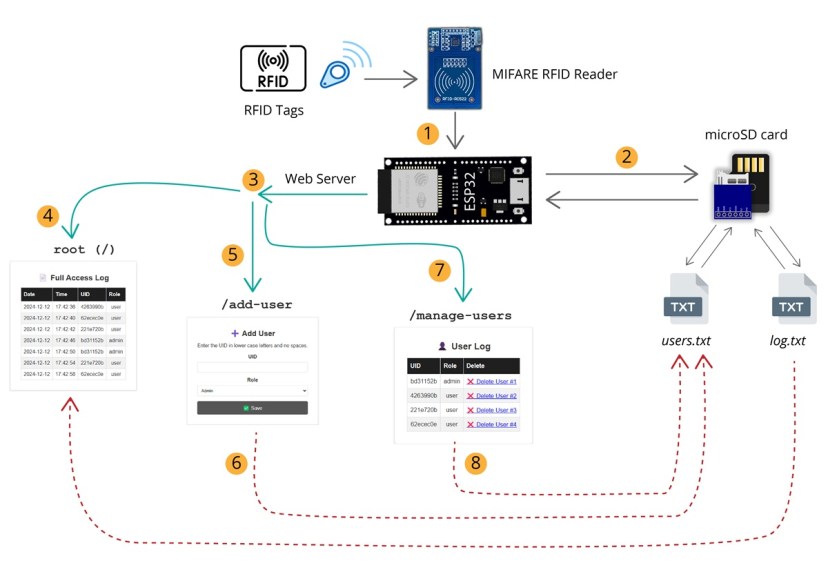
ESP32 RFID 웹 서버 관리 시스템 프로젝트 개요
1) RFID 태그를 MIFARE 리더기에 가까이 가져가면, 리더기는 태그의 UID를 읽고 해당 정보를 ESP32로 전송합니다. 태그가 인식되면 부저가 울리고 LED가 켜집니다.
2) ESP32는 해당 상호 작용의 시간을 기록하고 시간과 UUID를 microSD 카드의 log.txt 라는 파일에 저장합니다 .
3) ESP32는 microSD 카드에 저장된 정보를 표시하고 관리하는 웹 서버도 호스팅합니다.
4) 루트 (/)해당 URL은 타임스탬프와 사용자 UID를 포함하여 전체 로그(microSD 카드 모듈의 log.txt 파일 에 저장됨)를 보여줍니다.
5) 다른 페이지가 있습니다. /add-user 기능을 사용하면 양식을 통해 사용자와 해당 사용자의 역할을 추가할 수 있습니다.
6) 이 양식을 통해 입력된 데이터는 microSD 카드에 저장된 user.txt 파일 에 저장됩니다 .
7) 다른 페이지가 있습니다. /user-manage 사용자를 조회하고 삭제할 수 있는 기능입니다.
8) 기본적으로 이 페이지를 통해 users.txt 파일 과 상호 작용할 수 있습니다 .
필요한 부품
이 프로젝트에 필요한 구성 요소 목록은 다음과 같습니다.
- ESP32 DOIT DEVKIT V1 보드 ( 최고의 ESP32 개발 보드 참조 )
- MFRC522 RFID 리더/라이터 + 태그
- MicroSD 카드 모듈
- 마이크로SD 카드
- 1x 5mm LED
- 220옴 저항 1개
- 피에조 부저
- 1kΩ 저항 1개
- 브레드보드
- 점퍼 와이어
MFRC522 RFID 리더/라이터
이 튜토리얼에서는 MFRC522 RFID 리더/라이터를 사용할 예정 이며, ESP32와 연동하기 위해 이 제품을 구매하시는 것을 권장합니다.
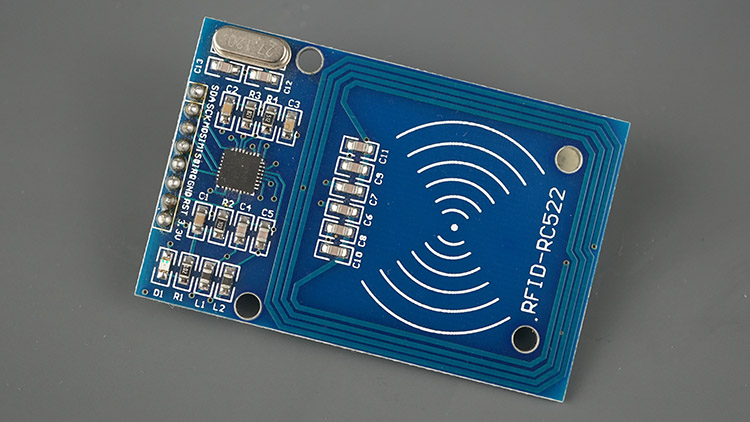
RFID 리더/라이터 MFRC522 모듈
RFID 태그도 필요합니다. MFRC522 RFID 리더/라이터 모듈에는 키체인형과 전자식 카드형 태그가 함께 제공됩니다. 각 태그에는 고유 식별 번호(UID)가 있으며, 이는 각 사용자에게 할당됩니다.
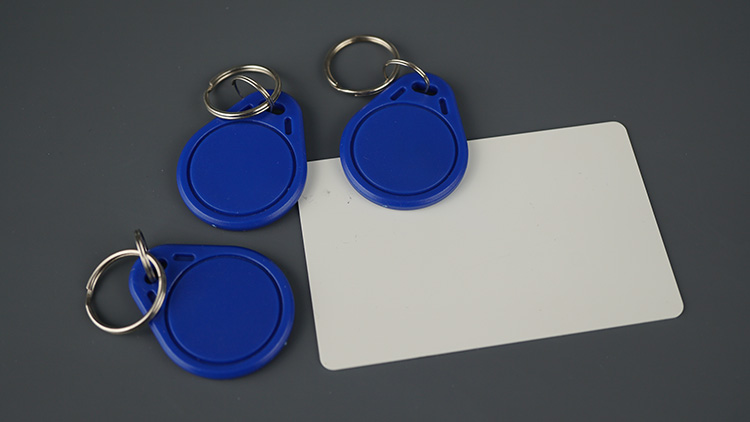
RFID MFRC522 카드 태그 키체인
추천 자료: ESP32와 MFRC522 RFID 리더/라이터(Arduino IDE) - 시작 가이드
ESP32를 MFRC522 RFID 리더기에 연결하기
MFRC522 RFID 리더기는 3.3V에서 작동하며 SPI 통신 프로토콜을 사용합니다 . MFRC522 RFID 리더기를 ESP32의 기본 SPI 핀에 연결할 것이며, 다음 표를 참조하십시오.

RFID 리더/라이터 MFRC522 모듈 ESP32 보드 회로
MFRC522 RFID ReaderESP32
| MFRC522 RFID Reader | ESP32 | Description |
| SDA | GPIO 5 | SPI signal input, I2C data line, or UART data input |
| SCK | GPIO 18 | SPI clock |
| MOSI | GPIO 23 | SPI data input |
| MISO | GPIO 19 | SPI master-in-slave-out, I2C serial clock, or UART serial output |
| IRQ | Don’t connect | Interrupt pin; signals the microcontroller when an RFID tag is nearby |
| GND | GND | |
| RST | GPIO 21 | LOW signal to put the module in power-down mode; send a HIGH signal to reset the module |
| 3.3V | 3.3V | Power supply (2.5-3.3V) |
MFRC522 RFID 리더기 ESP32 연결 테이블
MicroSD 카드 모듈
ESP32와 호환되는 microSD 카드 모듈은 여러 종류가 있습니다 . 아래 그림에 나와 있는 microSD 카드 모듈을 사용하는데, 이 모듈은 SPI 통신 프로토콜을 사용합니다. SPI 인터페이스를 지원하는 다른 microSD 카드 모듈도 사용 가능합니다.

ESP32, ESP8266, 아두이노 SPI용 MicroSD 카드 모듈
ESP32에서 microSD 카드 모듈을 사용하는 방법을 배우려면 다음 튜토리얼을 참조하세요.
ESP32: 아두이노 IDE를 사용한 MicroSD 카드 모듈 가이드
ESP32에 MicroSD 카드 모듈 연결하기
microSD 카드 모듈은 SPI 통신 프로토콜을 사용하여 통신합니다 . 기본 SPI 핀을 사용하여 ESP32에 연결할 수 있습니다.
| MicroSD card module | ESP32 |
| 3V3 | 3.3V |
| CS | GPIO 15 |
| MOSI | GPIO 23 |
| CLK | GPIO 18 |
| MISO | GPIO 19 |
| GND | GND |
MicroSD 카드 모듈 ESP32 연결 테이블
microSD 카드 준비
튜토리얼을 진행하기 전에 microSD 카드를 FAT32 형식으로 포맷 했는지 확인하세요 . 다음 지침에 따라 microSD 카드를 포맷하거나 SD 카드 포맷터 (Windows 및 Mac OS와 호환)와 같은 소프트웨어 도구를 사용하세요.
1. microSD 카드를 컴퓨터에 삽입합니다. 내 컴퓨터 로 이동하여 SD 카드를 마우스 오른쪽 버튼으로 클릭합니다. 아래 그림과 같이 포맷을 선택합니다.

MicroSD 카드 모듈 포맷 SD 카드
2. 새 창이 나타납니다. FAT32를 선택하고 시작 버튼 을 눌러 포맷 과정을 시작한 후 화면의 지시에 따라 진행하십시오.
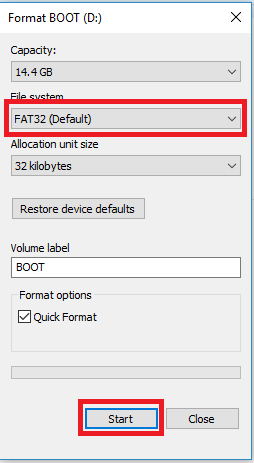
MicroSD 카드 모듈 포맷 SD 카드
ESP32 프로젝트 회로 - 모든 구성 요소 연결
RFID 리더/라이터와 microSD 카드 외에도, MFRC522 RFID 리더가 새 태그를 읽었음을 알려주는 피드백을 제공하기 위해 피에조 부저와 LED를 연결할 것입니다.
- LED - GPIO 22에 연결됨 (220옴 저항을 통해)
- 부저 - GPIO 4에 연결됨 (1kΩ 저항을 통해)
최종 회로도는 다음과 같습니다.

ESP32 RFID 사용자 관리 시스템 배선 회로도
아두이노 IDE 준비하기
아두이노 IDE를 사용하여 ESP32 보드를 프로그래밍하겠습니다. 따라서 ESP32 확장 프로그램이 설치되어 있는지 확인하세요.
이 프로젝트를 빌드하는 데 필요한 HTML 및 CSS 파일을 ESP32 플래시 메모리 파일 시스템(LittleFS)에 업로드하기 위해 Arduino IDE용 플러그인인 LittleFS Filesystem uploader를 사용하겠습니다 . 아직 설치하지 않았다면 다음 튜토리얼을 따라 Arduino IDE 2에 파일 시스템 업로더 플러그인을 설치하세요.
아두이노 IDE 2: ESP32 LittleFS 업로더 설치 (파일 시스템에 파일 업로드)
Arduino_MFRC522v2 라이브러리 설치
이 튜토리얼에서는 다음을 사용하겠습니다.MFRC522v2.hRFID 리더기를 제어하는 라이브러리입니다. Arduino IDE에서 스케치 > 라이브러리 포함 > 라이브러리 관리 로 이동 하거나 왼쪽 사이드바의 라이브러리 관리자 아이콘을 클릭하세요.
MFRC522v2 를 검색 하고 GithubCommunity에서 제공하는 라이브러리를 설치하세요.
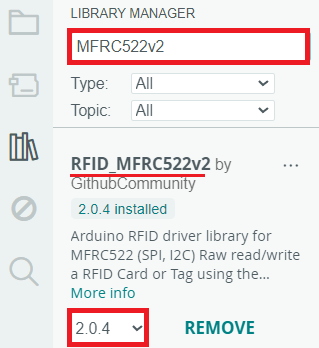
RFID MFRC522v2 라이브러리를 아두이노 IDE에 설치
비동기 웹 서버 라이브러리
다음 라이브러리를 사용하여 웹 서버를 구축하겠습니다.
- ESP32Async의 ESPAsyncWebServer
- ESP32Async의 AsyncTCP
이 라이브러리들은 아두이노 라이브러리 관리자에 설치할 수 있습니다. 왼쪽 사이드바의 라이브러리 아이콘을 클릭하여 라이브러리 관리자를 여세요.
검색ESPAsyncWebServerESP32Async에서 제공하는 ESPAsyncWebServer를 설치하세요 .

ESPAsyncWebServer ESP32 Arduino IDE 설치
다음으로 AsyncTCP 라이브러리를 설치하세요. 검색하세요.비동기 TCP그리고 ESP32Async에서 제공하는 AsyncTCP를 설치하세요 .

ESP32 아두이노 IDE에 AsyncTCP 설치하기
파일 관리
프로젝트를 체계적으로 관리하고 이해하기 쉽게 하기 위해 웹 서버를 구축하는 데 필요한 파일 6개를 생성하겠습니다.
- 아두이노 스케치 : 웹 서버, RFID 리더 및 MicroSD 카드 처리를 위한 스케치;
- full-log.html : 스캔된 모든 RFID 카드의 로그와 사용자 데이터를 모두 불러옵니다.
- manage-users.html : 사용자를 보고 삭제할 수 있는 웹 페이지;
- add-user.html : 고유한 UID를 사용하여 새 사용자를 추가할 수 있는 웹 페이지입니다.
- get.html : 모든 HTTP GET 요청을 처리합니다.
- style.css : 웹 페이지의 스타일을 지정하는 파일입니다.

파일 정리하기 아두이노 스케치 인덱스 HTML 스타일 CSS
이전 그림과 같이 HTML 및 CSS 파일은 Arduino 스케치 폴더 안의 ' data' 라는 폴더에 저장해야 합니다 . 이 파일들을 ESP32 파일 시스템(LittleFS)에 업로드할 것입니다.
아래 파일을 다운로드하세요. 프로젝트의 모든 파일을 다운로드할 수 있습니다.
HTML 파일
다음 내용을 복사하세요. full-log.html파일.
<!DOCTYPE html>
<html lang="en">
<head>
    <meta charset="UTF-8">
    <meta name="viewport" content="width=device-width, initial-scale=1.0">
    <title>Manage Users</title>
    <link rel="stylesheet" href="style.css">
</head>
<body>
    <nav>
        <div class="nav-container">
            <a href="/" class="brand">User Management</a>
            <ul class="nav-menu">
                <li><a href="/">📄 Full Log</a></li>
                <li><a href="add-user">➕ Add User</a></li>
                <li><a href="manage-users">👤 Manage Users</a></li>
            </ul>
        </div>
    </nav>
    <div class="main-container">
        <section class="main-section">
            <h2>📄 Full Access Log</h2>
            <table id="tableData">
                <thead>
                    <tr>
                        <th>Date</th>
                        <th>Time</th>
                        <th>UID</th>
                        <th>Role</th>
                    </tr>
                </thead>
                <tbody>
                    <!-- Data from log.txt will be loaded here -->
                </tbody>
            </table>
        </section>
    </div>
    <div class="main-container">
        <a href="get?delete=log"><button class="button button-delete">🗑️ Delete log.txt File</button></a>
    </div>
    <script>
        // JavaScript to load and parse log.txt
        async function loadTableData() {
            try {
                const response = await fetch('view-log');
                const data = await response.text();
                const rows = data.trim().split('\n').slice(1); // Skip the header line

                const tableBody = document.querySelector('#tableData tbody');
                rows.forEach(row => {
                    const columns = row.split(',');
                    const tr = document.createElement('tr');
                    columns.forEach(column => {
                        const td = document.createElement('td');
                        td.textContent = column;
                        tr.appendChild(td);
                    });
                    tableBody.appendChild(tr);
                });
            } catch (error) {
                console.error('Error loading log data:', error);
            }
        }
        // Call the function to load log data
        loadTableData();
    </script>
</body>
</html>
다음 내용을 복사하세요. manage-users.html파일.
<!DOCTYPE html>
<html lang="en">
<head>
    <meta charset="UTF-8">
    <meta name="viewport" content="width=device-width, initial-scale=1.0">
    <title>Manage Users</title>
    <link rel="stylesheet" href="style.css">
</head>
<body>
    <nav>
        <div class="nav-container">
            <a href="/" class="brand">User Management</a>
            <ul class="nav-menu">
                <li><a href="/">📄 Full Log</a></li>
                <li><a href="add-user">➕ Add User</a></li>
                <li><a href="manage-users">👤 Manage Users</a></li>
            </ul>
        </div>
    </nav>
    <div class="main-container">
        <section class="main-section">
            <h2>👤 User Log</h2>
            <table id="tableData">
                <thead>
                    <tr>
                        <th>UID</th>
                        <th>Role</th>
                        <th>Delete</th>
                    </tr>
                </thead>
                <tbody>
                    <!-- Data from users.txt will be loaded here -->
                </tbody>
            </table>
        </section>
    </div>
    <div class="main-container">
        <a href="get?delete=users"><button class="button button-delete">🗑️ Delete users.txt File</button></a>
    </div>
    <script>
        // JavaScript to load and parse users.txt
        async function loadTableData() {
            try {
                const response = await fetch('view-users');
                const data = await response.text();
                const rows = data.trim().split('\n').slice(1); // Skip the header line

                const tableBody = document.querySelector('#tableData tbody');
                rows.forEach((row, index) => {
                    const columns = row.split(',');
                    const tr = document.createElement('tr');
                    // Add remaining columns
                    columns.forEach(column => {
                        const td = document.createElement('td');
                        td.textContent = column;
                        tr.appendChild(td);
                    });
                    // Create and add row number cell with a delete link
                    const noCell = document.createElement('td');
                    const deleteLink = document.createElement('a');
                    deleteLink.href = `get?delete-user=${index + 1}`;
                    deleteLink.textContent = "❌ Delete User #" + (index + 1);
                    noCell.appendChild(deleteLink);
                    tr.appendChild(noCell);

                    tableBody.appendChild(tr);
                });
            } catch (error) {
                console.error('Error loading log data:', error);
            }
        }
        // Call the function to load log data
        loadTableData();
    </script>
</body>
</html>
다음 내용을 복사하세요. add-user.html 파일.
<!DOCTYPE html>
<html lang="en">
<head>
    <meta charset="UTF-8">
    <meta name="viewport" content="width=device-width, initial-scale=1.0">
    <title>Add User</title>
    <link rel="stylesheet" href="style.css">
</head>
<body>
    <nav>
        <div class="nav-container">
            <a href="/" class="brand">User Management</a>
            <ul class="nav-menu">
                <li><a href="/">📄 Full Log</a></li>
                <li><a href="add-user">➕ Add User</a></li>
                <li><a href="manage-users">👤 Manage Users</a></li>
            </ul>
        </div>
    </nav>
    <div class="main-container">
        <section class="main-section">
            <h2>➕ Add User</h2>
            <p>Enter the UID in lower case letters and no spaces.</p><br>
            <form action="get" class="user-form">
                <label for="uid">UID</label>
                <input type="text" id="uid" name="uid" required>
                <label for="role">Role</label>
                <select id="role" name="role">
                    <option value="admin">Admin</option>
                    <option value="user">User</option>
                </select>
                <button type="submit">✅ Save</button>
            </form>
        </section>
    </div>
</body>
</html>
다음 코드를 카피하세요. get.html
<!DOCTYPE html>
<html lang="en">
<head>
    <meta charset="UTF-8">
    <meta name="viewport" content="width=device-width, initial-scale=1.0">
    <title>Add User</title>
    <link rel="stylesheet" href="style.css">
</head>
<body>
    <nav>
        <div class="nav-container">
            <a href="/" class="brand">User Management</a>
            <ul class="nav-menu">
                <li><a href="/">📄 Full Log</a></li>
                <li><a href="add-user">➕ Add User</a></li>
                <li><a href="manage-users">👤 Manage Users</a></li>
            </ul>
        </div>
    </nav>
    <div class="main-container">
        <section class="main-section">
            <p>%inputmessage%</p>
        </section>
    </div>
</body>
</html>
CSS 파일
다음 내용을 복사하세요.스타일.css이 파일을 사용하세요. 웹 페이지가 원하는 대로 보이도록 자유롭게 수정하셔도 됩니다.
/* General Styles */
* {
    margin: 0;
    padding: 0;
    box-sizing: border-box;
}

body {
    font-family: Arial, sans-serif;
    background-color: #f4f4f9;
    color: #333;
    display: flex;
    flex-direction: column;
    align-items: center;
    height: 100vh;
    margin: 0;
}

/* Navigation Bar Styles */
nav {
    width: 100%;
    background-color: #333;
    padding: 1rem 0;
}

.nav-container {
    max-width: 1200px;
    margin: 0 auto;
    display: flex;
    justify-content: space-between;
    align-items: center;
    padding: 0 1rem;
}

.brand {
    color: #fff;
    text-decoration: none;
    font-size: 1.5rem;
    font-weight: bold;
}

.nav-menu {
    list-style-type: none;
    display: flex;
}

.nav-menu li {
    margin-left: 1.5rem;
}

.nav-menu a {
    color: #fff;
    text-decoration: none;
    font-size: 1rem;
    transition: color 0.3s;
}

.nav-menu a:hover, .nav-menu a.active {
    color: #f4f4f9;
}

.main-container {
    display: flex;
    justify-content: center;
    align-items: center;
    flex-grow: 1;
    width: 100%;
}

.main-section {
    max-width: 500px;
    padding: 2rem;
    background-color: #fff;
    border-radius: 5px;
    box-shadow: 0 4px 8px rgba(0, 0, 0, 0.1);
    text-align: center;
}

.main-section h2 {
    margin-bottom: 1rem;
    color: #333;
}

.user-form label {
    display: block;
    margin-bottom: 0.5rem;
    font-weight: bold;
    color: #333;
}

.user-form input, .user-form select {
    width: 100%;
    padding: 0.5rem;
    margin-bottom: 1rem;
    border: 1px solid #ddd;
    border-radius: 4px;
}

.user-form button {
    width: 100%;
    padding: 0.7rem;
    background-color: #333;
    color: #fff;
    border: none;
    border-radius: 4px;
    font-size: 1rem;
    cursor: pointer;
    transition: background-color 0.3s;
}

.user-form button:hover {
    background-color: #555;
}


.button {
    display: inline-block;
    padding: 10px 20px;
    margin: 10px;
    font-size: 16px;
    border: none;
    border-radius: 5px;
    cursor: pointer;
    transition-duration: 0.4s;
}

.button-delete {
    background-color: #780320;
    color: #fff;
}

.button-home {
    background-color: #333;
    color: #fff;
}

#tableData {
    font-family: Arial, Helvetica, sans-serif;
    border-collapse: collapse;
    width: 100%;
  }

#tableData td, #tableData th {
    border: 1px solid #ddd;
    padding: 8px;
}

#tableData tr:nth-child(even) {
    background-color: #f2f2f2;
}

#tableData tr:hover {
    background-color: #ddd;
}

#tableData th {
    padding-top: 12px;
    padding-bottom: 12px;
    text-align: left;
    background-color: #1f1f1f;
    color: white;
}
코드 – ESP32 RFID 사용자 관리 시스템 웹 서버
다음 코드는 프로젝트 개요 에 설명된 대로 RFID 사용자 관리 시스템을 처리하기 위한 웹 서버를 관리합니다 .
/*********
  Rui Santos & Sara Santos - Random Nerd Tutorials
  Complete instructions at https://RandomNerdTutorials.com/esp32-rfid-user-management-web-server/
  Permission is hereby granted, free of charge, to any person obtaining a copy of this software and associated documentation files.
  The above copyright notice and this permission notice shall be included in all copies or substantial portions of the Software.
*********/
#include <Arduino.h>
#include <MFRC522v2.h>
#include <MFRC522DriverSPI.h>
//#include <MFRC522DriverI2C.h>
#include <MFRC522DriverPinSimple.h>
#include <MFRC522Debug.h>

#include <AsyncTCP.h>
#include <ESPAsyncWebServer.h>
#include <LittleFS.h>

#include "FS.h"
#include "SD.h"
#include "SPI.h"
#include <time.h>
#include <WiFi.h>

// Learn more about using SPI/I2C or check the pin assigment for your board: https://github.com/OSSLibraries/Arduino_MFRC522v2#pin-layout
MFRC522DriverPinSimple ss_pin(5);

MFRC522DriverSPI driver{ss_pin}; // Create SPI driver
//MFRC522DriverI2C driver{};     // Create I2C driver
MFRC522 mfrc522{driver};         // Create MFRC522 instance

// Replace with your network credentials
const char* ssid = "REPLACE_WITH_YOUR_SSID";
const char* password = "REPLACE_WITH_YOUR_PASSWORD";

long timezone = 0;
byte daysavetime = 1;

// Create AsyncWebServer object on port 80
AsyncWebServer server(80);

const char* PARAM_INPUT_1 = "uid";
const char* PARAM_INPUT_2 = "role";
const char* PARAM_INPUT_3 = "delete";
const char* PARAM_INPUT_4 = "delete-user";

String inputMessage;
String inputParam;

const int ledPin = 22;
const int buzzerPin = 4;

// Write to the SD card
void writeFile(fs::FS &fs, const char * path, const char * message) {
  Serial.printf("Writing file: %s\n", path);

  File file = fs.open(path, FILE_WRITE);
  if(!file) {
    Serial.println("Failed to open file for writing");
    return;
  }
  if(file.print(message)) {
    Serial.println("File written");
  } else {
    Serial.println("Write failed");
  }
  file.close();
}

// Append data to the SD card
void appendFile(fs::FS &fs, const char * path, const char * message) {
  Serial.printf("Appending to file: %s\n", path);

  File file = fs.open(path, FILE_APPEND);
  if(!file) {
    Serial.println("Failed to open file for appending");
    return;
  }

  time_t t = file.getLastWrite();
  struct tm *tmstruct = localtime(&t);

  char bufferDate[50]; // Adjust buffer size as needed
  snprintf(bufferDate, sizeof(bufferDate), "%d-%02d-%02d",
          (tmstruct->tm_year) + 1900,
          (tmstruct->tm_mon) + 1,
          tmstruct->tm_mday);
  char bufferTime[50]; // Adjust buffer size as needed
  snprintf(bufferTime, sizeof(bufferTime), "%02d:%02d:%02d",
          tmstruct->tm_hour,
          tmstruct->tm_min,
          tmstruct->tm_sec);

  String lastWriteTime = bufferDate;
  String finalString = String(bufferDate) + "," + String(bufferTime) + "," + String(message) + "\n";
  Serial.println(lastWriteTime);
  if(file.print(finalString.c_str())) {
    Serial.println("Message appended");
  } else {
    Serial.println("Append failed");
  }
  file.close();
}

// Append data to the SD card
void appendUserFile(fs::FS &fs, const char * path, const char * message) {
  Serial.printf("Appending to file: %s\n", path);

  File file = fs.open(path, FILE_APPEND);
  if(!file) {
    Serial.println("Failed to open file for appending");
    return;
  }

  String finalString = String(message) + "\n";

  if(file.print(finalString.c_str())) {
    Serial.println("Message appended");
  } else {
    Serial.println("Append failed");
  }
  file.close();
}

void deleteFile(fs::FS &fs, const char *path) {
  Serial.printf("Deleting file: %s\n", path);
  if (fs.remove(path)) {
    Serial.println("File deleted");
  } else {
    Serial.println("Delete failed");
  }
}

String processor(const String& var){
  return String("HTTP GET request sent to your ESP on input field ("
                + inputParam + ") with value: " + inputMessage +
                "<br><a href=\"/\"><button class=\"button button-home\">Return to Home Page</button></a>");
}

void deleteLineFromFile(const char* filename, int lineNumber) {
  File file = SD.open(filename);
  if (!file) {
    Serial.println("Failed to open file for reading.");
    return;
  }

  // Read all lines except the one to delete
  String lines = "";
  int currentLine = 0;
  while (file.available()) {
    String line = file.readStringUntil('\n');
    if (currentLine != lineNumber) {
      lines += line + "\n";
    }
    currentLine++;
  }
  file.close();

  // Write back all lines except the deleted one
  file = SD.open(filename, FILE_WRITE);
  if (!file) {
    Serial.println("Failed to open file for writing.");
    return;
  }

  file.print(lines);
  file.close();
  Serial.println("Line deleted successfully.");
}

String getRoleFromFile(const char* filename, String uid) {
  File file = SD.open(filename);
  if (!file) {
    Serial.println("Failed to open file for reading.");
    return "";
  }

  // Skip the header line
  file.readStringUntil('\n');

  // Read each line and check for UID
  while (file.available()) {
    String line = file.readStringUntil('\n');

    int commaIndex = line.indexOf(',');
    if (commaIndex > 0) {
      String fileUID = line.substring(0, commaIndex);
      String role = line.substring(commaIndex + 1);

      // Compare UID
      if (fileUID == uid) {
        file.close();
        role.trim();  // Remove any extra spaces or newline characters
        return role;
      }
    }
  }
  file.close();
  return "";  // Return empty string if UID not found
}

void initRFIDReader() {
  mfrc522.PCD_Init();    // Init MFRC522 board.
  MFRC522Debug::PCD_DumpVersionToSerial(mfrc522, Serial);	// Show details of PCD - MFRC522 Card Reader details.
	Serial.println(F("Scan PICC to see UID"));
}

void initLittleFS() {
  if(!LittleFS.begin()){
    Serial.println("An Error has occurred while mounting LittleFS");
        return;
  }
}
void initWifi() {
  // Connect to Wi-Fi
  WiFi.begin(ssid, password);
  while (WiFi.status() != WL_CONNECTED) {
    delay(1000);
    Serial.println("Connecting to WiFi...");
  }
  // Print ESP32 Local IP Address
  Serial.print("ESP IP Address: ");
  Serial.println(WiFi.localIP());
}

void initTime() {
  Serial.println("CInitializing Time");
  struct tm tmstruct;
  delay(2000);
  tmstruct.tm_year = 0;
  getLocalTime(&tmstruct, 5000);
  Serial.printf(
    "Time and Date right now is : %d-%02d-%02d %02d:%02d:%02d\n", (tmstruct.tm_year) + 1900, (tmstruct.tm_mon) + 1, tmstruct.tm_mday, tmstruct.tm_hour, tmstruct.tm_min,
    tmstruct.tm_sec
  );
}

void initSDCard() {
  // CS pin = 15
  if (!SD.begin(15)) {
    Serial.println("Card Mount Failed");
    return;
  }
  uint8_t cardType = SD.cardType();

  if (cardType == CARD_NONE) {
    Serial.println("No SD card attached");
    return;
  }

  Serial.print("SD Card Type: ");
  if (cardType == CARD_MMC) {
    Serial.println("MMC");
  } else if (cardType == CARD_SD) {
    Serial.println("SDSC");
  } else if (cardType == CARD_SDHC) {
    Serial.println("SDHC");
  } else {
    Serial.println("UNKNOWN");
  }

  uint64_t cardSize = SD.cardSize() / (1024 * 1024);
  Serial.printf("SD Card Size: %lluMB\n", cardSize);

  // If the log.txt file doesn't exist, create a file on the SD card and write the header
  File file = SD.open("/log.txt");
  if(!file) {
    Serial.println("log.txt file doesn't exist");
    Serial.println("Creating file...");
    writeFile(SD, "/log.txt", "Date,Time,UID,Role\r\n");
  }
  else {
    Serial.println("log.txt file already exists");
  }
  file.close();

  // If the users.txt file doesn't exist, create a file on the SD card and write the header
  file = SD.open("/users.txt");
  if(!file) {
    Serial.println("users.txt file doesn't exist");
    Serial.println("Creating file...");
    writeFile(SD, "/users.txt", "UID,Role\r\n");
  }
  else {
    Serial.println("users.txt file already exists");
  }
  file.close();
}

void setup() {
  Serial.begin(115200);  // Initialize serial communication
  while (!Serial);       // Do nothing if no serial port is opened (added for Arduinos based on ATMEGA32U4).

  initRFIDReader();
  initLittleFS();
  initWifi();
  configTime(3600 * timezone, daysavetime * 3600, "time.nist.gov", "0.pool.ntp.org", "1.pool.ntp.org");
  initTime();
  initSDCard();

  pinMode(ledPin, OUTPUT);
  digitalWrite(ledPin, LOW);
  pinMode(buzzerPin, OUTPUT);
  digitalWrite(buzzerPin, LOW);

  // Route for root / web page
  server.on("/", HTTP_GET, [](AsyncWebServerRequest *request){
    request->send(LittleFS, "/full-log.html");
  });
  // Route for root /add-user web page
  server.on("/add-user", HTTP_GET, [](AsyncWebServerRequest *request){
    request->send(LittleFS, "/add-user.html");
  });
  // Route for root /manage-users web page
  server.on("/manage-users", HTTP_GET, [](AsyncWebServerRequest *request){
    request->send(LittleFS, "/manage-users.html");
  });

  // Serve Static files
  server.serveStatic("/", LittleFS, "/");

  // Loads the log.txt file
  server.on("/view-log", HTTP_GET, [](AsyncWebServerRequest *request){
    request->send(SD, "/log.txt", "text/plain", false);
  });
  // Loads the users.txt file
  server.on("/view-users", HTTP_GET, [](AsyncWebServerRequest *request){
    request->send(SD, "/users.txt", "text/plain", false);
  });

  // Receive HTTP GET requests on <ESP_IP>/get?input=<inputMessage>
  server.on("/get", HTTP_GET, [] (AsyncWebServerRequest *request) {
    // GET input1 and input2 value on <ESP_IP>/get?input1=<inputMessage1>&input2=<inputMessage2>
    if (request->hasParam(PARAM_INPUT_1) && request->hasParam(PARAM_INPUT_2)) {
      inputMessage = request->getParam(PARAM_INPUT_1)->value();
      inputParam = String(PARAM_INPUT_1);
      inputMessage += " " + request->getParam(PARAM_INPUT_2)->value();
      inputParam += " " + String(PARAM_INPUT_2);

      String finalMessageInput = String(request->getParam(PARAM_INPUT_1)->value()) + "," + String(request->getParam(PARAM_INPUT_2)->value());
      appendUserFile(SD, "/users.txt", finalMessageInput.c_str());
    }
    else if (request->hasParam(PARAM_INPUT_3)) {
      inputMessage = request->getParam(PARAM_INPUT_3)->value();
      inputParam = String(PARAM_INPUT_3);
      if(request->getParam(PARAM_INPUT_3)->value()=="users") {
        deleteFile(SD, "/users.txt");
      }
      else if(request->getParam(PARAM_INPUT_3)->value()=="log") {
        deleteFile(SD, "/log.txt");
      }
    }
    else if (request->hasParam(PARAM_INPUT_4)) {
      inputMessage = request->getParam(PARAM_INPUT_4)->value();
      inputParam = String(PARAM_INPUT_4);
      deleteLineFromFile("/users.txt", inputMessage.toInt());
    }
    else {
      inputMessage = "No message sent";
      inputParam = "none";
    }
    request->send(LittleFS, "/get.html", "text/html", false, processor);
  });

  // Start server
  server.begin();
}

void loop() {
	// Reset the loop if no new card present on the sensor/reader. This saves the entire process when idle.
	if (!mfrc522.PICC_IsNewCardPresent()) {
		return;
	}

	// Select one of the cards.
	if (!mfrc522.PICC_ReadCardSerial()) {
		return;
	}

  // Save the UID on a String variable
  String uidString = "";
  for (byte i = 0; i < mfrc522.uid.size; i++) {
    if (mfrc522.uid.uidByte[i] < 0x10) {
      uidString += "0";
    }
    uidString += String(mfrc522.uid.uidByte[i], HEX);
  }
  Serial.print("Card UID: ");
  Serial.println(uidString);

  String role = getRoleFromFile("/users.txt", uidString);
  if (role != "") {
    Serial.print("Role for UID: ");
    Serial.print(uidString);
    Serial.print(" is ");
    Serial.println(role);
  } else {
    role = "unknown";
    Serial.print("UID: ");
    Serial.print(uidString);
    Serial.println(" not found, set user role to unknown");
  }
  String sdMessage = uidString + "," + role;
  appendFile(SD, "/log.txt", sdMessage.c_str());

  digitalWrite(buzzerPin, HIGH);
  digitalWrite(ledPin, HIGH);
  delay(500);
  digitalWrite(buzzerPin, LOW);
  delay(2500);
  digitalWrite(ledPin, LOW);
}
코드를 업로드하기 전에 ESP32가 Wi-Fi 연결을 설정할 수 있도록 다음 줄에 네트워크 자격 증명을 입력해야 합니다.
const char* ssid = "REPLACE_WITH_YOUR_SSID";
const char* password = "REPLACE_WITH_YOUR_SSID";
코드 이해에 도움이 되는 자료
이 코드는 상당히 길지만, 이전 프로젝트에서 이미 다룬 내용들을 모두 포함하고 있으므로 자세한 작동 방식은 설명하지 않겠습니다.
다음은 이 글에서 다룬 주제에 대해 더 자세히 알아볼 수 있는 튜토리얼 목록입니다.
1) ESP32를 사용하여 RFID 태그의 UID 읽기: ESP32: MFRC522 RFID 리더/라이터 시작하기(Arduino IDE) .
2) NTP 서버를 사용하여 타임스탬프 가져오기: ESP32 NTP 클라이언트-서버: 날짜 및 시간 가져오기(Arduino IDE) .
3) microSD 카드 읽기/쓰기: ESP32: Arduino IDE를 사용한 microSD 카드 모듈 가이드 .
4) ESP32를 이용한 데이터 로깅: ESP32: 데이터 로깅 방법 (10가지)
5) ESP32를 이용한 웹 서버 구축: 저희가 진행한 모든 웹 서버 프로젝트 목록입니다 .
6) HTML 폼을 통해 웹 페이지에서 ESP32로 데이터 전송: Arduino IDE를 사용하여 ESP32/ESP8266 웹 서버의 HTML 폼에 데이터 입력.
7) ESP32를 사용하여 HTML 및 CSS 파일로 웹 서버를 구축하는 데 필요한 모든 것: 저희의 " ESP32로 웹 서버 구축" 전자책 에서 다양한 주제를 매우 자세하게 다루고 있습니다.
1) Reading the UID of an RFID tag with the ESP32: ESP32: Getting Started with MFRC522 RFID Reader/Writer (Arduino IDE).
2) Getting a timestamp using an NTP server: ESP32 NTP Client-Server: Get Date and Time (Arduino IDE).
3) Reading and writing from/to the microSD card: ESP32: Guide for MicroSD Card Module using Arduino IDE.
4) Datalogging with the ESP32: ESP32: How to Log Data (10 Different Ways)
5) Creating a web server with the ESP32: a list of all our web server projects.
6) Sending data from a web page to the ESP32 via HTML form: Input Data on HTML Form ESP32/ESP8266 Web Server using Arduino IDE.
7) Everything you need to know about creating a web server with HTML and CSS files with the ESP32: our Build Web Server with ESP32 eBook covers a lot of subjects in great detail.
코드 및 데이터 폴더를 업로드하세요.
네트워크 자격 증명을 입력한 후 코드를 저장하세요. Sketch > Show Sketch Folder 로 이동하여 data 라는 폴더를 만드세요 .
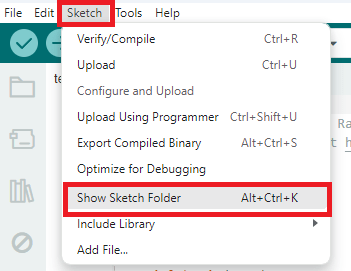
아두이노 IDE에서 스케치 폴더를 열어 데이터 폴더를 생성하세요.
해당 폴더 안에 이전에 제공했던 HTML 및 CSS 파일을 넣어주세요.
파일 시스템 이미지 업로드
해당 파일을 파일 시스템에 업로드하려면 Windows에서는 [ Ctrl ] + [ Shift ] + [ P ]를, macOS에서는 [ ⌘ ] + [ Shift ] + [ P ]를 눌러 명령 팔레트를 엽니다. "Upload LittleFS to Pico/ESP8266/ESP32" 명령을 찾아 클릭합니다.
이 옵션이 보이지 않는다면 파일 시스템 업로더 플러그인을 설치하지 않았기 때문입니다. 이 튜토리얼을 참조하세요 .
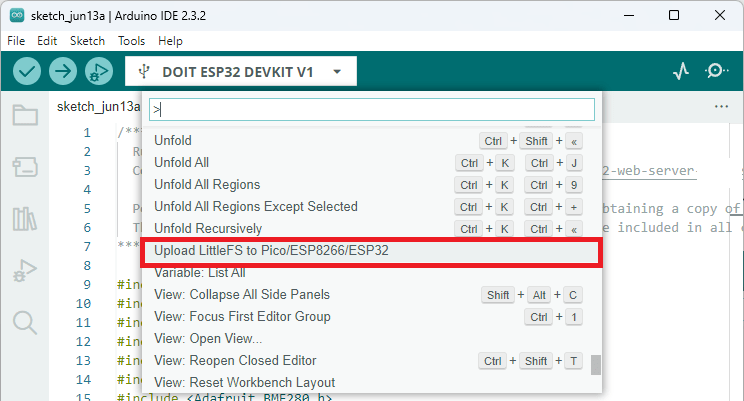
ESP32 스케치 데이터 업로드 LittleFS Arduino IDE
중요: 파일 시스템에 업로드하기 전에 시리얼 모니터를 닫아 두십시오. 그렇지 않으면 업로드가 실패합니다.
코드 업로드
다음으로, 코드를 ESP32 보드에 업로드하세요. 코드에 네트워크 자격 증명을 입력했는지 확인하십시오.

아두이노 IDE 2 업로드 버튼
업로드가 성공적으로 완료되면 115200bps의 전송 속도로 시리얼 모니터를 엽니다. ESP32의 EN/RST 버튼을 누르면 ESP32의 IP 주소가 출력될 것입니다.

ESP32 RFID 사용자 관리 시스템, 아두이노 IDE, 시리얼 모니터, 인쇄, IP 주소
데모
로컬 네트워크에서 브라우저를 열고 ESP32의 IP 주소를 입력하세요. 그러면 다음과 같은 웹 서버 페이지에 접속할 수 있습니다. 기본적으로 빈 표가 표시될 것입니다.

ESP32 RFID 사용자 관리 시스템 웹 서버 테스트 IP 주소
RFID 태그를 집어 RFID 리더기에 스캔하세요. RFID 태그를 스캔할 때마다 LED에 불이 들어오고 피에조 부저가 짧게 울립니다. 아두이노 IDE 시리얼 모니터에 RFID 카드의 UID가 출력됩니다.
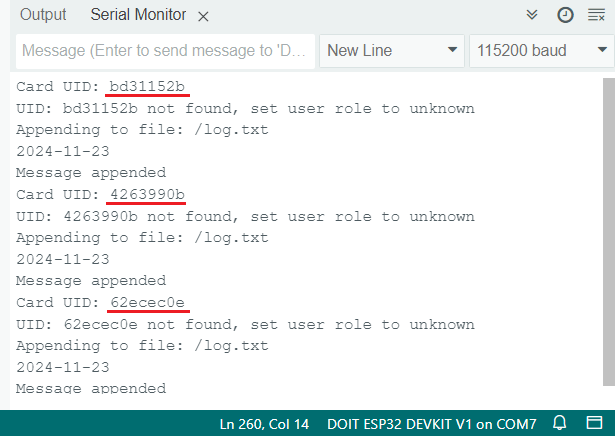
ESP32 RFID 사용자 관리 시스템, 아두이노 IDE, 시리얼 모니터, RFID 태그 UID 확인
테스트 목적으로 여러 개의 RFID 태그를 스캔하여 웹 서버에 더 많은 데이터가 표시되도록 하는 것이 좋습니다. 이제 웹 서버의 전체 로그 페이지를 열어보세요. 표가 다음과 같이 표시될 것입니다.

ESP32 RFID 사용자 관리 시스템 웹 서버 전체 로그 테이블 확인
RFID 카드 중 하나의 UID를 복사하세요. UID는 소문자로 작성해야 하며 공백이 없어야 합니다(예: bd31152b). 그런 다음 ' 사용자 추가' 탭을 여세요.

ESP32 RFID 사용자 관리 시스템 사용자 추가 웹 페이지 열기
UID를 입력하고 역할(사용자 또는 관리자)을 선택합니다. 마지막으로 " 저장 " 버튼을 클릭합니다. 시연을 위해 다른 RFID 태그에 대해서도 이 과정을 반복하겠습니다.

ESP32 RFID 사용자 관리 시스템 웹 서버, 역할 지정을 통한 새 사용자 추가
이제 관리자 사용자 웹 페이지로 이동해 보세요.

ESP32 RFID 사용자 관리 시스템 '사용자 관리' 탭 열기
이 기능은 모든 UID와 해당 사용자 역할이 포함된 테이블을 로드하며, "X"를 클릭하여 사용자를 삭제할 수 있습니다.

ESP32 RFID 사용자 관리 시스템 웹 서버 사용자 로그 웹 페이지 사용자 삭제
RFID 태그를 몇 번 더 스캔한 다음 웹 서버 홈페이지를 여세요. 로그 테이블에 타임스탬프, UID 및 해당 사용자 역할과 함께 모든 항목이 표시되어야 합니다.
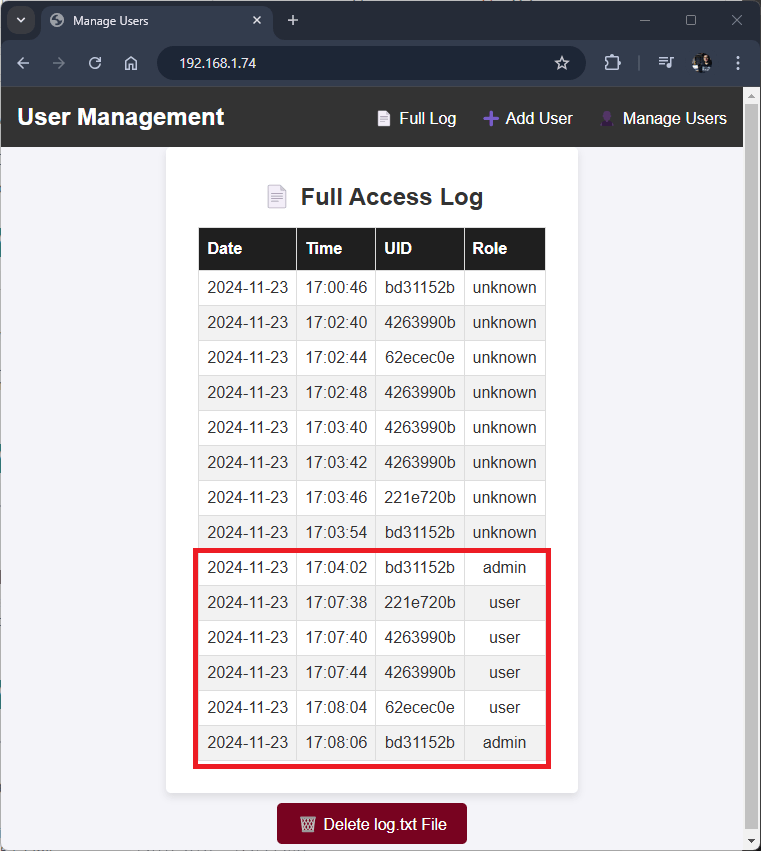
ESP32 RFID 사용자 관리 시스템 웹 서버 전체 로그 테이블 확인 (역할 포함 사용자 정보)
전체 로그 및 사용자 관리 웹 페이지 하단에는 언제든지 microSD 카드에서 log.txt 및 users.txt 파일을 삭제할 수 있는 옵션이 있습니다 .

ESP32 RFID 사용자 관리 시스템 웹 서버 로그 또는 사용자 텍스트 파일 삭제
스마트폰으로도 웹 서버 페이지에 접속할 수 있습니다.

ESP32 RFID 사용자 관리 시스템 프로젝트 시연
마무리하기
이 튜토리얼에서는 ESP32를 사용하여 RFID 관리 시스템 및 데이터 로거를 구축하기 위해 다양한 주제를 결합했습니다. 다룬 주제는 다음과 같습니다. 다양한 웹 서버 기능, 타임스탬프 생성, 데이터 로깅, RFID 리더 인터페이스 연결, microSD 카드 파일 읽기/쓰기 등입니다.
이 프로젝트가 유용했기를 바랍니다. ESP32를 이용한 RFID 리더/라이터 모듈이나 microSD 카드 모듈에 대해 더 자세히 알고 싶으시면 다음 가이드를 참조하세요.
ESP32: MFRC522 RFID 리더/라이터 시작하기 (Arduino IDE)
ESP32: 아두이노 IDE를 사용한 MicroSD 카드 모듈 가이드
ESP32 데이터 로깅 (온도 정보 저장)
ESP32를 이용한 웹 서버 구축에 대한 자세한 내용은 저희 전자책을 참고하세요.
ESP32 및 ESP8266으로 웹 서버 구축하기 (전자책)
ESP32에 대해 더 자세히 알아보고 새로운 프로젝트에 대한 영감을 얻고 싶다면, 저희가 제공하는 자료들을 꼭 살펴보세요.
아두이노 IDE로 ESP32 배우기 (전자책)
무료 ESP32 프로젝트 및 튜토리얼
ESP32: 센서 및 모듈 관련 무료 가이드 26가지
읽어주셔서 감사합니다.
이 튜토링얼을 참고한 처음 문서로 가시려면 이 링크를 따라가세요.
낭비한 시간의 대가를 혹독히 치를 날이 온다. 명심하고 살아라. 삶은 오직 변화다. 좋은 장기적 노력이 단기적으로 얻는 것보다 훨씬 더 중요하다.
취업, 창업의 막막함, 외주 관리, 제품 부재!
당신의 고민은 무엇입니까? 현실과 동떨어진 교육, 실패만 반복하는 외주 계약,
아이디어는 있지만 구현할 기술이 없는 막막함.
우리는 알고 있습니다. 문제의 원인은 '명확한 학습, 실전 경험과 신뢰할 수 있는 기술력의 부재'에서 시작됩니다.
이제 고민을 멈추고, 캐어랩을 만나세요!
코딩(펌웨어), 전자부품과 디지털 회로설계, PCB 설계 제작, 고객(시장/수출) 발굴과 마케팅 전략으로 당신을 지원합니다.
제품 설계의 고수는 성공이 만든 게 아니라 실패가 만듭니다. 아이디어를 양산 가능한 제품으로!
귀사의 제품을 만드세요. 교육과 개발 실적으로 신뢰할 수 있는 파트너를 확보하세요.
캐어랩