OLED 디스플레이와 푸시버튼을 사용하여 아두이노로 LED 밝기를 제어하는 방법 알아보기
필요한 구성품:
1- 아두이노 나노
2 - OLED 디스플레이
3 - 푸시버튼 4개
4 - RGB LED 모듈
5 - 브레드보드
6 - 연결 케이블
이 튜토리얼에서는 OLED 디스플레이를 사용하여 아두이노로 LED 밝기를 제어하는 방법을 배웁니다. 초보자에게 완벽한 이 단계별 가이드는 OLED 디스플레이의 도움으로 LED 밝기 수준을 조정하는 과정을 안내하여 프로젝트를 더욱 인터랙티브하고 시각적으로 매력적으로 만듭니다.
회로도
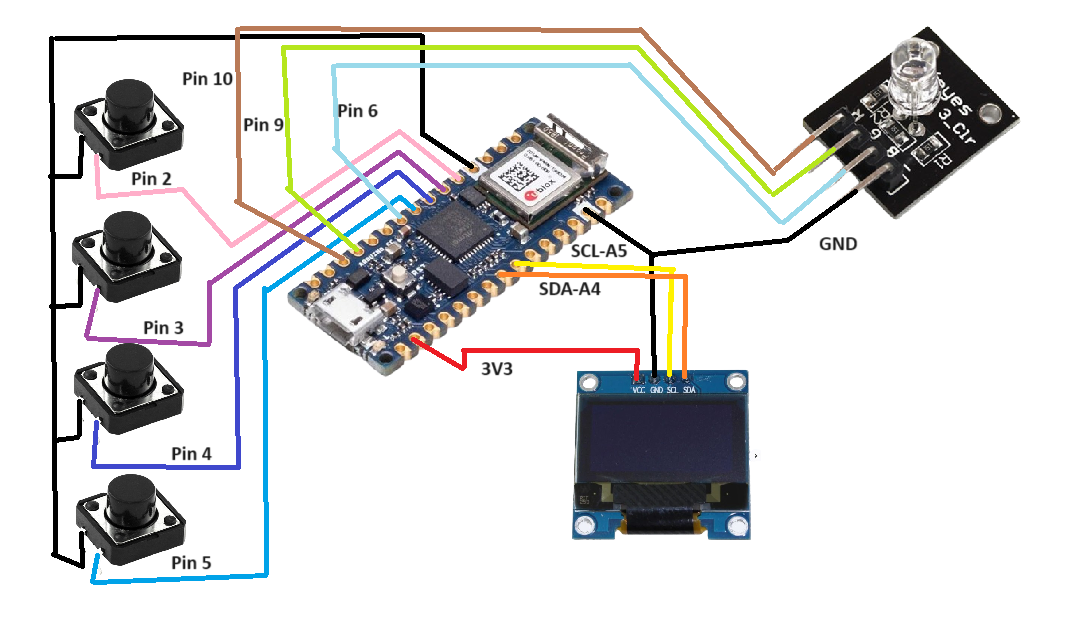
아두이노 코드 - MUIInput3BtnBounce2PWMRGBYT.ino
#include <Arduino.h>       // Include the Arduino library
#include <U8g2lib.h>       // Include the U8g2 library for the OLED display
#include <MUIU8g2.h>       // Include the MUIU8g2 library for the user interface
#include <Bounce2.h>       // Include the Bounce2 library for button debouncing

// Define pin numbers for buttons
#define SELECT_PIN 5
#define NEXT_PIN 4
#define DECREASE_PIN 3
#define INCREASE_PIN 2

// Define pin numbers for LEDs
#define RedLED 10
#define GreenLED 9
#define BlueLED 6

// Array of LED pins
const uint8_t ledPins[] = { BlueLED, RedLED, GreenLED };

// Array of animal names corresponding to LEDs
const char *animals[] = { "Blue", "Red", "Green", "BG", "BR", "GR", "BGR" };

// Mapping of animal names to LED pins
const int8_t animalToLed[][3] = {
  { BlueLED, -1, -1 },        // Blue LED only
  { RedLED, -1, -1 },         // Red LED only
  { GreenLED, -1, -1 },       // Green LED only
  { BlueLED, GreenLED, -1 },  // Blue and Green LEDs
  { BlueLED, RedLED, -1 },    // Blue and Red LEDs
  { GreenLED, RedLED, -1 },   // Green and Red LEDs
  { BlueLED, GreenLED, RedLED }  // All LEDs
};

// Create an instance of the OLED display using software I2C
U8G2_SSD1306_128X64_NONAME_1_SW_I2C u8g2(U8G2_R0, /* clock=*/ SCL, /* data=*/ SDA, /* reset=*/ U8X8_PIN_NONE);

// Create an instance of the MUIU8g2 library for user interface
MUIU8G2 mui;

// Create Bounce2 Button objects for each button
Bounce2::Button selectBtn = Bounce2::Button();
Bounce2::Button nextBtn = Bounce2::Button();
Bounce2::Button decreaseBtn = Bounce2::Button();
Bounce2::Button increaseBtn = Bounce2::Button();

// Variables to store current values
uint8_t num_value = 0;       // Current "Num:" value
uint8_t bar_value = 0;       // Current brightness value
uint16_t animal_idx = 0;     // Current index in the animal array

// Variables for button press timing
unsigned long lastButtonPress = 0;
const unsigned long buttonDelay = 50;  // Button delay in milliseconds
const uint8_t brightnessStep = 15;     // Step size for brightness adjustment

// Function to draw a horizontal line
uint8_t mui_hrule(mui_t *ui, uint8_t msg) {
  if (msg == MUIF_MSG_DRAW) {
    u8g2.drawHLine(0, mui_get_y(ui), u8g2.getDisplayWidth());
  }
  return 0;
}

// Function to display current data on the OLED
uint8_t show_my_data(mui_t *ui, uint8_t msg) {
  if (msg == MUIF_MSG_DRAW) {
    u8g2_uint_t x = mui_get_x(ui);
    u8g2_uint_t y = mui_get_y(ui);

    // Print the "Num:" value
    u8g2.setCursor(x+5, y);
    u8g2.print("Num:");
    u8g2.setCursor(x+50, y);
    u8g2.print(num_value);

    // Print the "Brig:" label and the bar
    u8g2.setCursor(x+5, y+12);
    u8g2.print("Brig:");

    // Calculate the available width for the bar
    u8g2_uint_t labelWidth = u8g2.getStrWidth("Brig:");
    u8g2_uint_t brightnessValueWidth = u8g2.getStrWidth(String(bar_value).c_str());
    u8g2_uint_t availableWidth = u8g2.getDisplayWidth() - (x + 5 + labelWidth + 10 + brightnessValueWidth); // 10 pixels for padding

    // Map bar_value (0-255) to availableWidth
    uint8_t barWidth = map(bar_value, 0, 255, 0, availableWidth);

    // Draw the bar
    u8g2.drawBox(x + 5 + labelWidth + 5, y + 6, barWidth, 8); // Adjust position for the bar

    // Print the brightness value
    u8g2.setCursor(x + 5 + labelWidth + barWidth + 10, y + 12); // Position after the bar
    u8g2.print(bar_value);

    // Print the "LED:" and the animal name
    u8g2.setCursor(x+5, y+24);
    u8g2.print("LED:");
    u8g2.setCursor(x+50, y+24);
    u8g2.print(animal_idx);
    u8g2.print("=");
    u8g2.print(animals[animal_idx]);
  }
  return 0;
}

// Function to get the count of animal names
uint16_t animal_name_list_get_cnt(void *data) {
  return sizeof(animals)/sizeof(*animals);
}

// Function to get the animal name at a specific index
const char *animal_name_list_get_str(void *data, uint16_t index) {
  if (index < sizeof(animals)/sizeof(*animals)) {
    return animals[index];
  }
  return "Unknown";
}

// Array of MUI function definitions
muif_t muif_list[] = {
  MUIF_U8G2_FONT_STYLE(0, u8g2_font_helvR08_tr),  // Font style 0
  MUIF_U8G2_FONT_STYLE(1, u8g2_font_helvB08_tr),  // Font style 1
  MUIF_RO("HR", mui_hrule),                       // Horizontal rule
  MUIF_U8G2_LABEL(),                              // Label
  MUIF_RO("GP",mui_u8g2_goto_data),               // Go to data
  MUIF_BUTTON("GC", mui_u8g2_goto_form_w1_pi),    // Button
  MUIF_U8G2_U8_MIN_MAX("NV", &num_value, 0, 6, mui_u8g2_u8_min_max_wm_mse_pi),  // Num value
  MUIF_U8G2_U8_MIN_MAX_STEP("NB", &bar_value, 0, 255, 1, MUI_MMS_2X_BAR, mui_u8g2_u8_bar_wm_mse_pf),  // Brightness value
  MUIF_U8G2_U16_LIST("NA", &animal_idx, NULL, animal_name_list_get_str, animal_name_list_get_cnt, mui_u8g2_u16_list_line_wa_mse_pi),  // Animal list
  MUIF_RO("SH", show_my_data),                    // Show data
  MUIF_EXECUTE_ON_SELECT_BUTTON("GO", mui_u8g2_btn_goto_wm_fi)  // Execute on select button
};

// Form definitions
fds_t fds_data[] =
MUI_FORM(1)
MUI_STYLE(1)
MUI_LABEL(5, 8, "4 Btn Bounce2 Lib")
MUI_STYLE(0)
MUI_XY("HR", 0,11)
MUI_DATA("GP",
    MUI_10 "Enter Data|"
    MUI_12 "Show Data")
MUI_XYA("GC", 5, 24, 0)
MUI_XYA("GC", 5, 36, 1)
MUI_FORM(10)
MUI_STYLE(1)
MUI_LABEL(5, 8, "Enter Data")
MUI_XY("HR", 0,11)
MUI_STYLE(0)
MUI_LABEL(5,23, "Num:")
MUI_LABEL(5,36, "Brig:")
MUI_LABEL(5,49, "LED:")
MUI_XY("NV", 50, 23)
MUI_XY("NB", 50, 36)
MUI_XYA("NA", 50, 49, 44)
MUI_XYAT("GO", 114, 60, 1, " Ok ")
MUI_FORM(12)
MUI_STYLE(1)
MUI_LABEL(5, 8, "Show Data")
MUI_XY("HR", 0,11)
MUI_STYLE(0)
MUI_XY("SH", 0, 23)
MUI_XYAT("GO", 114, 60, 1, " Ok ")
;

// Redraw flag
uint8_t is_redraw = 1;

void setup(void) {
  // Initialize the buttons
  selectBtn.attach(SELECT_PIN, INPUT_PULLUP);
  selectBtn.interval(5);
  selectBtn.setPressedState(LOW);

  nextBtn.attach(NEXT_PIN, INPUT_PULLUP);
  nextBtn.interval(5);
  nextBtn.setPressedState(LOW);

  decreaseBtn.attach(DECREASE_PIN, INPUT_PULLUP);
  decreaseBtn.interval(5);
  decreaseBtn.setPressedState(LOW);

  increaseBtn.attach(INCREASE_PIN, INPUT_PULLUP);
  increaseBtn.interval(5);
  increaseBtn.setPressedState(LOW);

  // Initialize the LED pins as outputs
  for (uint8_t i = 0; i < sizeof(ledPins); i+=12) {
    pinMode(ledPins[i], OUTPUT);
    analogWrite(ledPins[i], 0);
  }

  // Initialize the OLED display
  u8g2.begin();
  mui.begin(u8g2, fds_data, muif_list, sizeof(muif_list)/sizeof(muif_t));
  mui.gotoForm(1, 0);
}

// Check the state of the buttons
void check_events(void) {
  selectBtn.update();
  nextBtn.update();
  decreaseBtn.update();
  increaseBtn.update();
}

// Handle button events
void handle_events(void) {
  unsigned long currentMillis = millis();

  if (selectBtn.pressed()) {
    mui.sendSelect();
    is_redraw = 1;
  }
  if (nextBtn.pressed()) {
    mui.nextField();
    is_redraw = 1;
  }

  if (decreaseBtn.isPressed()) {
    if (currentMillis - lastButtonPress >= buttonDelay) {
      lastButtonPress = currentMillis;
      if (bar_value > 0) {
        bar_value -= brightnessStep;
        if (bar_value < 0) bar_value = 0;
        is_redraw = 1;
      }
    }
  }

  if (increaseBtn.isPressed()) {
    if (currentMillis - lastButtonPress >= buttonDelay) {
      lastButtonPress = currentMillis;
      if (bar_value < 255) {
        bar_value += brightnessStep;
        if (bar_value > 255) bar_value = 255;
        is_redraw = 1;
      }
    }
  }
}

// Update the brightness of the LEDs based on the current settings
void update_led_brightness() {
  // Turn off all LEDs
  for (uint8_t i = 0; i < sizeof(ledPins); i+=12) {
    analogWrite(ledPins[i], 0);
  }

  // Update LEDs based on current animal index and num value
  if (animal_idx == 0 && num_value == 0) {
    analogWrite(BlueLED, bar_value);
  } else if (animal_idx == 1 && num_value == 1) {
    analogWrite(RedLED, bar_value);
  } else if (animal_idx == 2 && num_value == 2) {
    analogWrite(GreenLED, bar_value);
  } else if (animal_idx == 3 && num_value == 3) {
    analogWrite(BlueLED, bar_value);
    analogWrite(GreenLED, bar_value);
  } else if (animal_idx == 4 && num_value == 4) {
    analogWrite(BlueLED, bar_value);
    analogWrite(RedLED, bar_value);
  } else if (animal_idx == 5 && num_value == 5) {
    analogWrite(GreenLED, bar_value);
    analogWrite(RedLED, bar_value);
  } else if (animal_idx == 6 && num_value == 6) {
    analogWrite(BlueLED, bar_value);
    analogWrite(GreenLED, bar_value);
    analogWrite(RedLED, bar_value);
  }
}

void loop(void) {
  if (mui.isFormActive()) {
    if (is_redraw) {
      u8g2.firstPage();
      do {
        check_events();
        mui.draw();
      } while (u8g2.nextPage());
      is_redraw = 0;
    }

    check_events();
    handle_events();
    update_led_brightness();
  } else {
    mui.gotoForm(1, 0);
  }
}
동작 이미지

취업, 창업의 막막함, 외주 관리, 제품 부재!
당신의 고민은 무엇입니까? 현실과 동떨어진 교육, 실패만 반복하는 외주 계약,
아이디어는 있지만 구현할 기술이 없는 막막함.
우리는 알고 있습니다. 문제의 원인은 '명확한 학습, 실전 경험과 신뢰할 수 있는 기술력의 부재'에서 시작됩니다.
이제 고민을 멈추고, 캐어랩을 만나세요!
코딩(펌웨어), 전자부품과 디지털 회로설계, PCB 설계 제작, 고객(시장/수출) 발굴과 마케팅 전략으로 당신을 지원합니다.
제품 설계의 고수는 성공이 만든 게 아니라 실패가 만듭니다. 아이디어를 양산 가능한 제품으로!
귀사의 제품을 만드세요. 교육과 개발 실적으로 신뢰할 수 있는 파트너를 확보하세요.
캐어랩