라즈베리 파이에 MediaPipe 설치하기 - 제스처 인식 예시
미안하지만 창의적인 아이디어를 얻는 방법 혹은 창의적으로 생각하는 법은 배울 수 없다. 그런 인간으로 되어먹어야 한다. 기본적으로 그렇게 살아오거나 늘 한결같은 창의성을 발휘하면서 살아오지 않는 한 창의적인 사고방식은 가질 수 없다. 오히려 이런 이야기를 듣고 매달리는 것 자체가 창의성이 없다는 증거다. 그냥 '그런가보다.' 하고 자신의 길을 찾는 사람이 창의성 있는 거다.
그런 그렇고 진도 나간다. 이 튜토리얼의 원문은 지금 이 링크를 따라간다. 다른 프로젝트도 많으니 참고하기 바란다.
라즈베리 파이에 MediaPipe 설치하기 - 제스처 인식 예시
이 가이드는 라즈베리 파이 보드 에서 MediaPipe 파이썬 라이브러리를 사용하는 방법을 소개합니다 . 가상 환경에 pip를 사용하여 MediaPipe를 설치하는 방법과 제스처 인식 예제를 실행하는 방법을 다룹니다.
MediaPipe는 스트리밍 미디어(실시간 비디오)를 위한 맞춤형 머신러닝(ML) 솔루션을 구축하기 위한 크로스 플랫폼 파이프라인 프레임워크입니다. MediaPipe 프레임워크는 Google에서 오픈소스로 공개했으며 현재 얼리 액세스 버전으로 제공되고 있습니다.
필수 조건
진행하기 전에:
- 라즈베리 파이 보드 와 USB 카메라가 필요합니다 .
- Raspberry Pi OS (32비트 또는 64비트) 가 설치된 Raspberry Pi가 있어야 합니다 .
- 라즈베리 파이에 원격 데스크톱 연결을 설정할 수 있을 것입니다 . Mac OS용 지침은 여기를 클릭하세요 .
- 라즈베리 파이에 OpenCV가 설치되어 있어야 합니다 .
- 라즈베리 파이를 사용하여 OpenCV 프로젝트에 USB 카메라를 설정하는 방법.
저희 라즈베리 파이 카메라 프로젝트 에서는 아래 사진에 보이는 것과 같은 일반적인 로지텍 USB 카메라를 사용할 것입니다.
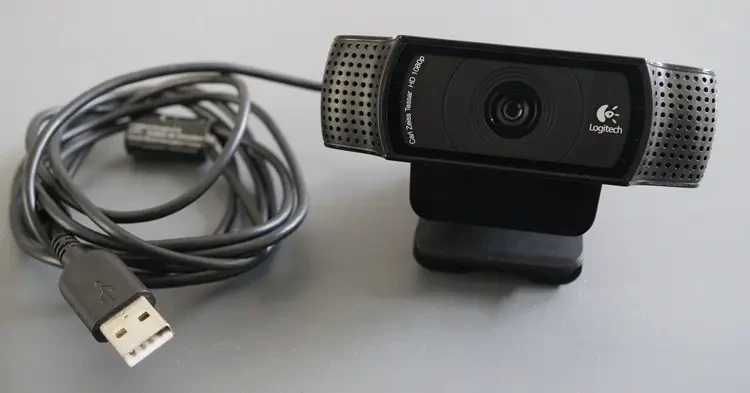
USB 카메라 웹캠 (라즈베리 파이 호환)
MediaPipe 미디어파이프
MediaPipe는 TensorFlow Lite 기반의 컴퓨터 비전 애플리케이션을 실행하는 파이프라인 구축을 위한 오픈 소스 크로스 플랫폼 프레임워크입니다.
MediaPipe는 기기 내 머신러닝을 맞춤 설정하고, 상용화 준비를 완료하고, 다양한 플랫폼에서 접근할 수 있도록 만드는 데 필요한 복잡한 과정을 추상화했습니다. MediaPipe를 사용하면 입력 이미지를 받아 예측 결과를 출력하는 간단한 API를 활용할 수 있습니다.
손동작 예시
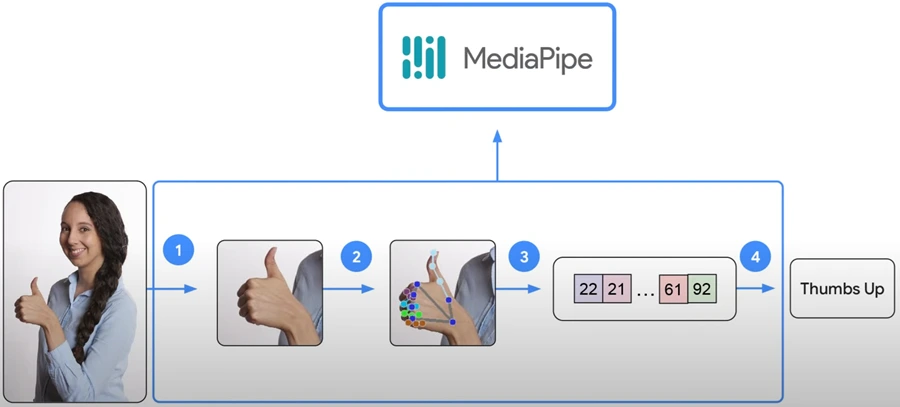
MediaPipe의 기기 기반 머신러닝(ML) API
- 입력: 엄지손가락을 치켜든 사람의 이미지
- MediaPipe는 모든 복잡한 작업을 대신 처리해 줍니다.
- 제공된 이미지에 손이 있는지 감지합니다.
- 그런 다음 손의 특징점을 감지합니다.
- 제스처의 임베딩 벡터를 생성합니다.
- 출력: 제공된 모델을 기반으로 이미지를 분류합니다(엄지손가락을 치켜드는 제스처를 감지).
요약하자면, MediaPipe의 주요 기능은 다음과 같습니다.
- 사용하기 쉬운 추상화 기능을 갖춘 온디바이스 머신러닝(ML) 솔루션.
- 정확도를 유지하면서도 가벼운 머신러닝 모델.
- 시각, 텍스트, 오디오를 포함한 영역별 처리.
- 로우코드 API 또는 노코드 스튜디오를 사용하여 맞춤 설정, 평가, 프로토타입 제작 및 배포를 수행합니다.
- 하드웨어 가속을 포함한 엔드 투 엔드 최적화를 제공하는 동시에 배터리 구동 기기에서도 원활하게 작동할 수 있을 만큼 가볍습니다.
가상 환경에서 pip를 사용하여 라즈베리 파이에 MediaPipe 설치하기 (권장)
라즈베리 파이 에 원격 데스크톱으로 연결하여 사용 가능한 업데이트가 있으면 라즈베리 파이를 업데이트하고 업그레이드하세요 . 다음 명령어를 실행하세요.
sudo apt update && sudo apt upgrade -y
가상 환경 생성
이전 가이드에서 이미 가상 환경에 OpenCV 라이브러리를 설치했습니다 . 이제 동일한 가상 환경에 MediaPipe 라이브러리를 설치해야 합니다.
터미널 창에 다음 명령어를 입력하여 바탕 화면 의 Projects 디렉토리로 이동하세요 .
cd ~/Desktop/projects
그런 다음 다음 명령어를 실행하여 가상 환경이 제대로 생성되었는지 확인할 수 있습니다.
ls -l
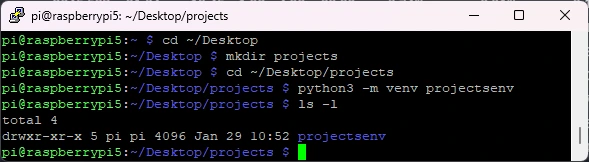
파이썬3 가상 환경
OpenCV 설치 시 생성했던 가상 환경 projectsenv를 활성화하십시오.
source projectsenv/bin/activate
이제 가상 환경에 진입했음을 나타내는 메시지가 표시될 것입니다.

Python3 가상 환경 활성화
MediaPipe 라이브러리 설치
이제 가상 환경에 접속했으므로 MediaPipe 라이브러리를 설치할 수 있습니다. 다음 명령어를 실행하세요.
pip3 install mediapipe
몇 초 후 라이브러리가 설치됩니다(더 이상 사용되지 않는 패키지에 대한 노란색 경고는 무시하세요).
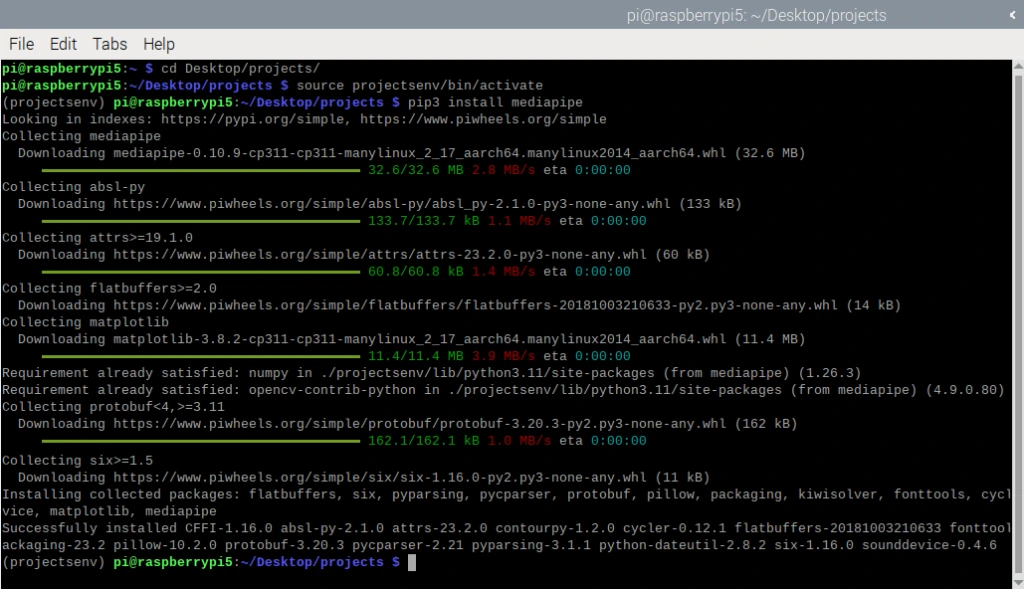
Raspberry Pi에 MediaPipe 설치 (pip3 가상 환경)
이제 파이썬 코드를 작성하고 제스처 인식 예제를 테스트할 준비가 모두 완료되었습니다.
MediaPipe 예제 - 라즈베리 파이를 이용한 제스처 인식
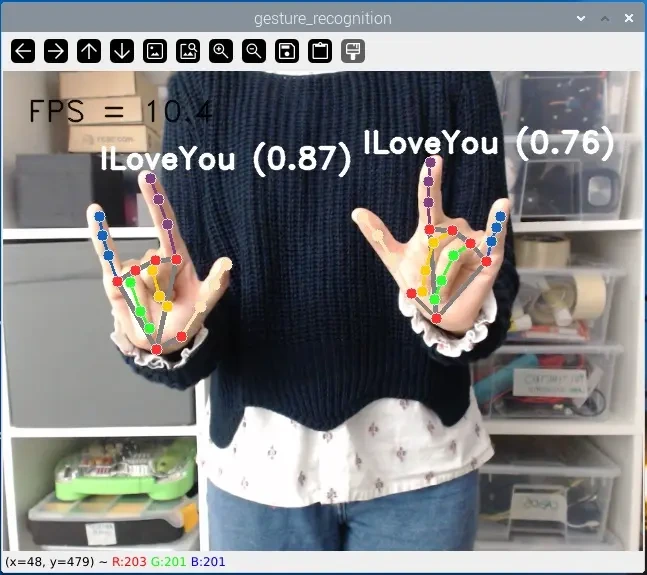
MediaPipe가 설치되었으면 이제 손동작 인식을 수행하는 샘플 코드를 실행해 보겠습니다. 이 스크립트는 이미지 또는 비디오 형식에서 손동작을 인식합니다. 기본 모델은 한 손 또는 두 손으로 7가지 손동작을 인식할 수 있습니다.
- 엄지척 👍
- 싫어요 👎
- 승리의 손 ✌️
- 인덱스가 위를 가리키고 있어요 ☝️
- 주먹을 치켜든 모습 ✊
- 손바닥을 펴세요 ✋
- 사랑한다는 제스처 🤟
이 특정 모델은 구글에서 개발했으며, 구글의 엄격한 머신러닝 공정성 기준을 통과하여 상용화 준비가 완료되었습니다.
제스처 인식 - 파이썬 스크립트
git 명령어를 사용하여 GitHub 저장소를 라즈베리 파이 에 복제하세요 .
git clone https://github.com/RuiSantosdotme/mediapipe.git
mediapipe/raspberry_pi_gesture_recognizer 디렉토리 로 이동하세요.
cd mediapipe/raspberry_pi_gesture_recognizer
ls 명령어를 사용하여 아래 스크린샷에 표시된 파일이 있는지 확인하십시오.
ls
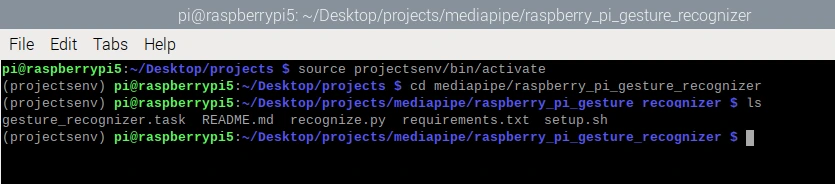
MediaPipe 제스처 인식 예제 스크립트를 확인하세요.
마지막으로, 누락된 필수 구성 요소를 설치하려면 다음 명령어를 입력하십시오.
sh setup.sh
# Complete project details at https://ebokify.com/install-mediapipe-raspberry-pi/

# Copyright 2023 The MediaPipe Authors. All Rights Reserved. Licensed under the Apache License, Version 2.0 (the "License"); you may not use this file except in compliance with the License. You may obtain a copy of the License at
# http://www.apache.org/licenses/LICENSE-2.0 Unless required by applicable law or agreed to in writing, software distributed under the License is distributed on an "AS IS" BASIS, WITHOUT WARRANTIES OR CONDITIONS OF ANY KIND, either express or implied. See the License for the specific language governing permissions and limitations under the License.
# Main scripts to run gesture recognition.

import argparse
import sys
import time

import cv2
import mediapipe as mp

from mediapipe.tasks import python
from mediapipe.tasks.python import vision
from mediapipe.framework.formats import landmark_pb2
mp_hands = mp.solutions.hands
mp_drawing = mp.solutions.drawing_utils
mp_drawing_styles = mp.solutions.drawing_styles


# Global variables to calculate FPS
COUNTER, FPS = 0, 0
START_TIME = time.time()


def run(model: str, num_hands: int,
        min_hand_detection_confidence: float,
        min_hand_presence_confidence: float, min_tracking_confidence: float,
        camera_id: int, width: int, height: int) -> None:
  """Continuously run inference on images acquired from the camera.

  Args:
      model: Name of the gesture recognition model bundle.
      num_hands: Max number of hands can be detected by the recognizer.
      min_hand_detection_confidence: The minimum confidence score for hand
        detection to be considered successful.
      min_hand_presence_confidence: The minimum confidence score of hand
        presence score in the hand landmark detection.
      min_tracking_confidence: The minimum confidence score for the hand
        tracking to be considered successful.
      camera_id: The camera id to be passed to OpenCV.
      width: The width of the frame captured from the camera.
      height: The height of the frame captured from the camera.
  """

  # Start capturing video input from the camera
  cap = cv2.VideoCapture(camera_id)
  cap.set(cv2.CAP_PROP_FRAME_WIDTH, width)
  cap.set(cv2.CAP_PROP_FRAME_HEIGHT, height)

  # Visualization parameters
  row_size = 50  # pixels
  left_margin = 24  # pixels
  text_color = (0, 0, 0)  # black
  font_size = 1
  font_thickness = 1
  fps_avg_frame_count = 10

  # Label box parameters
  label_text_color = (255, 255, 255)  # white
  label_font_size = 1
  label_thickness = 2

  recognition_frame = None
  recognition_result_list = []

  def save_result(result: vision.GestureRecognizerResult,
                  unused_output_image: mp.Image, timestamp_ms: int):
      global FPS, COUNTER, START_TIME

      # Calculate the FPS
      if COUNTER % fps_avg_frame_count == 0:
          FPS = fps_avg_frame_count / (time.time() - START_TIME)
          START_TIME = time.time()

      recognition_result_list.append(result)
      COUNTER += 1

  # Initialize the gesture recognizer model
  base_options = python.BaseOptions(model_asset_path=model)
  options = vision.GestureRecognizerOptions(base_options=base_options,
                                          running_mode=vision.RunningMode.LIVE_STREAM,
                                          num_hands=num_hands,
                                          min_hand_detection_confidence=min_hand_detection_confidence,
                                          min_hand_presence_confidence=min_hand_presence_confidence,
                                          min_tracking_confidence=min_tracking_confidence,
                                          result_callback=save_result)
  recognizer = vision.GestureRecognizer.create_from_options(options)

  # Continuously capture images from the camera and run inference
  while cap.isOpened():
    success, image = cap.read()
    if not success:
      sys.exit(
          'ERROR: Unable to read from webcam. Please verify your webcam settings.'
      )

    image = cv2.flip(image, 1)

    # Convert the image from BGR to RGB as required by the TFLite model.
    rgb_image = cv2.cvtColor(image, cv2.COLOR_BGR2RGB)
    mp_image = mp.Image(image_format=mp.ImageFormat.SRGB, data=rgb_image)

    # Run gesture recognizer using the model.
    recognizer.recognize_async(mp_image, time.time_ns() // 1_000_000)

    # Show the FPS
    fps_text = 'FPS = {:.1f}'.format(FPS)
    text_location = (left_margin, row_size)
    current_frame = image
    cv2.putText(current_frame, fps_text, text_location, cv2.FONT_HERSHEY_DUPLEX,
                font_size, text_color, font_thickness, cv2.LINE_AA)

    if recognition_result_list:
      # Draw landmarks and write the text for each hand.
      for hand_index, hand_landmarks in enumerate(
          recognition_result_list[0].hand_landmarks):
        # Calculate the bounding box of the hand
        x_min = min([landmark.x for landmark in hand_landmarks])
        y_min = min([landmark.y for landmark in hand_landmarks])
        y_max = max([landmark.y for landmark in hand_landmarks])

        # Convert normalized coordinates to pixel values
        frame_height, frame_width = current_frame.shape[:2]
        x_min_px = int(x_min * frame_width)
        y_min_px = int(y_min * frame_height)
        y_max_px = int(y_max * frame_height)

        # Get gesture classification results
        if recognition_result_list[0].gestures:
          gesture = recognition_result_list[0].gestures[hand_index]
          category_name = gesture[0].category_name
          score = round(gesture[0].score, 2)
          result_text = f'{category_name} ({score})'

          # Compute text size
          text_size = \
          cv2.getTextSize(result_text, cv2.FONT_HERSHEY_DUPLEX, label_font_size,
                          label_thickness)[0]
          text_width, text_height = text_size

          # Calculate text position (above the hand)
          text_x = x_min_px
          text_y = y_min_px - 10  # Adjust this value as needed

          # Make sure the text is within the frame boundaries
          if text_y < 0:
            text_y = y_max_px + text_height

          # Draw the text
          cv2.putText(current_frame, result_text, (text_x, text_y),
                      cv2.FONT_HERSHEY_DUPLEX, label_font_size,
                      label_text_color, label_thickness, cv2.LINE_AA)

        # Draw hand landmarks on the frame
        hand_landmarks_proto = landmark_pb2.NormalizedLandmarkList()
        hand_landmarks_proto.landmark.extend([
          landmark_pb2.NormalizedLandmark(x=landmark.x, y=landmark.y,
                                          z=landmark.z) for landmark in
          hand_landmarks
        ])
        mp_drawing.draw_landmarks(
          current_frame,
          hand_landmarks_proto,
          mp_hands.HAND_CONNECTIONS,
          mp_drawing_styles.get_default_hand_landmarks_style(),
          mp_drawing_styles.get_default_hand_connections_style())

      recognition_frame = current_frame
      recognition_result_list.clear()

    if recognition_frame is not None:
        cv2.imshow('gesture_recognition', recognition_frame)

    # Stop the program if the ESC key is pressed.
    if cv2.waitKey(1) == 27:
        break

  recognizer.close()
  cap.release()
  cv2.destroyAllWindows()


def main():
  parser = argparse.ArgumentParser(
      formatter_class=argparse.ArgumentDefaultsHelpFormatter)
  parser.add_argument(
      '--model',
      help='Name of gesture recognition model.',
      required=False,
      default='gesture_recognizer.task')
  parser.add_argument(
      '--numHands',
      help='Max number of hands that can be detected by the recognizer.',
      required=False,
      default=1)
  parser.add_argument(
      '--minHandDetectionConfidence',
      help='The minimum confidence score for hand detection to be considered '
           'successful.',
      required=False,
      default=0.5)
  parser.add_argument(
      '--minHandPresenceConfidence',
      help='The minimum confidence score of hand presence score in the hand '
           'landmark detection.',
      required=False,
      default=0.5)
  parser.add_argument(
      '--minTrackingConfidence',
      help='The minimum confidence score for the hand tracking to be '
           'considered successful.',
      required=False,
      default=0.5)
  # Finding the camera ID can be very reliant on platform-dependent methods.
  # One common approach is to use the fact that camera IDs are usually indexed sequentially by the OS, starting from 0.
  # Here, we use OpenCV and create a VideoCapture object for each potential ID with 'cap = cv2.VideoCapture(i)'.
  # If 'cap' is None or not 'cap.isOpened()', it indicates the camera ID is not available.
  parser.add_argument(
      '--cameraId', help='Id of camera.', required=False, default=0)
  parser.add_argument(
      '--frameWidth',
      help='Width of frame to capture from camera.',
      required=False,
      default=640)
  parser.add_argument(
      '--frameHeight',
      help='Height of frame to capture from camera.',
      required=False,
      default=480)
  args = parser.parse_args()

  run(args.model, int(args.numHands), args.minHandDetectionConfidence,
      args.minHandPresenceConfidence, args.minTrackingConfidence,
      int(args.cameraId), args.frameWidth, args.frameHeight)


if __name__ == '__main__':
  main()
시연 제스처 인식
가상 환경이 활성화되면 다음 명령을 실행하십시오.
python recognize.py --cameraId 0 --model gesture_recognizer.task --numHands 2
USB 카메라 의 올바른 카메라 ID 번호를 입력해야 합니다 . 제 경우에는 0이지만, 필요에 따라 변경해야 할 수도 있습니다. 지원되는 매개변수에 대한 자세한 내용은 설명서를 참조하십시오 .
예제를 실행한 상태에서 카메라 앞에서 다양한 동작을 해보세요. 카메라가 이전에 살펴본 동작 목록에서 해당 동작을 감지하고 식별합니다. 한 손 또는 양손을 동시에 사용하는 동작도 감지할 수 있습니다.
마무리
이 튜토리얼은 라즈베리 파이 에서 MediaPipe를 사용하는 방법에 대한 간단한 시작 가이드입니다 . MediaPipe는 머신 러닝 프로젝트를 구축할 수 있도록 해주는 사용하기 쉬운 프레임워크입니다.
이 가이드에서는 손동작 인식 예제를 테스트했습니다. MediaPipe는 손가락 개수 세기 등 다른 흥미로운 예제도 제공합니다. 이는 자동화 프로젝트에서 특히 유용하게 활용될 수 있는데, 손동작으로 특정 장치를 제어할 수 있기 때문입니다. 예를 들어, 손가락 하나를 들면 특정 Raspberry Pi GPIO를 켜고, 두 개를 들면 끄는 등의 작업을 할 수 있습니다. 가능성은 무궁무진합니다.
이 튜토리얼이 유익했기를 바랍니다.
독자 여러분께서 이러한 주제에 충분한 관심을 보여주신다면, MediaPipe를 활용한 머신러닝 프로젝트를 더 많이 진행할 계획입니다.
라즈베리 파이 에 대해 더 자세히 알고 싶으시다면 , 저희 튜토리얼을 확인해 보세요.
여기까지입니다. 읽어주셔서 감사합니다. 늘 즐거운 개발 되세요.
하~ 이제 이런 것도 하기 싫다. ㅠ.ㅠ 담배를 끊는 중이라서 우울함이 가시질 않네.
'라즈베리파이 5' 카테고리의 다른 글
| 라즈베리파이5 Claude Code 설치 방법 (0) | 2026.05.16 |
|---|---|
| 아두이노 IDE 라즈베리파이 피코 프로그래밍하기 (Pico W 호환) (0) | 2026.04.09 |
| 라즈베리파이 설명 용어 (0) | 2026.03.09 |
| 라즈베리파이제로 2W 모바일 OpenClaw 하드웨어 (0) | 2026.02.25 |
| Raspberry Pi 5에서 구현 가능한 생성형 AI (1) | 2026.02.02 |
| 라즈베리파이 비디오 루퍼 - 도움말 정리 (2) | 2026.02.01 |
| ESP32/ESP8266에서 Raspberry Pi LAMP 서버로 데이터 전송 (0) | 2026.01.28 |
| 라즈베리 파이용 USB 플래시 드라이브 (1) | 2026.01.25 |
취업, 창업의 막막함, 외주 관리, 제품 부재!
당신의 고민은 무엇입니까? 현실과 동떨어진 교육, 실패만 반복하는 외주 계약,
아이디어는 있지만 구현할 기술이 없는 막막함.
우리는 알고 있습니다. 문제의 원인은 '명확한 학습, 실전 경험과 신뢰할 수 있는 기술력의 부재'에서 시작됩니다.
이제 고민을 멈추고, 캐어랩을 만나세요!
코딩(펌웨어), 전자부품과 디지털 회로설계, PCB 설계 제작, 고객(시장/수출) 발굴과 마케팅 전략으로 당신을 지원합니다.
제품 설계의 고수는 성공이 만든 게 아니라 실패가 만듭니다. 아이디어를 양산 가능한 제품으로!
귀사의 제품을 만드세요. 교육과 개발 실적으로 신뢰할 수 있는 파트너를 확보하세요.
캐어랩


