반응형
WS2812 5050 RGB LED는 내장 드라이버 칩을 통해 단 1개의 데이터 선만으로 여러 개의 LED 색상을 개별적으로 제어할 수 있는 스마트 LED입니다. 아두이노(Arduino)와 같은 마이크로컨트롤러를 사용하여 구동하는 방법은 다음과 같습니다. [1, 2, 3]
1. 핀 연결 방법
LED 모듈에는 보통 3개의 핀(+, -, 데이터)이 있습니다. [1]
- VCC (+): 5V 전원에 연결합니다.
- GND (-): 아두이노의 GND에 연결하여 접지합니다.
- DIN / D In: 데이터를 주고받을 핀으로, 아두이노의 디지털 PWM 핀(예: D6)에 연결합니다. [1]
주의사항: LED 개수가 많을 경우(보통 10~15개 이상), 아두이노의 5V 전원만으로는 전류가 부족해 LED가 깜빡이거나 꺼질 수 있습니다. 이 경우에는 별도의 5V 외부 전원을 사용해야 합니다.
2. 아두이노 라이브러리 설치 및 코드 업로드
- 아두이노 IDE 상단의 메뉴에서 [스케치] -> [라이브러리 포함하기] -> [라이브러리 관리...] 로 이동합니다. [1]
- 'NeoPixel'을 검색한 후, Adafruit NeoPixel 라이브러리를 설치합니다.
- [파일] -> [예제] -> [Adafruit_NeoPixel] -> strandtest 예제를 불러옵니다.
- 코드 내에서 LED가 연결된 핀과 LED 개수를 수정합니다.
- LED_PIN: 아두이노와 연결된 핀 번호 (예: 6)
- LED_COUNT: 사용하는 LED의 개수 (예: 1)
cpp
#include <Adafruit_NeoPixel.h>

#define PIN        6 // 데이터 핀
#define NUMPIXELS 16 // 제어할 LED 개수

Adafruit_NeoPixel pixels(NUMPIXELS, PIN, NEO_GRB + NEO_KHZ800);

void setup() {
  pixels.begin(); // 초기화
}

void loop() {
  pixels.clear(); // 모든 LED 끄기

  // 첫 번째 LED부터 순서대로 빨간색(255, 0, 0) 켜기
  for(int i=0; i<NUMPIXELS; i++) {
    pixels.setPixelColor(i, pixels.Color(255, 0, 0));
    pixels.show(); // 설정한 색상을 LED에 반영
    delay(100);
  }
}
64개의 WS2812 LED를 안전하게 구동하려면 아두이노 전원 대신 반드시 별도의 외부 5V 전원(어댑터 또는 SMPS)을 사용해야 합니다.
LED가 모두 흰색(최대 밝기)으로 켜질 때 개당 약 60mA를 소모하므로, 64개 구동 시 5V 4A(또는 최소 3A) 이상의 전원 공급 장치가 필요합니다.
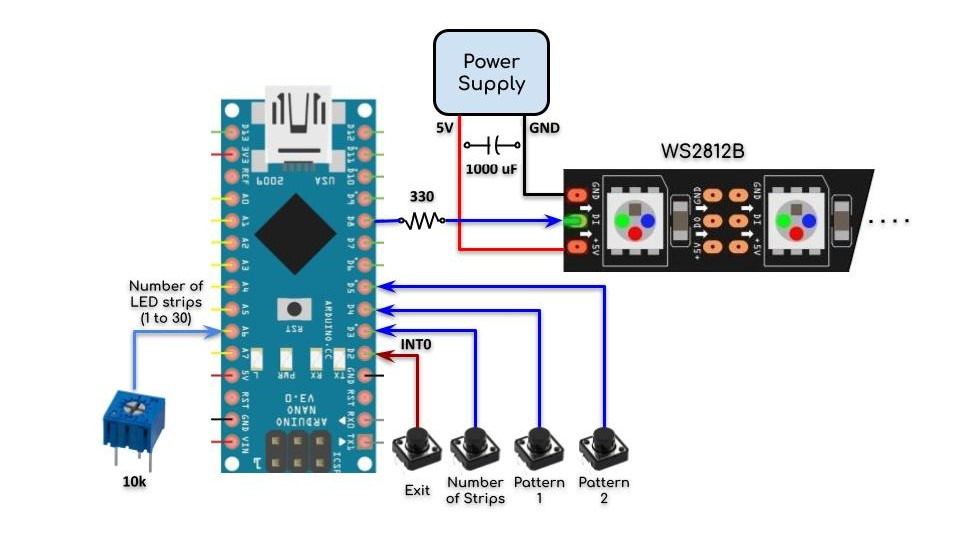
🔌 회로 연결 방법
외부 전원을 사용할 때 가장 중요한 점은 아두이노와 외부 전원의 GND(마이너스)를 하나로 묶어주는 것입니다. GND가 연결되지 않으면 데이터 신호가 전달되지 않아 LED가 오작동합니다.
[ 외부 5V 전원 공급 장치 ]
├── (+) 5V ──────> LED VCC (+)
└── (-) GND ──┬──> LED GND (-)
│
└──> 아두이노 GND
├── (+) 5V ──────> LED VCC (+)
└── (-) GND ──┬──> LED GND (-)
│
└──> 아두이노 GND
[ 아두이노 ]
├── D6 (디지털 핀) ──[ 300~500Ω 저항 ]──> LED DIN (데이터 입력)
└── GND ───────────────────────────────── (위의 외부 전원 GND와 연결)
├── D6 (디지털 핀) ──[ 300~500Ω 저항 ]──> LED DIN (데이터 입력)
└── GND ───────────────────────────────── (위의 외부 전원 GND와 연결)
⚠️ 안전한 구동을 위한 필수 팁
- GND 공통 연결: 아두이노 GND와 외부 전원 GND를 반드시 서로 연결하세요.
- 데이터 선 저항 추가: 아두이노 데이터 핀(예: D6)과 LED DIN 핀 사이에 300Ω ~ 500Ω 저항을 직렬로 연결하면 급격한 전류 변화로부터 첫 번째 LED를 보호할 수 있습니다.
- 대용량 콘덴서 부착: 외부 전원의 (+)와 (-) 출력단 사이에 1000µF, 6.3V(이상) 전해 콘덴서를 병렬로 달아주면 전압 스파이크를 막아 LED 손상을 예방합니다.
#include "FastLED.h"

#define NUM_LEDS 10 //The amount of LEDs on your ARGB LED Strip that you wish to use
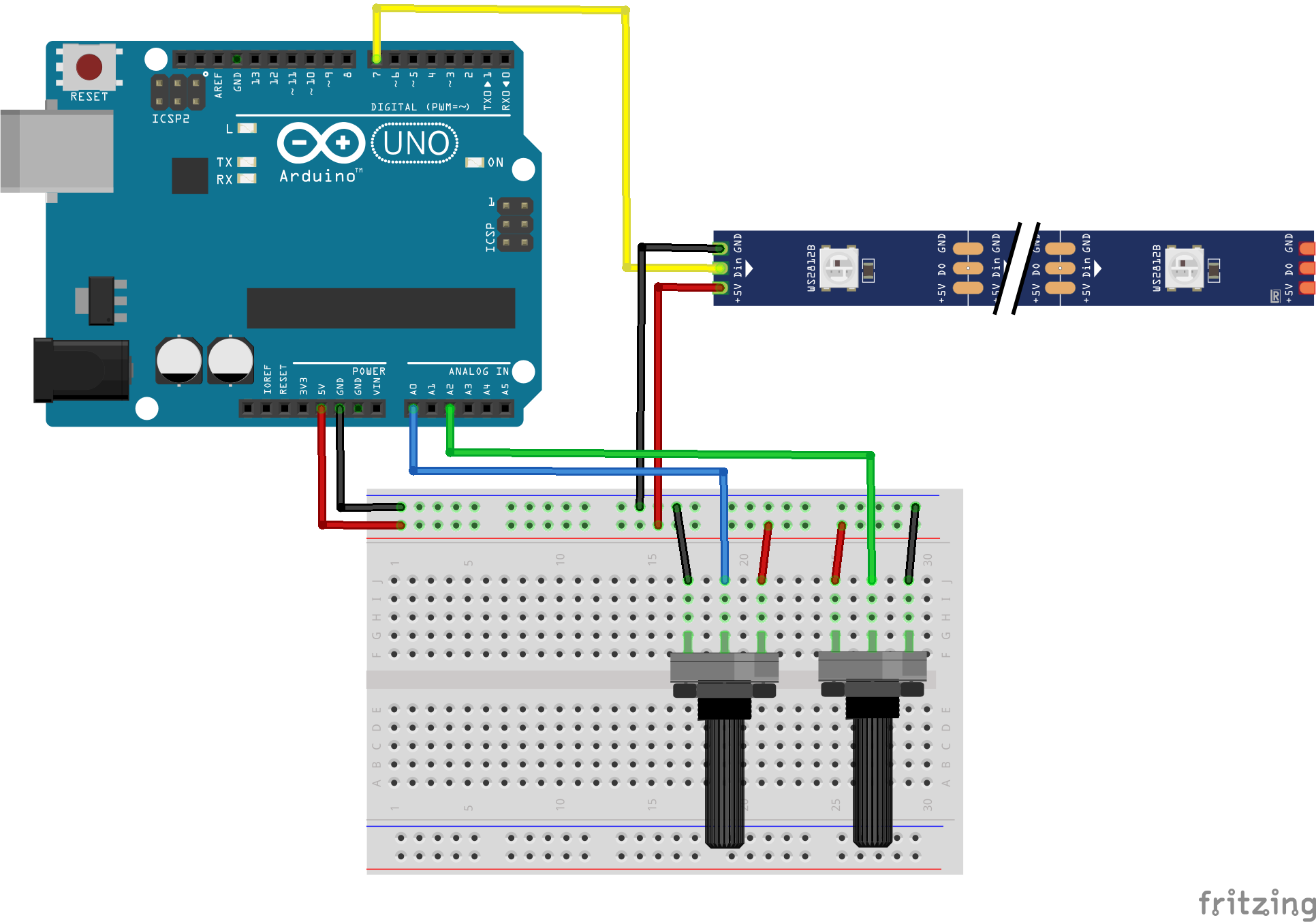
#define DATA_PIN 7 //The Digital Pin on Arduino that connects to the LED Strip's Data Pin (DIN)

int intensityPin = A0;
int speedPin = A2;
int speed;
int intensity;

CRGB leds[NUM_LEDS];
//Set an array length the same as the total LEDs on your strip
//so each LED can be addressed separately in setup/loop
//e.g. leds[0] for the first one, leds[1] for the second one and so on


void setup() {
  FastLED.addLeds<WS2812, DATA_PIN>(leds, NUM_LEDS);
  //Initialise the LED strip with the correct strip type (e.g. WS2812 is common),
  //Arduino Digital Pin and no. of LEDs to use

  pinMode(speedPin, INPUT);
  pinMode(intensityPin, INPUT);
  Serial.begin(9600);
}


void loop() {

  red_led();
  yellow_led();
  green_led();
  blue_led();
  purple_led();
  cyan_led();
  white_led();
}

void green_led() {
  for (int i = 0; i < NUM_LEDS; i++) {
    intensity = map(analogRead(intensityPin),0,1023,0,255);
    leds[i] = CRGB(intensity,0,0);
    FastLED.show();
    speed = map(analogRead(speedPin),0,1023,0,255);
    //Serial.println(speed);
    Serial.println(intensity);
    delay(speed);
    FastLED.clear();
  }
}

void red_led() {
  for (int i = 0; i < NUM_LEDS; i++) {
    intensity = map(analogRead(intensityPin),0,1023,0,255);
    leds[i] = CRGB(0,intensity,0);
    FastLED.show();
    speed = map(analogRead(speedPin),0,1023,0,255);
    //Serial.println(speed);
    Serial.println(intensity);
    delay(speed);
    FastLED.clear();
  }
}

void blue_led() {
  for (int i = 0; i < NUM_LEDS; i++) {
    intensity = map(analogRead(intensityPin),0,1023,0,255);
    leds[i] = CRGB(0,0,intensity);
    FastLED.show();
    speed = map(analogRead(speedPin),0,1023,0,255);
    //Serial.println(speed);
    Serial.println(intensity);
    delay(speed);
    FastLED.clear();
  }
}

void yellow_led() {
  for (int i = 0; i < NUM_LEDS; i++) {
    intensity = map(analogRead(intensityPin),0,1023,0,255);
    leds[i] = CRGB(intensity,intensity,0);
    FastLED.show();
    speed = map(analogRead(speedPin),0,1023,0,255);
    //Serial.println(speed);
    Serial.println(intensity);
    delay(speed);
    FastLED.clear();
  }
}

void purple_led() {
  for (int i = 0; i < NUM_LEDS; i++) {
    intensity = map(analogRead(intensityPin),0,1023,0,255);
    leds[i] = CRGB(0,intensity,intensity);
    FastLED.show();
    speed = map(analogRead(speedPin),0,1023,0,255);
    //Serial.println(speed);
    Serial.println(intensity);
    delay(speed);
    FastLED.clear();
  }
}

void cyan_led() {
  for (int i = 0; i < NUM_LEDS; i++) {
    intensity = map(analogRead(intensityPin),0,1023,0,255);
    leds[i] = CRGB(intensity,0,intensity);
    FastLED.show();
    speed = map(analogRead(speedPin),0,1023,0,255);
    //Serial.println(speed);
    Serial.println(intensity);
    delay(speed);
    FastLED.clear();
  }
}

void white_led() {
  for (int i = 0; i < NUM_LEDS; i++) {
    intensity = map(analogRead(intensityPin),0,1023,0,255);
    leds[i] = CRGB(intensity,intensity,intensity);
    FastLED.show();
    speed = map(analogRead(speedPin),0,1023,0,255);
    //Serial.println(speed);
    Serial.println(intensity);
    delay(speed);
    FastLED.clear();
  }
}
//======================
//WS2812B RGB LED Strips
//======================
#include <FastLED.h>
//-------------------------
CRGB leds[30];
boolean exitFunction; int numStrips = 0;
//=======================================================
void setup()
{
  pinMode(3,INPUT); pinMode(4,INPUT); pinMode(5,INPUT);

  FastLED.addLeds<WS2812B, 8, GRB>(leds, 30);
  FastLED.setBrightness(50);

  attachInterrupt(0,ISR_exit,RISING);
}
//=======================================================
void loop()
{
  exitFunction = false;
  for(int i=0; i<30; i++)
  {
    leds[i] = CRGB::Black;
    FastLED.show();
  }

  if(digitalRead(3) == HIGH) numOfStrips();
  if(digitalRead(4) == HIGH) pattern1(numStrips);
  if(digitalRead(5) == HIGH) pattern2(numStrips);
}
//=======================================================
void numOfStrips()
{
  while(1)
  {
    if(exitFunction == true) return;
    numStrips = map(analogRead(A6),0,1023,1,30);
    for(int i=0; i<numStrips; i++)
    {
      leds[i] = CRGB::Red;
      FastLED.show();
    }
    for(int j=numStrips; j<30; j++)
    {
      leds[j] = CRGB::Black;
      FastLED.show();
    }
  }
}
//=======================================================
void pattern1(int numStrips)
{
  while(1)
  {
    for(int j=1; j<=3; j++)
    {
      for(int i=0; i<numStrips; i++)
      {
        if(exitFunction == true) return;
        if(j == 1)
        {
          leds[i] = CRGB::Red; delay(100);
          FastLED.show();
        }
        if(j == 2)
        {
          leds[i] = CRGB::Blue; delay(100);
          FastLED.show();
        }
        if(j == 3)
        {
          leds[i] = CRGB::Green; delay(100);
          FastLED.show();
        }
      }
    }
  }
}
//=======================================================
void pattern2(int numStrips)
{
  while(1)
  {
    for(int i=0; i<numStrips; i++)
    {
      if(exitFunction == true) return;
      leds[i] = CRGB::Red; delay(80);
      FastLED.show();
      leds[i] = CRGB::Black; delay(80);
      FastLED.show();
    }
    for(int i=numStrips-1; i>=0; i--)
    {
      if(exitFunction == true) return;
      leds[i] = CRGB::Blue; delay(80);
      FastLED.show();
      leds[i] = CRGB::Black; delay(80);
      FastLED.show();
    }
  }
}
//=======================================================
void ISR_exit()
{
   exitFunction = true;
}
반응형
'아두이노우노 R4' 카테고리의 다른 글
| arduino로 만든 모래 시계 프로젝트 최종 코드 (0) | 2026.06.10 |
|---|---|
| MPU6050, MAX7219 8x8 Dot Matrix 아두이노 모래시계 소스코드 4 (0) | 2026.06.04 |
| MPU6050, MAX7219 8x8 Dot Matrix 아두이노 모래시계 소스코드 2 (0) | 2026.06.02 |
| MPU6050, MAX7219 8x8 Dot Matrix 아두이노 모래시계 소스코드 1 (0) | 2026.06.02 |
| MAX7219 8x8 도트 매트릭스 모듈 아두이노 구동 (0) | 2026.06.01 |
| 아두이노 UNO R4 WIFI를 사용하여 IoT 스마트 그리드를 구축하는 방법 (0) | 2026.04.09 |
| DIY 아두이노 휴대용 게임 콘솔 (레트로 게임 10개 포함) (0) | 2026.03.25 |
| 아두이노 나노 매터 보드는 전문가용 제피어 개발 플랫폼이 되었습니다. (0) | 2026.03.17 |
취업, 창업의 막막함, 외주 관리, 제품 부재!
당신의 고민은 무엇입니까? 현실과 동떨어진 교육, 실패만 반복하는 외주 계약,
아이디어는 있지만 구현할 기술이 없는 막막함.
우리는 알고 있습니다. 문제의 원인은 '명확한 학습, 실전 경험과 신뢰할 수 있는 기술력의 부재'에서 시작됩니다.
이제 고민을 멈추고, 캐어랩을 만나세요!
코딩(펌웨어), 전자부품과 디지털 회로설계, PCB 설계 제작, 고객(시장/수출) 발굴과 마케팅 전략으로 당신을 지원합니다.
제품 설계의 고수는 성공이 만든 게 아니라 실패가 만듭니다. 아이디어를 양산 가능한 제품으로!
귀사의 제품을 만드세요. 교육과 개발 실적으로 신뢰할 수 있는 파트너를 확보하세요.
캐어랩


