ESP32 CYD와 LVGL을 이용한 디지털 시계 (시간 및 날짜 표시)
이 가이드에서는 LVGL(Light Versatile Graphics Library)을 사용하여 ESP32 CYD(Cheap Yellow Display) 보드를 시간과 날짜를 표시하는 디지털 시계로 만드는 방법을 설명합니다. 현재 시간과 날짜를 가져오기 위해 TimeAPI를 사용합니다. ESP32는 Arduino IDE를 사용하여 프로그래밍합니다.
ESP32 CYD와 LVGL을 이용한 디지털 시계 (시간 및 날짜 표시)
ESP32 저가형 노란색 디스플레이 보드(CYD, ESP32-2432S028R)를 처음 사용하시나요? 여기에서 시작하세요: ESP32 저가형 노란색 디스플레이 보드(CYD, ESP32-2432S028R) 시작하기
프로젝트 개요
이 프로젝트에서는 TimeAPI 를 사용하여 ESP32 CYD 보드에 시간과 날짜를 표시합니다 . 시간과 날짜는 텍스트 레이블에 표시됩니다.

ESP32 CYD 저렴한 노란색 디스플레이 LVGL 디지털 시계 시간 및 날짜 데모 화면
사용자의 시간대에 맞는 정확한 날짜와 시간을 얻으려면 TimeAPI를 사용합니다. API에서 시간을 가져오려면 ESP32가 인터넷에 연결되어야 하므로 ESP32가 인터넷에 접속할 수 있도록 주변에 라우터가 있어야 합니다.
필수 조건
진행하기 전에 다음 필수 조건을 충족했는지 확인하십시오. 모든 단계를 따라야 하며, 그렇지 않으면 프로젝트가 제대로 작동하지 않습니다.
1) 필요한 부품
이 프로젝트를 위해서는 다음과 같은 부품들이 필요합니다.
ESP32-2432S028R – 2.8인치 240x320 스마트 TFT 터치스크린 디스플레이
2) 아두이노 IDE에 ESP32 보드를 설치합니다.
아두이노 IDE 2 로고
아두이노 IDE를 사용하여 ESP32를 프로그래밍하겠습니다. ESP32 보드가 설치되어 있는지 확인하세요.
3) ESP32 저가형 노란색 디스플레이에 익숙해지세요
ESP32-2432S028R 개발 보드 는 메이커 커뮤니티에서 " 저렴한 노란색 디스플레이 (Cheap Yellow Display)" 또는 줄여서 CYD 로 알려져 있습니다 . 이 개발 보드는 ESP32-WROOM-32 모듈을 주 칩으로 사용하며, 2.8인치 TFT 터치스크린 LCD, microSD 카드 인터페이스, RGB LED, 그리고 보드 프로그래밍 및 전원 공급에 필요한 모든 회로를 갖추고 있습니다.
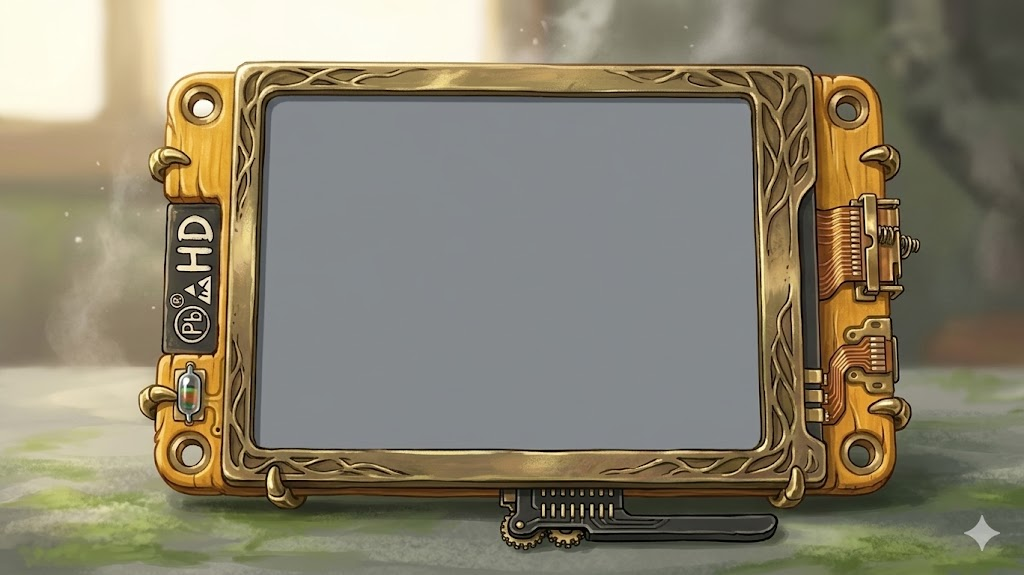
ESP32 저렴한 노란색 디스플레이 CYD 보드 ESP32-2432S028R 전면
ESP32 저가형 노란색 디스플레이를 처음 사용하시는 경우, 시작 가이드를 꼭 따라주세요.
ESP32 저렴한 노란색 디스플레이 보드와 LVGL 시작하기
4) TFT 및 LVGL 라이브러리를 설치합니다.
LVGL (Light and Versatile Graphics Library)은 마이크로컨트롤러 프로젝트에서 그래픽 사용자 인터페이스(GUI)가 필요할 때 사용할 수 있는 다양한 그래픽 요소를 제공하는 무료 오픈 소스 그래픽 라이브러리입니다.

LVGL 새 로고
다음 튜토리얼을 따라 아두이노 IDE를 사용하여 ESP32 저가형 노란색 디스플레이에 LVGL을 사용하기 위한 필수 라이브러리를 설치하고 구성하십시오.
ESP32 저가형 노란색 디스플레이 보드(ESP32-2432S028R)를 사용하여 LVGL을 시작해 보세요.
5) ArduinoJson 라이브러리를 설치합니다.
이 프로젝트를 위해서는 TimeAPI에 요청을 보낼 때 JSON 응답을 처리하기 위해 ArduinoJSON 라이브러리를 설치해야 합니다.
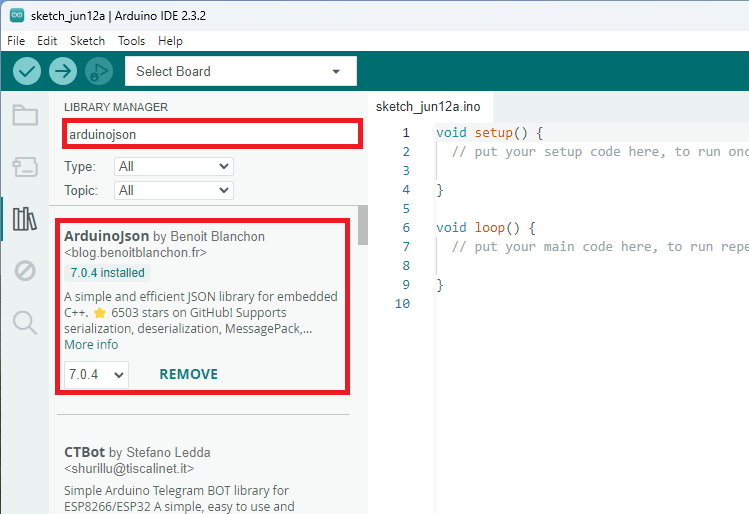
아두이노 IDE에서 스케치 > 라이브러리 포함 > 라이브러리 관리 로 이동합니다. Benoit Blanchon 이 개발한 ArduinoJSON 라이브러리를 검색하여 설치합니다 . 저희는 7.0.4 버전을 사용하고 있으며, 동일한 버전을 사용하는 것을 권장합니다.
ESP32 CYD 디지털 시계: 날짜 및 시간 표시 - 아두이노 코드
다음 코드는 현재 시간과 날짜가 표시된 텍스트 레이블 두 개를 생성합니다. 코드를 보드에 업로드하기 전에 ESP32가 인터넷에 연결하여 시간과 날짜를 가져올 수 있도록 네트워크 자격 증명을 입력해야 합니다. 또한 시간대도 입력해야 합니다.
/*  Rui Santos & Sara Santos - Random Nerd Tutorials - https://RandomNerdTutorials.com/esp32-cyd-lvgl-digital-clock/  |  https://RandomNerdTutorials.com/esp32-tft-lvgl-digital-clock/
    THIS EXAMPLE WAS TESTED WITH THE FOLLOWING HARDWARE:
    1) ESP32-2432S028R 2.8 inch 240×320 also known as the Cheap Yellow Display (CYD): https://makeradvisor.com/tools/cyd-cheap-yellow-display-esp32-2432s028r/
      SET UP INSTRUCTIONS: https://RandomNerdTutorials.com/cyd-lvgl/
    2) REGULAR ESP32 Dev Board + 2.8 inch 240x320 TFT Display: https://makeradvisor.com/tools/2-8-inch-ili9341-tft-240x320/ and https://makeradvisor.com/tools/esp32-dev-board-wi-fi-bluetooth/
      SET UP INSTRUCTIONS: https://RandomNerdTutorials.com/esp32-tft-lvgl/
    Permission is hereby granted, free of charge, to any person obtaining a copy of this software and associated documentation files.
    The above copyright notice and this permission notice shall be included in all copies or substantial portions of the Software.
*/

/*  Install the "lvgl" library version 9.4 by kisvegabor to interface with the TFT Display - https://lvgl.io/
    *** IMPORTANT: lv_conf.h available on the internet will probably NOT work with the examples available at Random Nerd Tutorials ***
    *** YOU MUST USE THE lv_conf.h FILE PROVIDED IN THE LINK BELOW IN ORDER TO USE THE EXAMPLES FROM RANDOM NERD TUTORIALS ***
    FULL INSTRUCTIONS AVAILABLE ON HOW CONFIGURE THE LIBRARY: https://RandomNerdTutorials.com/cyd-lvgl/ or https://RandomNerdTutorials.com/esp32-tft-lvgl/   */
#include <lvgl.h>

/*  Install the "TFT_eSPI" library by Bodmer to interface with the TFT Display - https://github.com/Bodmer/TFT_eSPI
    *** IMPORTANT: User_Setup.h available on the internet will probably NOT work with the examples available at Random Nerd Tutorials ***
    *** YOU MUST USE THE User_Setup.h FILE PROVIDED IN THE LINK BELOW IN ORDER TO USE THE EXAMPLES FROM RANDOM NERD TUTORIALS ***
    FULL INSTRUCTIONS AVAILABLE ON HOW CONFIGURE THE LIBRARY: https://RandomNerdTutorials.com/cyd-lvgl/ or https://RandomNerdTutorials.com/esp32-tft-lvgl/   */
#include <TFT_eSPI.h>

#include <WiFi.h>
#include <HTTPClient.h>
#include <ArduinoJson.h>

// Replace with your network credentials
const char* ssid = "REPLACE_WITH_YOUR_SSID";
const char* password = "REPLACE_WITH_YOUR_PASSWORD";

// Specify the timezone you want to get the time for: https://timeapi.io/api/TimeZone/AvailableTimeZones
// Timezone example for Portugal: "Europe/Lisbon"
const char* timezone = "Europe/Lisbon";

// Store date and time
String current_date;
String current_time;

// Store hour, minute, second
static int32_t hour;
static int32_t minute;
static int32_t second;
bool sync_time_date = false;

#define SCREEN_WIDTH 240
#define SCREEN_HEIGHT 320

#define DRAW_BUF_SIZE (SCREEN_WIDTH * SCREEN_HEIGHT / 10 * (LV_COLOR_DEPTH / 8))
uint32_t draw_buf[DRAW_BUF_SIZE / 4];

// If logging is enabled, it will inform the user about what is happening in the library
void log_print(lv_log_level_t level, const char * buf) {
  LV_UNUSED(level);
  Serial.println(buf);
  Serial.flush();
}

String format_time(int time) {
  return (time < 10) ? "0" + String(time) : String(time);
}

static lv_obj_t * text_label_time;
static lv_obj_t * text_label_date;

static void timer_cb(lv_timer_t * timer){
  LV_UNUSED(timer);
  second++;
  if(second > 59) {
    second = 0;
    minute++;
    if(minute > 59) {
      minute = 0;
      hour++;
      sync_time_date = true;
      Serial.println(sync_time_date);
      Serial.println("\n\n\n\n\n\n\n\n");
      if(hour > 23) {
        hour = 0;
      }
    }
  }

  String hour_time_f = format_time(hour);
  String minute_time_f = format_time(minute);
  String second_time_f = format_time(second);

  String final_time_str = String(hour_time_f) + ":" + String(minute_time_f) + ":"  + String(second_time_f);
  //Serial.println(final_time_str);
  lv_label_set_text(text_label_time, final_time_str.c_str());
  lv_label_set_text(text_label_date, current_date.c_str());
}

void lv_create_main_gui(void) {
  // Get the time and date from TimeAPI.io
  while(hour==0 && minute==0 && second==0) {
    get_date_and_time();
  }
  Serial.println("Current Time: " + current_time);
  Serial.println("Current Date: " + current_date);

  lv_timer_t * timer = lv_timer_create(timer_cb, 1000, NULL);
  lv_timer_ready(timer);

  // Create a text label for the time aligned center
  text_label_time = lv_label_create(lv_screen_active());
  lv_label_set_text(text_label_time, "");
  lv_obj_align(text_label_time, LV_ALIGN_CENTER, 0, -30);
  // Set font type and size
  static lv_style_t style_text_label;
  lv_style_init(&style_text_label);
  lv_style_set_text_font(&style_text_label, &lv_font_montserrat_48);
  lv_obj_add_style(text_label_time, &style_text_label, 0);

  // Create a text label for the date aligned center
  text_label_date = lv_label_create(lv_screen_active());
  lv_label_set_text(text_label_date, current_date.c_str());
  lv_obj_align(text_label_date, LV_ALIGN_CENTER, 0, 40);
  // Set font type and size
  static lv_style_t style_text_label2;
  lv_style_init(&style_text_label2);
  lv_style_set_text_font(&style_text_label2, &lv_font_montserrat_30);
  lv_obj_add_style(text_label_date, &style_text_label2, 0);
  lv_obj_set_style_text_color((lv_obj_t*) text_label_date, lv_palette_main(LV_PALETTE_GREY), 0);
}

void get_date_and_time() {
  if (WiFi.status() == WL_CONNECTED) {
    HTTPClient http;

    // Construct the API endpoint
    String url = String("https://timeapi.io/api/Time/current/zone?timeZone=") + timezone;
    http.begin(url);
    int httpCode = http.GET(); // Make the GET request

    if (httpCode > 0) {
      // Check for the response
      if (httpCode == HTTP_CODE_OK) {
        String payload = http.getString();
        //Serial.println("Time information:");
        //Serial.println(payload);
        // Parse the JSON to extract the time
        JsonDocument doc;
        DeserializationError error = deserializeJson(doc, payload);
        if (!error) {
          current_date = String(doc["date"]);
          current_time = String(doc["time"]);
          hour = doc["hour"];
          minute = doc["minute"];
          second = doc["seconds"];
        } else {
          Serial.print("deserializeJson() failed: ");
          Serial.println(error.c_str());
        }
      }
    } else {
      Serial.printf("GET request failed, error: %s\n", http.errorToString(httpCode).c_str());
      sync_time_date = true;
    }
    http.end(); // Close connection
  } else {
    Serial.println("Not connected to Wi-Fi");
  }
}

void setup() {
  String LVGL_Arduino = String("LVGL Library Version: ") + lv_version_major() + "." + lv_version_minor() + "." + lv_version_patch();
  Serial.begin(115200);
  Serial.println(LVGL_Arduino);

  // Connect to Wi-Fi
  WiFi.begin(ssid, password);
  Serial.print("Connecting");
  while (WiFi.status() != WL_CONNECTED) {
    delay(500);
    Serial.print(".");
  }
  Serial.print("\nConnected to Wi-Fi network with IP Address: ");
  Serial.println(WiFi.localIP());

  // Start LVGL
  lv_init();
  // Register print function for debugging
  lv_log_register_print_cb(log_print);

  // Create a display object
  lv_display_t * disp;
  // Initialize the TFT display using the TFT_eSPI library
  disp = lv_tft_espi_create(SCREEN_WIDTH, SCREEN_HEIGHT, draw_buf, sizeof(draw_buf));
  lv_display_set_rotation(disp, LV_DISPLAY_ROTATION_270);

  // Function to draw the GUI
  lv_create_main_gui();
}

void loop() {
  // Get the time and date from TimeAPI.io
  if(sync_time_date) {
    sync_time_date = false;
    get_date_and_time();
    while(hour==0 && minute==0 && second==0) {
      get_date_and_time();
    }
  }
  lv_task_handler();  // let the GUI do its work
  lv_tick_inc(5);     // tell LVGL how much time has passed
  delay(5);           // let this time pass
}
코드는 어떻게 작동하나요?
화면에 텍스트를 표시하고 통신하려면 lvgl.h 및 TFT_eSPI.h 라이브러리를 포함해야 합니다.
라이브러리 포함
포함해야 합니다lvgl.h그리고TFT_eSPI.h화면에 텍스트를 표시하고 소통하기 위한 라이브러리입니다.
#include <lvgl.h>
#include <TFT_eSPI.h>
HTTP 요청을 수행하고 JSON 데이터를 처리하려면 WiFi, HTTPClient 및 ArduinoJson 라이브러리를 포함해야 합니다.
#include <WiFi.h>
#include <HTTPClient.h>
#include <ArduinoJson.h>
자격 증명과 시간대를 입력하세요.
다음 줄에는 ESP32가 라우터에 연결할 수 있도록 네트워크 자격 증명을 입력해야 합니다.
const char* ssid = "REPLACE_WITH_YOUR_SSID";
const char* password = "REPLACE_WITH_YOUR_PASSWORD";
시간대를 설정하세요시간대코드 시작 부분에 변수(사용 가능한 모든 시간대 목록 ).
const char* timezone = "Europe/Lisbon";
다른 변수 선언하기
날짜와 시간 값을 저장할 보조 변수를 몇 개 생성하세요.
// Store date and time
String current_date;
String current_time;

// Store hour, minute, second
static int32_t hour;
static int32_t minute;
static int32_t second;
bool sync_time_date = false;
글로벌 텍스트 레이블
나중에 모든 함수 내에서 접근할 수 있도록 두 개의 전역 LVGL 텍스트 레이블 객체를 생성합니다.
static lv_obj_t * text_label_time;
static lv_obj_t * text_label_date;
setup( )
setup() 함수 내에서 디버깅을 위해 다음 줄을 포함하세요. 이 코드는 사용 중인 LVGL 버전을 출력합니다. 반드시 버전 9를 사용해야 합니다.
String LVGL_Arduino = String("LVGL Library Version: ") + lv_version_major() + "." + lv_version_minor() + "." + lv_version_patch();
Serial.begin(115200);
Serial.println(LVGL_Arduino);
인터넷에 연결하세요
ESP32를 인터넷에 연결하기 위해 다음 코드를 사용합니다.
// Connect to Wi-Fi
WiFi.begin(ssid, password);
Serial.print("Connecting");
while (WiFi.status() != WL_CONNECTED) {
  delay(500);
  Serial.print(".");
}
Serial.print("\nConnected to Wi-Fi network with IP Address: ");
Serial.println(WiFi.localIP());
LVGL 라이브러리를 초기화합니다.
setup() 함수 내에서 lv_init() 함수를 호출하여 LVGL 라이브러리를 초기화하십시오.
// Start LVGL
lv_init();
디버깅 함수 등록
이전에 선언한 log_print() 함수를 디버깅 LVGL과 연관된 함수로 등록하십시오.
// Register print function for debugging
lv_log_register_print_cb(log_print);
표시 객체를 생성합니다
디스플레이에 출력하려면 먼저 디스플레이 객체를 생성해야 합니다. 모든 LVGL 스케치에서 이 작업을 수행해야 합니다. 다음 코드 블록은 화면 너비, 화면 높이 및 앞서 정의한 그리기 버퍼를 가진 disp라는 LVGL 디스플레이 객체를 생성합니다.
// Create a display object
lv_display_t * disp;
// Initialize the TFT display using the TFT_eSPI library
disp = lv_tft_espi_create(SCREEN_WIDTH, SCREEN_HEIGHT, draw_buf, sizeof(draw_buf));
lv_display_set_rotation(disp, LV_DISPLAY_ROTATION_270);
GUI 그리기
LVGL 라이브러리는 비동기적으로 작동합니다. 디스플레이에 그리기 기능을 호출하려면 반드시 setup() 내에서 수행해야 합니다. 이후 모든 작업은 이벤트와 콜백을 통해 처리됩니다. 코드는 백그라운드에서 항상 이벤트를 수신 대기합니다. 이벤트가 발생하면 해당 이벤트와 연결된 콜백 함수가 실행됩니다. loop() 내에서 이벤트를 확인할 필요가 없습니다.
대부분의 예제에서 화면에 그리는 함수는 lv_create_main_gui()로 호출됩니다. 이 함수 내부에서 인터페이스를 구축하는 명령어를 추가하게 됩니다.
// Function to draw the GUI
lv_create_main_gui();
날짜 및 시간 가져오기()
화면을 초기화할 때, get_date_and_time() 함수를 호출하여 TimeAPI로부터 최신 날짜와 시간을 가져옵니다. 그런 다음 화면에 표시하는 데 사용할 보조 변수들에 해당 값들을 저장합니다.
void get_date_and_time() {
  if (WiFi.status() == WL_CONNECTED) {
    HTTPClient http;

    // Construct the API endpoint
    String url = String("https://timeapi.io/api/Time/current/zone?timeZone=") + timezone;
    http.begin(url);
    int httpCode = http.GET(); // Make the GET request

    if (httpCode > 0) {
      // Check for the response
      if (httpCode == HTTP_CODE_OK) {
        String payload = http.getString();
        //Serial.println("Time information:");
        //Serial.println(payload);
        // Parse the JSON to extract the time
        JsonDocument doc;
        DeserializationError error = deserializeJson(doc, payload);
        if (!error) {
          current_date = String(doc["date"]);
          current_time = String(doc["time"]);
          hour = doc["hour"];
          minute = doc["minute"];
          second = doc["seconds"];
        } else {
          Serial.print("deserializeJson() failed: ");
          Serial.println(error.c_str());
        }
      }
    } else {
      Serial.printf("GET request failed, error: %s\n", http.errorToString(httpCode).c_str());
      sync_time_date = true;
    }
    http.end(); // Close connection
  } else {
    Serial.println("Not connected to Wi-Fi");
  }
}
GUI 준비 중
메인 GUI를 그리기 전에 먼저 API를 호출하여 최신 시간과 날짜를 가져옵니다.
void lv_create_main_gui(void) {
  // Get the time and date from TimeAPI
  while(hour==0 && minute==0 && second==0) {
    get_date_and_time();
  }
(...)
타이머
화면의 시간 및 날짜 텍스트 레이블을 업데이트하려면 특정 함수를 주기적으로 실행하는 LVGL 타이머를 생성할 수 있습니다. 이 경우 1초마다 업데이트합니다. timer라는 LVGL 타이머를 생성하고 timer_cb 콜백 함수를 할당합니다.
lv_timer_t * timer = lv_timer_create(timer_cb, 1000, NULL);
lv_timer_ready(timer);
시간 텍스트 레이블
텍스트 레이블을 생성하려면 LVGL 함수 lv_label_create()를 호출하고 텍스트를 표시할 위치를 인자로 전달하면 됩니다. 현재 화면(lv_screen_active())에 추가하고자 합니다.
// Create a text label for the time aligned center
text_label_time = lv_label_create(lv_screen_active());
텍스트 레이블을 생성한 후, lv_label_set_text() 함수를 사용하여 해당 레이블의 텍스트를 설정할 수 있습니다. 이 함수는 참조할 텍스트 레이블과 해당 레이블에 추가할 텍스트를 인자로 받습니다. 본 예제에서는 처음에 빈 문자열로 설정합니다.
lv_label_set_text(text_label_time, "");
다음 줄은 텍스트 레이블을 정렬합니다. lv_obj_align() 함수를 사용할 수 있습니다. 인자로 LVGL 객체, 정렬 방식, 픽셀 단위의 x 및 y 오프셋을 전달하십시오.
lv_obj_align(text_label_time, LV_ALIGN_CENTER, 0, -30);
텍스트 레이블의 스타일을 지정하기 위해, 먼저 style_text_label이라는 lv_style_t 유형의 객체를 생성합니다. 이러한 유형의 객체는 LVGL 객체에 스타일을 적용하는 데 사용됩니다.
static lv_style_t style_text_label;
스타일을 생성한 후, lv_style_init() 함수를 사용하여 초기화하고 인자로 텍스트 레이블 스타일(style_text_label)을 전달합니다.
lv_style_init(&style_text_label);
그런 다음 lv_style_set_text_font() 함수를 사용하여 글꼴 유형과 크기를 설정할 수 있습니다. 인자로 참조 중인 스타일 객체와 글꼴 유형을 전달합니다. 마지막으로 스타일을 적용합니다.
lv_style_set_text_font(&style_text_label, &lv_font_montserrat_48);
lv_obj_add_style(text_label_time, &style_text_label, 0);
날짜 텍스트 레이블
text_label_date를 생성하기 위해 유사한 절차가 적용됩니다.
// Create a text label for the date aligned center
text_label_date = lv_label_create(lv_screen_active());
lv_label_set_text(text_label_date, current_date.c_str());
lv_obj_align(text_label_date, LV_ALIGN_CENTER, 0, 40);
// Set font type and size
static lv_style_t style_text_label2;
lv_style_init(&style_text_label2);
lv_style_set_text_font(&style_text_label2, &lv_font_montserrat_30);
lv_obj_add_style(text_label_date, &style_text_label2, 0);
lv_obj_set_style_text_color((lv_obj_t*) text_label_date, lv_palette_main(LV_PALETTE_GREY), 0);
타이머 콜백 함수
timer_cb 함수는 1초마다 실행됩니다. 콜백 함수가 실행될 때마다 1초를 증가시키고, 60초마다 1분을, 60분마다 1시간을 증가시킵니다.
static void timer_cb(lv_timer_t * timer){
  LV_UNUSED(timer);
  second++;
  if(second > 59) {
    second = 0;
    minute++;
    if(minute > 59) {
      minute = 0;
      hour++;
      sync_time_date = true;
      Serial.println(sync_time_date);
      Serial.println("\n\n\n\n\n\n\n\n");
      if(hour > 23) {
        hour = 0;
      }
    }
  }
(...)
우리는 이러한 보조 변수를 사용하여 텍스트 레이블에 표시될 문자열을 준비합니다.
String hour_time_f = format_time(hour);
String minute_time_f = format_time(minute);
String second_time_f = format_time(second);

String final_time_str = String(hour_time_f) + ":" + String(minute_time_f) + ":"  + String(second_time_f);
텍스트 레이블을 현재 시간과 날짜로 설정하세요.
lv_label_set_text(text_label_time, final_time_str.c_str());
lv_label_set_text(text_label_date, current_date.c_str());
loop()
loop() 함수 내에서 일반적인 아두이노 스케치와 마찬가지로 ESP32가 수행해야 할 다른 작업을 추가할 수 있습니다. 본 예제에서는 매시간마다 TimeAPI를 통해 날짜와 시간을 동기화할 필요가 있는지 확인할 것입니다.
void loop() {
  // Get the time and date from TimeAPI
  if(sync_time_date) {
    sync_time_date = false;
    get_date_and_time();
    while(hour==0 && minute==0 && second==0) {
      get_date_and_time();
    }
  }
  lv_task_handler();   // let the GUI do its work
  lv_tick_inc(5);         // tell LVGL how much time has passed
  delay(5);                 // let this time pass
}
데모
코드를 보드에 업로드하세요. 도구 > 보드로 이동하여 ESP32 > ESP32 개발 모듈을 선택하세요. 그런 다음 도구 > 포트에서 올바른 COM 포트를 선택하세요.
업로드 과정에서 다음과 같은 오류("Sketch too big")가 발생하면, Arduino IDE에서 도구 > 파티션 구성 > 1.4MB 이상의 APP 용량을 지원하는 항목(예: "Huge APP (3MB No OTA/1MB SPIFFS)")을 선택하세요.

Arduino IDE 도구 메뉴에서 대용량 앱 파티션 구성표를 선택하세요.
마지막으로 업로드 버튼을 클릭하세요.
아두이노 IDE 2 업로드 버튼
몇 초 후, 아래 그림과 같이 화면에 시간과 날짜가 표시됩니다.
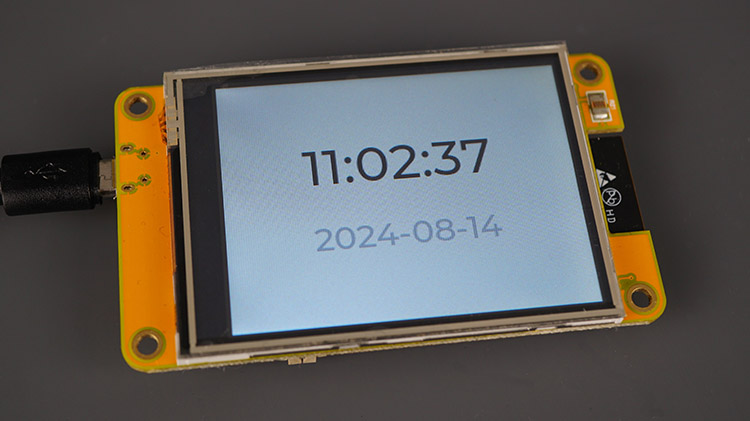
ESP32 CYD 저렴한 노란색 디스플레이 LVGL 디지털 시계 시간 및 날짜
ESP32는 내부 시계로 시간을 완벽하게 유지하지 못합니다. 테스트 결과, 한 시간 후에는 보통 20~40초 정도의 지연이 발생했습니다. 따라서 매시간 TimeAPI에 HTTP 요청을 보내 시간과 날짜를 동기화합니다.
마무리
이 튜토리얼에서는 LVGL 라이브러리를 사용하여 CYD(Cheap Yellow Display) 보드에 날짜와 시간을 표시하는 방법을 배웠습니다.
이 튜토리얼이 유용하셨기를 바랍니다. 이 보드에 대한 더 많은 가이드를 준비 중이니 기대해 주세요. ESP32에서 LVGL 라이브러리를 사용하여 그래픽 사용자 인터페이스를 만드는 방법에 대해 더 자세히 알아보려면 최신 전자책을 확인해 보세요.
LVGL 배우기: ESP32 프로젝트용 GUI 구축하기 (전자책)
다음 가이드도 읽어보시면 좋을 거예요:
- ESP32 시작하기: 저렴한 노란색 디스플레이 보드 – CYD (ESP32-2432S028R)
- ESP32 터치스크린 켜짐/꺼짐 버튼 - 저렴한 노란색 디스플레이 (ESP32-2432S028R)
- ESP32 저가형 노란색 디스플레이(CYD) 핀 배치도 (ESP32-2432S028R)
- LVGL용 ESP32 저가형 노란색 디스플레이 보드(ESP32-2432S028R)
이 튜토리얼을 제공해 주셔서 감사합니다. 원본 튜토리얼은 이 링크를 따라가세요.
'ESP32' 카테고리의 다른 글
| ESP32 기반 컬러 ST7735 LCD 인터넷 시계 (1) | 2026.03.13 |
|---|---|
| ESP32-S3 보드 비교 - 2026년 가이드 (1) | 2026.03.12 |
| ESP-IDF Programming Guide (0) | 2026.03.11 |
| ESP32-S3 : 정의, Pinout, 프로세서, 응용 분야 및 개발 보드 (0) | 2026.03.10 |
| 배터리로 ESP32에 전원을 공급하는 방법 (0) | 2026.03.10 |
| ESP32를 이용한 장애물 회피 로봇 (0) | 2026.03.04 |
| ESP32 BLE 비콘 스캐너 (0) | 2026.03.03 |
| ESP32 BLE 서버 만들기 가이드와 코드 첨부 (0) | 2026.03.03 |
취업, 창업의 막막함, 외주 관리, 제품 부재!
당신의 고민은 무엇입니까? 현실과 동떨어진 교육, 실패만 반복하는 외주 계약,
아이디어는 있지만 구현할 기술이 없는 막막함.
우리는 알고 있습니다. 문제의 원인은 '명확한 학습, 실전 경험과 신뢰할 수 있는 기술력의 부재'에서 시작됩니다.
이제 고민을 멈추고, 캐어랩을 만나세요!
코딩(펌웨어), 전자부품과 디지털 회로설계, PCB 설계 제작, 고객(시장/수출) 발굴과 마케팅 전략으로 당신을 지원합니다.
제품 설계의 고수는 성공이 만든 게 아니라 실패가 만듭니다. 아이디어를 양산 가능한 제품으로!
귀사의 제품을 만드세요. 교육과 개발 실적으로 신뢰할 수 있는 파트너를 확보하세요.
캐어랩


