ESP32 웹 업데이트 프로그램 (아두이노 IDE에서 OTA(Over The Air) 프로그래밍)
웹 업데이터를 이용한 ESP32 무선(OTA) 프로그래밍 튜토리얼
목차
소개
ESP32에서 OTA 프로그래밍이란 무엇인가요?
ESP32에서 OTA를 구현하는 방법
ESP32에서 웹 업데이터 OTA를 사용하는 3가지 간단한 단계
1단계: OTA 루틴을 순차적으로 업로드합니다.
2단계: 웹 서버에 접속
3단계: 새 스케치를 무선으로 업로드합니다.
아두이노 IDE에서 .bin 파일을 생성합니다.
ESP32에 새 스케치를 무선으로 업로드하세요.
ESP32의 가장 큰 장점 중 하나는 펌웨어를 무선으로 업데이트할 수 있다는 것입니다. 이러한 프로그래밍 방식을 "무선 업데이트(Over-The-Air, OTA)"라고 합니다.
ESP32 웹 업데이트 OTA(Over The Air) 프로그래밍
ESP32 기본 OTA(Over The Air) 프로그래밍
ESP32 웹 업데이터: 브라우저를 통해 코드 업데이트(OTA)
ESP32 OTA(무선) 업데이트, AsyncElegantOTA(VS Code + PlatformIO)
ESP32 OTA(무선) 업데이트, AsyncElegantOTA(VS Code + PlatformIO)
ESP32 OTA (Over-the-Air) Updates – AsyncElegantOTA
ESP32 ESP32 Web OTA(Over-the-air) 프로그래밍
ESP32에서 OTA 프로그래밍이란 무엇인가요?
OTA 프로그래밍을 사용하면 ESP32를 USB 케이블로 컴퓨터에 연결하지 않고도 Wi-Fi를 통해 ESP32에 새 프로그램을 업데이트/업로드할 수 있습니다.
OTA 기능은 ESP 모듈에 물리적으로 접근할 수 없을 때 유용합니다. 또한 유지보수 시 각 ESP 모듈을 업데이트하는 데 필요한 시간을 단축시켜 줍니다.
OTA의 주요 장점 중 하나는 단일 중앙 위치에서 동일 네트워크 상의 여러 ESP에 업데이트를 보낼 수 있다는 것입니다.
유일한 단점은 다음 업데이트에서 OTA 기능을 사용하려면 업로드하는 각 스케치에 OTA 코드를 포함해야 한다는 것입니다.
ESP32에서 OTA를 구현하는 방법
ESP32에서 OTA 기능을 구현하는 방법에는 두 가지가 있습니다.
- 기본 OTA 업데이트는 Arduino IDE를 사용하여 제공됩니다.
- 웹 업데이터 OTA – 업데이트는 웹 브라우저를 통해 제공됩니다.
각각 장점이 있으므로 프로젝트에 가장 적합한 방법을 사용하면 됩니다.
이 튜토리얼에서는 웹 업데이트 OTA 구현 과정을 안내합니다. 기본 OTA에 대해 더 자세히 알아보려면 아래 튜토리얼을 참조하세요.
Arduino IDE를 사용하여 ESP32에 무선(OTA) 프로그래밍하는 방법 튜토리얼
ESP32에서 웹 업데이터 OTA를 사용하는 3가지 간단한 단계
- OTA 루틴을 직렬로 업로드하기: 첫 번째 단계는 OTA 펌웨어가 포함된 스케치를 직렬로 업로드하는 것입니다. 이는 이후의 무선 업데이트를 수행하기 위해 필요한 단계입니다.
- 웹 서버 접속: OTA 스케치는 웹 브라우저를 통해 접속할 수 있는 STA 모드의 웹 서버를 생성합니다. 웹 서버에 로그인하면 새 스케치를 업로드할 수 있습니다.
- 무선으로 새 스케치 업로드: 이제 웹 서버를 통해 컴파일된 .bin 파일을 생성하고 업로드하여 ESP32에 새 스케치를 업로드할 수 있습니다.
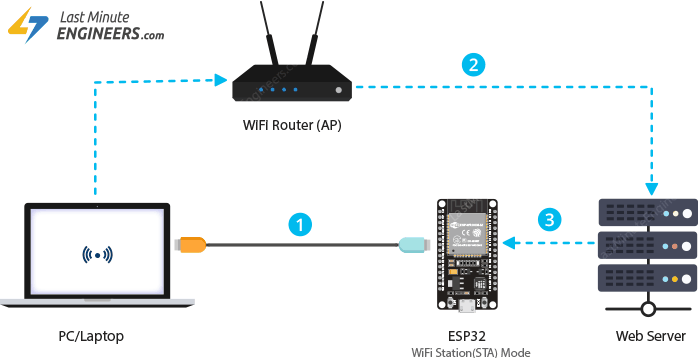
ESP32 무선(OTA) 웹 업데이트 프로그램 작동 중
1단계: OTA 루틴을 순차적으로 업로드합니다.
ESP32의 공장 초기 이미지에는 OTA 업그레이드 기능이 없으므로 먼저 시리얼 인터페이스를 통해 ESP32에 OTA 펌웨어를 로드해야 합니다.
이후 무선 업데이트를 수행하려면 먼저 펌웨어를 업데이트해야 합니다.
Arduino IDE용 ESP32 애드온에는 OTA 라이브러리와 OTAWebUpdater 예제가 포함되어 있습니다. 파일 > 예제 > ArduinoOTA > OTAWebUpdater 로 이동하면 됩니다 .
OTA 웹 업데이트 프로그램의 사용자 인터페이스가 매우 보기 좋지 않습니다. 그래서 코드를 수정하여 더 보기 좋게 만들었습니다. 먼저 ESP32를 컴퓨터에 연결하고 아래 스케치를 업로드하세요.
스케치를 업로드하기 전에 ESP32가 기존 네트워크에 연결할 수 있도록 다음 두 변수를 네트워크 자격 증명으로 수정해야 합니다.
const char* ssid = "---";
const char* password = "----";
작업이 끝나면 스케치를 업로드해 주세요.
#include <WiFi.h>
#include <WiFiClient.h>
#include <WebServer.h>
#include <ESPmDNS.h>
#include <Update.h>

const char* host = "esp32";
const char* ssid = "---";
const char* password = "----";

WebServer server(80);

/* Style */
String style =
"<style>#file-input,input{width:100%;height:44px;border-radius:4px;margin:10px auto;font-size:15px}"
"input{background:#f1f1f1;border:0;padding:0 15px}body{background:#3498db;font-family:sans-serif;font-size:14px;color:#777}"
"#file-input{padding:0;border:1px solid #ddd;line-height:44px;text-align:left;display:block;cursor:pointer}"
"#bar,#prgbar{background-color:#f1f1f1;border-radius:10px}#bar{background-color:#3498db;width:0%;height:10px}"
"form{background:#fff;max-width:258px;margin:75px auto;padding:30px;border-radius:5px;text-align:center}"
".btn{background:#3498db;color:#fff;cursor:pointer}</style>";

/* Login page */
String loginIndex =
"<form name=loginForm>"
"<h1>ESP32 Login</h1>"
"<input name=userid placeholder='User ID'> "
"<input name=pwd placeholder=Password type=Password> "
"<input type=submit onclick=check(this.form) class=btn value=Login></form>"
"<script>"
"function check(form) {"
"if(form.userid.value=='admin' && form.pwd.value=='admin')"
"{window.open('/serverIndex')}"
"else"
"{alert('Error Password or Username')}"
"}"
"</script>" + style;

/* Server Index Page */
String serverIndex =
"<script src='https://ajax.googleapis.com/ajax/libs/jquery/3.2.1/jquery.min.js'></script>"
"<form method='POST' action='#' enctype='multipart/form-data' id='upload_form'>"
"<input type='file' name='update' id='file' onchange='sub(this)' style=display:none>"
"<label id='file-input' for='file'>   Choose file...</label>"
"<input type='submit' class=btn value='Update'>"
"<br><br>"
"<div id='prg'></div>"
"<br><div id='prgbar'><div id='bar'></div></div><br></form>"
"<script>"
"function sub(obj){"
"var fileName = obj.value.split('\\\\');"
"document.getElementById('file-input').innerHTML = '   '+ fileName[fileName.length-1];"
"};"
"$('form').submit(function(e){"
"e.preventDefault();"
"var form = $('#upload_form')[0];"
"var data = new FormData(form);"
"$.ajax({"
"url: '/update',"
"type: 'POST',"
"data: data,"
"contentType: false,"
"processData:false,"
"xhr: function() {"
"var xhr = new window.XMLHttpRequest();"
"xhr.upload.addEventListener('progress', function(evt) {"
"if (evt.lengthComputable) {"
"var per = evt.loaded / evt.total;"
"$('#prg').html('progress: ' + Math.round(per*100) + '%');"
"$('#bar').css('width',Math.round(per*100) + '%');"
"}"
"}, false);"
"return xhr;"
"},"
"success:function(d, s) {"
"console.log('success!') "
"},"
"error: function (a, b, c) {"
"}"
"});"
"});"
"</script>" + style;

/* setup function */
void setup(void) {
  Serial.begin(115200);

  // Connect to WiFi network
  WiFi.begin(ssid, password);
  Serial.println("");

  // Wait for connection
  while (WiFi.status() != WL_CONNECTED) {
    delay(500);
    Serial.print(".");
  }
  Serial.println("");
  Serial.print("Connected to ");
  Serial.println(ssid);
  Serial.print("IP address: ");
  Serial.println(WiFi.localIP());

  /*use mdns for host name resolution*/
  if (!MDNS.begin(host)) { //http://esp32.local
    Serial.println("Error setting up MDNS responder!");
    while (1) {
      delay(1000);
    }
  }
  Serial.println("mDNS responder started");
  /*return index page which is stored in serverIndex */
  server.on("/", HTTP_GET, []() {
    server.sendHeader("Connection", "close");
    server.send(200, "text/html", loginIndex);
  });
  server.on("/serverIndex", HTTP_GET, []() {
    server.sendHeader("Connection", "close");
    server.send(200, "text/html", serverIndex);
  });
  /*handling uploading firmware file */
  server.on("/update", HTTP_POST, []() {
    server.sendHeader("Connection", "close");
    server.send(200, "text/plain", (Update.hasError()) ? "FAIL" : "OK");
    ESP.restart();
  }, []() {
    HTTPUpload& upload = server.upload();
    if (upload.status == UPLOAD_FILE_START) {
      Serial.printf("Update: %s\n", upload.filename.c_str());
      if (!Update.begin(UPDATE_SIZE_UNKNOWN)) { //start with max available size
        Update.printError(Serial);
      }
    } else if (upload.status == UPLOAD_FILE_WRITE) {
      /* flashing firmware to ESP*/
      if (Update.write(upload.buf, upload.currentSize) != upload.currentSize) {
        Update.printError(Serial);
      }
    } else if (upload.status == UPLOAD_FILE_END) {
      if (Update.end(true)) { //true to set the size to the current progress
        Serial.printf("Update Success: %u\nRebooting...\n", upload.totalSize);
      } else {
        Update.printError(Serial);
      }
    }
  });
  server.begin();
}

void loop(void) {
  server.handleClient();
  delay(1);
}
2단계: 웹 서버에 접속
OTA 웹 업데이터 스케치는 웹 브라우저를 통해 접속할 수 있고 ESP32에 새 스케치를 무선으로 업로드하는 데 사용할 수 있는 STA 모드의 웹 서버를 생성합니다.
웹 서버에 접속하려면 시리얼 모니터를 115200bps 속도로 열고 ESP32의 EN(RESET) 버튼을 누르세요. 모든 것이 정상이라면 라우터에서 할당받은 동적 IP 주소가 표시될 것입니다.
ESP32에 할당된 IP 주소를 기록해 두세요.
다음으로 브라우저를 실행하고 시리얼 모니터에 표시된 IP 주소로 이동하세요. ESP32에 로그인 정보를 요청하는 웹 페이지가 표시될 것입니다.
ESP32 OTA 웹 서버에 접속하세요
다음 사용자 ID와 비밀번호를 입력하십시오:
User ID: admin
Password: admin
사용자 ID와 비밀번호를 변경하려면 스케치에서 다음 코드를 수정하세요.
"if(form.userid.value=='admin' && form.pwd.value=='admin')"
로그인 후 해당 페이지로 이동합니다 /serverIndex. 이 페이지를 통해 ESP32에 새 스케치를 무선으로 업로드할 수 있습니다.
업로드하려는 새 스케치는 .bin컴파일된 바이너리 형식이어야 합니다. 다음 단계에서 스케치의 .bin 파일을 생성하는 방법을 안내해 드리겠습니다.
경고: /serverIndex 페이지는 로그인 기능으로 보호되지 않습니다. 이 취약점으로 인해 사용자가 로그인 없이 시스템에 접근할 수 있습니다.
3단계: 새 스케치를 무선으로 업로드합니다.
자, 이제 새로운 스케치를 무선으로 업로드해 봅시다.
업로드하는 모든 스케치에 OTA 코드를 반드시 포함해야 한다는 점을 기억하세요. 그렇지 않으면 OTA 기능을 사용할 수 없게 되어 다음 OTA 업데이트 업로드를 수행할 수 없게 됩니다. 따라서 기존 코드를 수정하여 새 코드를 포함시키는 것이 좋습니다.
예시로, OTA 웹 업데이트 코드에 간단한 Blink 스케치를 포함시키겠습니다. SSID와 password 변수는 네트워크 자격 증명에 맞게 수정해야 합니다.
웹 업데이트 OTA 프로그램의 변경 사항은 파란색으로 강조 표시됩니다.
#include <WiFi.h>
#include <WiFiClient.h>
#include <WebServer.h>
#include <ESPmDNS.h>
#include <Update.h>

const char* host = "ca-esp32";
const char* ssid = "carelab";
const char* password = "12345678";

//variabls for blinking an LED with Millis
const int led = 2; // ESP32 Pin to which onboard LED is connected
unsigned long previousMillis = 0;  // will store last time LED was updated
const long interval = 1000;  // interval at which to blink (milliseconds)
int ledState = LOW;  // ledState used to set the LED
WebServer server(80);

/* Style */
String style =
"<style>#file-input,input{width:100%;height:44px;border-radius:4px;margin:10px auto;font-size:15px}"
"input{background:#f1f1f1;border:0;padding:0 15px}body{background:#3498db;font-family:sans-serif;font-size:14px;color:#777}"
"#file-input{padding:0;border:1px solid #ddd;line-height:44px;text-align:left;display:block;cursor:pointer}"
"#bar,#prgbar{background-color:#f1f1f1;border-radius:10px}#bar{background-color:#3498db;width:0%;height:10px}"
"form{background:#fff;max-width:258px;margin:75px auto;padding:30px;border-radius:5px;text-align:center}"
".btn{background:#3498db;color:#fff;cursor:pointer}</style>";

/* Login page */
String loginIndex =
"<form name=loginForm>"
"<h1>ESP32 Login</h1>"
"<input name=userid placeholder='User ID'> "
"<input name=pwd placeholder=Password type=Password> "
"<input type=submit onclick=check(this.form) class=btn value=Login></form>"
"<script>"
"function check(form) {"
"if(form.userid.value=='admin' && form.pwd.value=='admin')"
"{window.open('/serverIndex')}"
"else"
"{alert('Error Password or Username')}"
"}"
"</script>" + style;

/* Server Index Page */
String serverIndex =
"<script src='https://ajax.googleapis.com/ajax/libs/jquery/3.2.1/jquery.min.js'></script>"
"<form method='POST' action='#' enctype='multipart/form-data' id='upload_form'>"
"<input type='file' name='update' id='file' onchange='sub(this)' style=display:none>"
"<label id='file-input' for='file'>   Choose file...</label>"
"<input type='submit' class=btn value='Update'>"
"<br><br>"
"<div id='prg'></div>"
"<br><div id='prgbar'><div id='bar'></div></div><br></form>"
"<script>"
"function sub(obj){"
"var fileName = obj.value.split('\\\\');"
"document.getElementById('file-input').innerHTML = '   '+ fileName[fileName.length-1];"
"};"
"$('form').submit(function(e){"
"e.preventDefault();"
"var form = $('#upload_form')[0];"
"var data = new FormData(form);"
"$.ajax({"
"url: '/update',"
"type: 'POST',"
"data: data,"
"contentType: false,"
"processData:false,"
"xhr: function() {"
"var xhr = new window.XMLHttpRequest();"
"xhr.upload.addEventListener('progress', function(evt) {"
"if (evt.lengthComputable) {"
"var per = evt.loaded / evt.total;"
"$('#prg').html('progress: ' + Math.round(per*100) + '%');"
"$('#bar').css('width',Math.round(per*100) + '%');"
"}"
"}, false);"
"return xhr;"
"},"
"success:function(d, s) {"
"console.log('success!') "
"},"
"error: function (a, b, c) {"
"}"
"});"
"});"
"</script>" + style;

/* setup function */
void setup(void) {

pinMode(led,  OUTPUT);
  Serial.begin(115200);

  // Connect to WiFi network
  WiFi.begin(ssid, password);
  Serial.println("");

  // Wait for connection
  while (WiFi.status() != WL_CONNECTED) {
    delay(500);
    Serial.print(".");
  }
  Serial.println("");
  Serial.print("Connected to ");
  Serial.println(ssid);
  Serial.print("IP address: ");
  Serial.println(WiFi.localIP());

  /*use mdns for host name resolution*/
  if (!MDNS.begin(host)) { //http://esp32.local
    Serial.println("Error setting up MDNS responder!");
    while (1) {
      delay(1000);
    }
  }
  Serial.println("mDNS responder started");
  /*return index page which is stored in serverIndex */
  server.on("/", HTTP_GET, []() {
    server.sendHeader("Connection", "close");
    server.send(200, "text/html", loginIndex);
  });
  server.on("/serverIndex", HTTP_GET, []() {
    server.sendHeader("Connection", "close");
    server.send(200, "text/html", serverIndex);
  });
  /*handling uploading firmware file */
  server.on("/update", HTTP_POST, []() {
    server.sendHeader("Connection", "close");
    server.send(200, "text/plain", (Update.hasError()) ? "FAIL" : "OK");
    ESP.restart();
  }, []() {
    HTTPUpload& upload = server.upload();
    if (upload.status == UPLOAD_FILE_START) {
      Serial.printf("Update: %s\n", upload.filename.c_str());
      if (!Update.begin(UPDATE_SIZE_UNKNOWN)) { //start with max available size
        Update.printError(Serial);
      }
    } else if (upload.status == UPLOAD_FILE_WRITE) {
      /* flashing firmware to ESP*/
      if (Update.write(upload.buf, upload.currentSize) != upload.currentSize) {
        Update.printError(Serial);
      }
    } else if (upload.status == UPLOAD_FILE_END) {
      if (Update.end(true)) { //true to set the size to the current progress
        Serial.printf("Update Success: %u\nRebooting...\n", upload.totalSize);
      } else {
        Update.printError(Serial);
      }
    }
  });
  server.begin();
}

void loop(void) {
  server.handleClient();
  delay(1);

  /*
  //loop to blink without delay
  unsigned long currentMillis = millis();
  if (currentMillis - previousMillis >= interval) {
    // save the last time you blinked the LED
    previousMillis = currentMillis;
    // if the LED is off turn it on and vice-versa:
    ledState = not(ledState);
    // set the LED with the ledState of the variable:
    digitalWrite(led,  ledState);
  }*/

  #ifdef RGB_BUILTIN
  digitalWrite(RGB_BUILTIN, HIGH);  // Turn the RGB LED white
  delay(1000);
  digitalWrite(RGB_BUILTIN, LOW);  // Turn the RGB LED off
  delay(1000);
  rgbLedWrite(RGB_BUILTIN, RGB_BRIGHTNESS, 0, 0);  // Red
  delay(1000);
  rgbLedWrite(RGB_BUILTIN, 0, RGB_BRIGHTNESS, 0);  // Green
  delay(1000);
  rgbLedWrite(RGB_BUILTIN, 0, 0, RGB_BRIGHTNESS);  // Blue
  delay(1000);
  rgbLedWrite(RGB_BUILTIN, 0, 0, 0);  // Off / black
  delay(1000);
  #endif

}
* LED를 깜빡이게 하는 데 delay() 함수를 사용하지 않았다는 점에 유의하세요. delay() 함수는 프로그램을 일시 정지시키기 때문입니다. ESP32가 delay() 함수의 실행이 완료되기를 기다리며 일시 정지된 상태에서, 다음 OTA 요청이 발생하면, 프로그램은 해당 요청을 놓치게 됩니다.
아두이노 IDE에서 .bin 파일을 생성합니다.
ESP32에 새 스케치를 업로드하려면 먼저 .bin스케치의 컴파일된 바이너리 파일을 생성해야 합니다.
이렇게 하려면 Sketch > 컴파일된 바이너리 내보내기 로 이동하세요 .
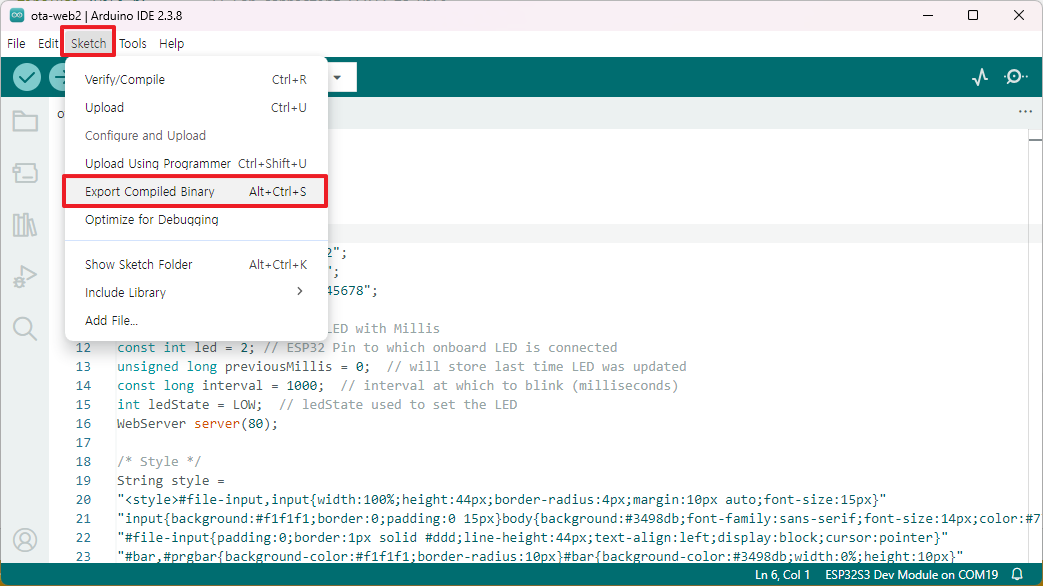
아두이노 IDE에서 프로그램의 컴파일된 바이너리 파일 내보내기
스케치 컴파일이 성공적으로 완료되면 .bin스케치 폴더에 파일이 생성됩니다. 스케치 폴더를 열려면 스케치 > 스케치 폴더 표시를 선택하십시오 .
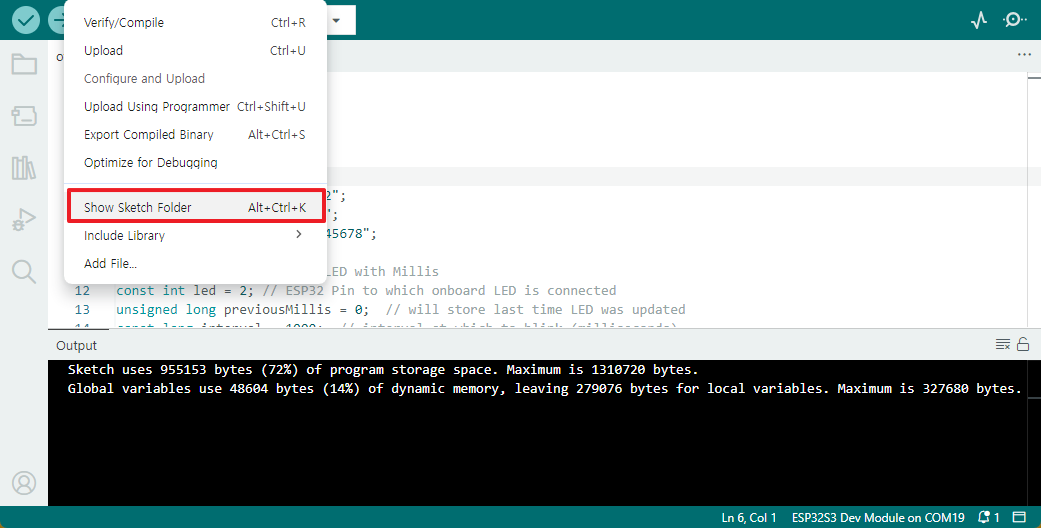
아두이노 IDE에서 스케치 폴더를 엽니다.
ESP32에 새 스케치를 무선으로 업로드하세요.
파일을 생성한 후에는 .bin새 스케치를 ESP32에 무선으로 업로드할 수 있습니다.
브라우저를 실행하고 해당 /serverIndex페이지로 이동하세요. [파일 선택…]을 클릭하고 새로 생성된 .bin파일을 선택한 다음 [업데이트]를 클릭하세요.
* Bin 파일 참고
- 대상 파일: .pio/build/[보드이름]/ 경로에 생성되는 firmware.bin 파일.
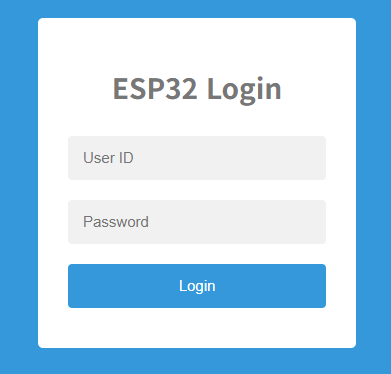
OTA 업데이트를 업로드하려면 서버 인덱스 페이지에 액세스하세요.

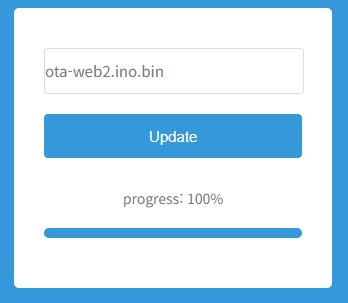
OTA 바이너리 업로드
새로운 스케치는 몇 초 안에 업로드될 것입니다.
그러면 보드에 내장된 LED가 깜빡이기 시작할 것입니다.
이게 전부입니다. 고생하셨습니다.
이 튜토리얼의 원문은 이곳입니다. 원저자에게 감사합니다. 친절함은 반드시 보상 받습니다.
'ESP32' 카테고리의 다른 글
| ESP32를 이용한 엣지 임펄스 기반 오프라인 음성 인식 (0) | 2026.05.25 |
|---|---|
| esp32-s3 보드 정보 출력으로 Flash와 PSRAM 크기 알아내자 (0) | 2026.05.21 |
| ESP32 SoftAP 프로비저닝 방법 (0) | 2026.05.21 |
| ESP32-S3 개발 보드 RGB LED 테스트 (0) | 2026.05.21 |
| ESP32 기본 OTA(Over The Air) 프로그래밍 (0) | 2026.05.21 |
| ESP32-C3 슈퍼 미니 빠르게 시작하기 가이드 배포 (0) | 2026.05.18 |
| ESP-IDF: ESP32 웹 서버 - 기본 HTTP 인증 (0) | 2026.05.16 |
| ESP32 개발 보드에 USB-C 또는 Micro-USB 포트가 두 개 있는 이유 (0) | 2026.05.03 |
취업, 창업의 막막함, 외주 관리, 제품 부재!
당신의 고민은 무엇입니까? 현실과 동떨어진 교육, 실패만 반복하는 외주 계약,
아이디어는 있지만 구현할 기술이 없는 막막함.
우리는 알고 있습니다. 문제의 원인은 '명확한 학습, 실전 경험과 신뢰할 수 있는 기술력의 부재'에서 시작됩니다.
이제 고민을 멈추고, 캐어랩을 만나세요!
코딩(펌웨어), 전자부품과 디지털 회로설계, PCB 설계 제작, 고객(시장/수출) 발굴과 마케팅 전략으로 당신을 지원합니다.
제품 설계의 고수는 성공이 만든 게 아니라 실패가 만듭니다. 아이디어를 양산 가능한 제품으로!
귀사의 제품을 만드세요. 교육과 개발 실적으로 신뢰할 수 있는 파트너를 확보하세요.
캐어랩


