Arduino UNO R4 WiFi로 BLE ④ 기압 센서 BME280을 연결합니다.
Adafruit에서 구입한 MEMS 기압 센서 BME280(보쉬)을 사용합니다.기압과 온도, 습도를 측정할 수 있습니다.마이크로컴퓨터 보드 Arduino UNO R4 WiFi는 Wi-Fi와 BLE 무선 통신을 지원하며, BLE로 3회에 걸쳐 송수신합니다.
본 문서의 전체 리스트를 링크로 연결하였습니다. 참고하세요.
UNO R4 WiFi BLE ⑥ BME280의 BLE 주변기기와 연결되는 센트럴
UNO R4 WiFi BLE ⑤ BME280의 BLE peripheral
UNO R4 WiFi BLE ④ 기압 센서 BME280을 연결
UNO R4 WiFi BLE ③ LPS22의 BLE 주변기기와 연결되는 센트럴
UNO R4 WiFi BLE ② LPS22의 BLE 주변기기
UNO R4 WiFi BLE ① 기압 센서 LPS22 연결
● Adafruit의 Stemma QT/Qwiic 보드
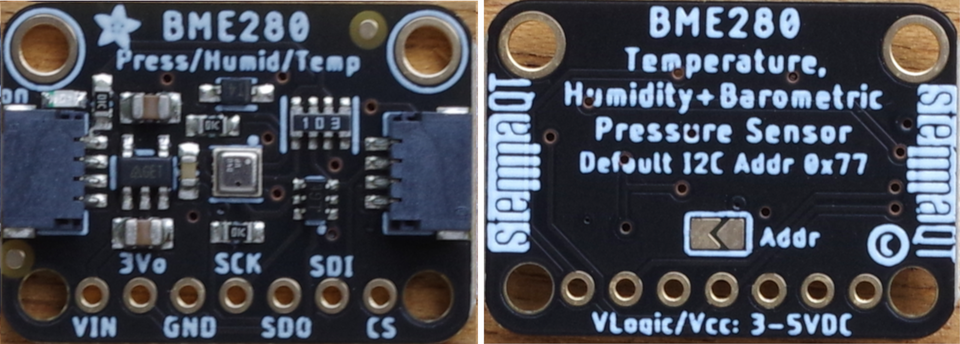
Stemma QT/Qwiic(JST SH 4핀) 커넥터는 2곳에 장착되어 있으며, 어느 쪽에 연결해도 상관없다.이 커넥터를 사용하여 I2C로 제어하는 경우, 특히 점퍼선 등을 연결할 필요가 없습니다.
커넥터는 앞면과 뒷면 모두 꽂을 수 있지만, 핀이 내부 상단에 정렬되어 있기 때문에 꽂을 수 있는 방향이 정해져 있습니다.잠금장치는 없지만, 쉽게 빠지는 일은 없습니다.
● 기압 센서 BME280의 주요 사양 - BME280 데이터 시트 참고
- 동작 전압 1.71~3.6V
- 동작 온도 범위 -40~+85℃
- 기압 측정 범위 300~1100hPa, 분해능 ±0.12hPa(±1m)
- 온도 측정 범위 -40~+85℃, 정확도 ±0.5℃
- 습도 측정 범위 0~100%, 정확도 ±3%
- 인터페이스 I2C(최대 3.4MHz), SPI(최대 10MHz)
- 슬레이브 주소 0x77, 뒷면의 Address를 단락시켜 0x76으로 설정할 수 있다.
● 사용 환경
Arduino UNO R4 WiFi
Arduino IDE 2.2.1
Windows10 22H2
● 연결 Arduino
UNO R4 WiFi의 I2C 신호와 센서 보드를 JST 커넥터로 연결합니다(Stemma QT/Qwiic 보드의 사진 비율은 다릅니다).

● 슬레이브 주소 확인
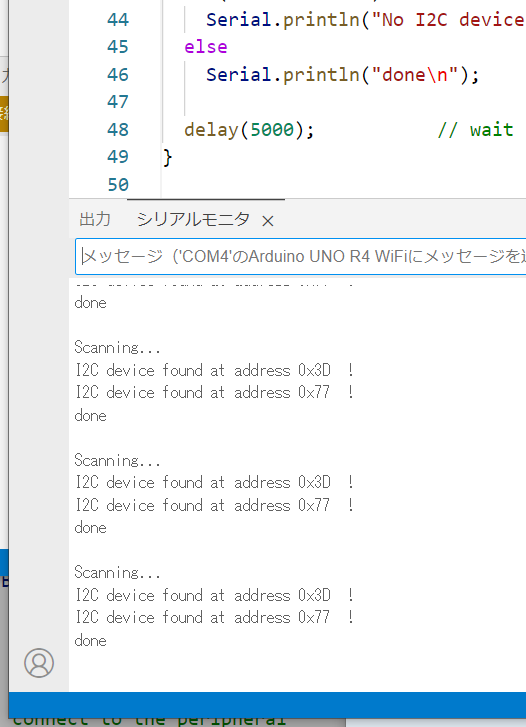
기존에 많이 사용되는 i2cScanner.ino를 실행하여 슬레이브 주소를 확인합니다.이 마이컴 보드에는 Qwiic 전용 커넥터가 준비되어 있지만 BME280은 인식하지 못했습니다.

I/O 단자의 SCL과 SDA 단자, 전원 단자를 이용하여 Stemma QT/Qwiic 커넥터를 장착합니다. 전원은 3.3V입니다. 0x77을 찾았습니다. 0x3d는 그래픽 보드의 주소입니다.
● 라이브러리 준비
BME280으로 검색하여 찾은 Adafruit BME280 라이브러리를 설치합니다.
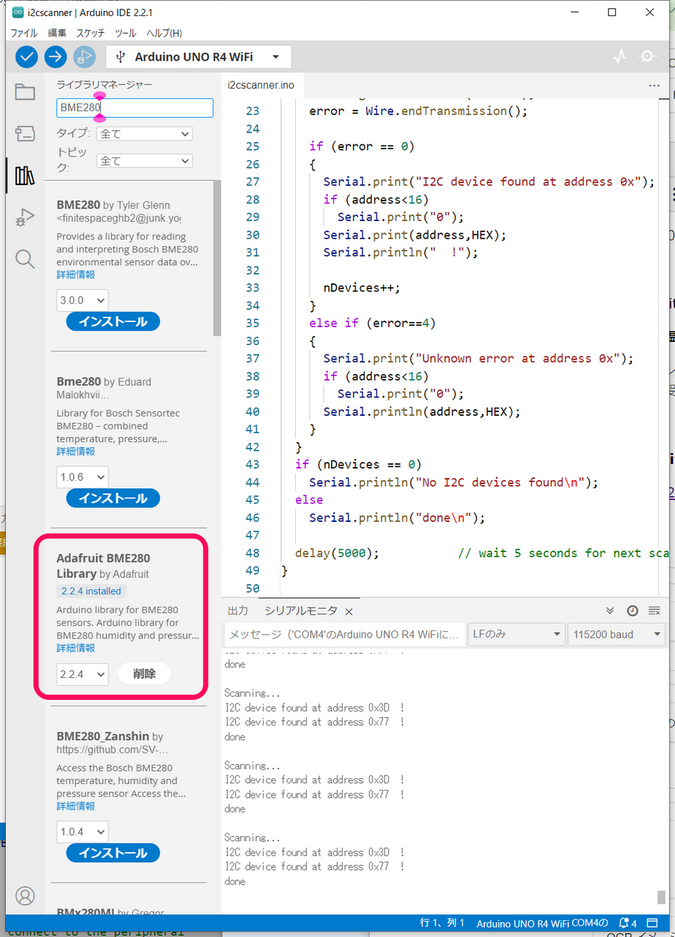
설치를 시작할 때, 관련 라이브러리 및 종속성을 설치할 것인지 묻는 패널이 나오면 모두 설치를 선택합니다.
● 샘플 스케치 메뉴의 파일->스케치 예제에서 Adafruit BME280의 bme280test.ino를 선택하여 컴파일하고 실행한다.
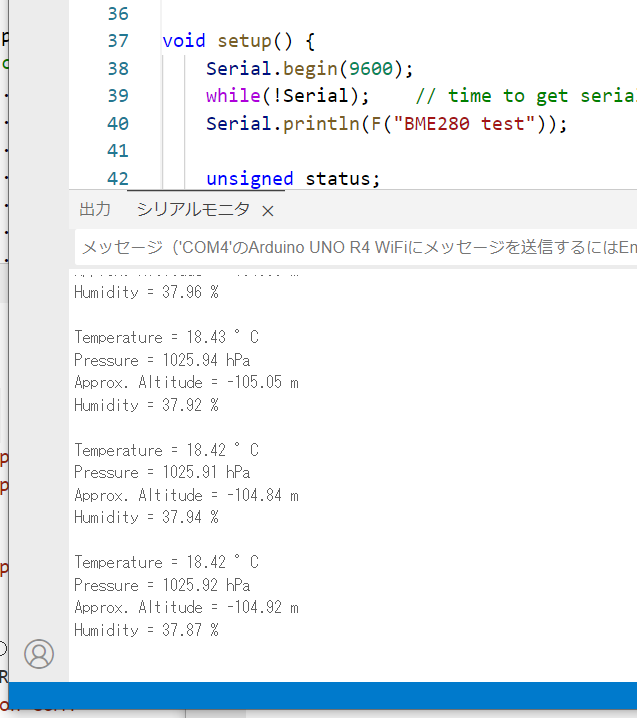
SPI 관련을 제거하고 I2C에 대한 설명만 남긴 스케치입니다.
// This is a library for the BME280 humidity, temperature & pressure sensor
//  Designed specifically to work with the Adafruit BME280 Breakout
//  ----> http://www.adafruit.com/products/2650
//  Written by Limor Fried & Kevin Townsend for Adafruit Industries.

#include <Wire.h>
#include <Adafruit_Sensor.h>
#include <Adafruit_BME280.h>
float tempC;
float pressure;
float humidity;

Adafruit_BME280 bme; // I2C

void setup() {
  Serial.begin(115200);
  while (!Serial) delay(10);
   Serial.println(F("BME280 ssd1306"));

    unsigned status;

    // default settings
    status = bme.begin();
    // You can also pass in a Wire library object like &Wire2
    // status = bme.begin(0x76, &Wire2)
    if (!status) {
        Serial.println("Could not find a valid BME280 sensor, check wiring, address, sensor ID!");
        Serial.print("SensorID was: 0x"); Serial.println(bme.sensorID(),16);
        Serial.print("        ID of 0xFF probably means a bad address, a BMP 180 or BMP 085\n");
        Serial.print("   ID of 0x56-0x58 represents a BMP 280,\n");
        Serial.print("        ID of 0x60 represents a BME 280.\n");
        Serial.print("        ID of 0x61 represents a BME 680.\n");
        while (1) delay(10);
    }
    Serial.println();
}

void loop() {
    printValues();
    delay(1000);
}

void printValues() {
  tempC = bme.readTemperature();
  pressure = bme.readPressure() / 100.0;
  humidity = bme.readHumidity();

    Serial.print("Temperature = ");
    Serial.print(tempC);
    Serial.println(" °C");

    Serial.print("Pressure = ");
    Serial.print( pressure);
    Serial.println(" hPa");

    Serial.print("Humidity = ");
    Serial.print(humidity);
    Serial.println(" %");

    Serial.println();
}
● 그래픽 디스플레이에 측정 결과 표시
다음 글을 참고하여 측정한 온도와 기압, 습도를 그래픽 디스플레이에 표시합니다.
Arduino UNO R4 Minima로 센서 인터페이스하기 ⑤ 온습도 센서 Si7021의 측정 결과를 그래픽 디스플레이에 표시하기
스케치입니다.
// This is a library for the BME280 humidity, temperature & pressure sensor
//  Designed specifically to work with the Adafruit BME280 Breakout
//  ----> http://www.adafruit.com/products/2650
//  Written by Limor Fried & Kevin Townsend for Adafruit Industries.

#include <Wire.h>
#include <Adafruit_Sensor.h>
#include <Adafruit_BME280.h>
#include <Adafruit_SSD1306.h>
float tempC;
float pressure;
float humidity;

Adafruit_BME280 bme; // I2C
Adafruit_SSD1306 display = Adafruit_SSD1306(128, 64, &Wire);

void setup() {
  Serial.begin(115200);
  while (!Serial) delay(10);
   Serial.println(F("BME280  + ssd1306"));

    unsigned status;

    // default settings
    status = bme.begin();
    // You can also pass in a Wire library object like &Wire2
    // status = bme.begin(0x76, &Wire2)
    if (!status) {
        Serial.println("Could not find a valid BME280 sensor, check wiring, address, sensor ID!");
        Serial.print("SensorID was: 0x"); Serial.println(bme.sensorID(),16);
        Serial.print("        ID of 0xFF probably means a bad address, a BMP 180 or BMP 085\n");
        Serial.print("   ID of 0x56-0x58 represents a BMP 280,\n");
        Serial.print("        ID of 0x60 represents a BME 280.\n");
        Serial.print("        ID of 0x61 represents a BME 680.\n");
        while (1) delay(10);
    }
    Serial.println();

  // SSD1306_SWITCHCAPVCC = generate display voltage from 3.3V internally
  if (!display.begin(SSD1306_SWITCHCAPVCC, 0x3D)) { // Address 0x3C for 128x32
    Serial.println(F("SSD1306 allocation failed"));
    for (;;)
      ; // Don't proceed, loop forever
  }
  display.display();
  delay(500); // Pause for 2 seconds
  display.setTextSize(1);
  display.setTextColor(WHITE);
  display.setRotation(0);
  display.clearDisplay();
}

void loop() {
    printValues();
    delay(1000);
}

void printValues() {
  display.clearDisplay();
  display.setCursor(0, 0);

  tempC = bme.readTemperature();
  pressure = bme.readPressure() / 100.0;
  humidity = bme.readHumidity();

    Serial.print("Temperature = ");
    Serial.print(tempC);
    Serial.println(" °C");

    Serial.print("Pressure = ");
    Serial.print( pressure);
    Serial.println(" hPa");

    Serial.print("Humidity = ");
    Serial.print(humidity);
    Serial.println(" %");

    Serial.println();

  display.println("Temperature: - `C");
  display.print(tempC, 2);
  display.println("");
  display.println("");
  display.println("Pressure: - hPa");
  display.print(pressure, 1);
  display.println("");
  display.println("");
  display.println("Humidity: - %");
  display.print(humidity, 1);
  display.display();
}
원본 문서는 언제나 늘 그렇듯이 이 링크를 따라가면 만날 수 있습니다.
'아두이노우노 R4' 카테고리의 다른 글
| Bluetooth HM-10 BLE module 서로 통신하는 방법 (0) | 2024.11.12 |
|---|---|
| DIY 홈보안 시스템 Arduino Uno R4 Wi-Fi키패드 LCD 디스플레이 (2) | 2024.11.02 |
| UNO R4 WiFi BLE ⑥ BME280의 BLE 주변기기와 연결되는 센트럴 (2) | 2024.10.11 |
| UNO R4 WiFi BLE ⑤ BME280의 BLE peripheral (2) | 2024.10.11 |
| UNO R4 WiFi BLE ③ LPS22의 BLE 주변기기와 연결되는 센트럴 (2) | 2024.10.11 |
| Arduino를 사용한 스마트 주차 시스템 (7) | 2024.10.04 |
| ADXL345 가속도계와 아두이노 UNO 연동하기 (5) | 2024.09.11 |
| 아두이노 가속도계 ADXL356, ADXL345, ADXL335 (5) | 2024.09.11 |
취업, 창업의 막막함, 외주 관리, 제품 부재!
당신의 고민은 무엇입니까? 현실과 동떨어진 교육, 실패만 반복하는 외주 계약,
아이디어는 있지만 구현할 기술이 없는 막막함.
우리는 알고 있습니다. 문제의 원인은 '명확한 학습, 실전 경험과 신뢰할 수 있는 기술력의 부재'에서 시작됩니다.
이제 고민을 멈추고, 캐어랩을 만나세요!
코딩(펌웨어), 전자부품과 디지털 회로설계, PCB 설계 제작, 고객(시장/수출) 발굴과 마케팅 전략으로 당신을 지원합니다.
제품 설계의 고수는 성공이 만든 게 아니라 실패가 만듭니다. 아이디어를 양산 가능한 제품으로!
귀사의 제품을 만드세요. 교육과 개발 실적으로 신뢰할 수 있는 파트너를 확보하세요.
캐어랩


