반응형
DIY 홈보안 시스템 Arduino Uno R4 Wi-Fi키패드 LCD 디스플레이
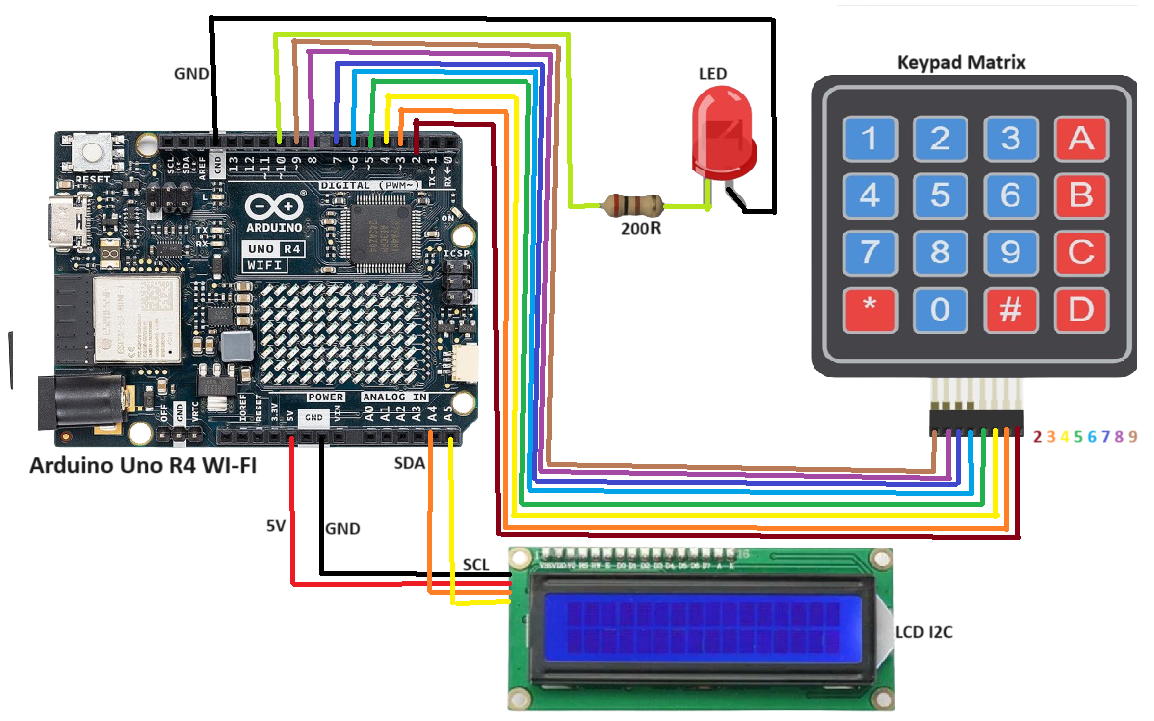
코드 - 아직 시험하지 않았음. 마지막 부분을 보면 완성하지 못한 것처럼 보이네.
#include <DIYables_Keypad.h>  // Include the DIYables_Keypad library for handling the 4x4 keypad
#include <Wire.h>            // Include the Wire library for I2C communication
#include <LiquidCrystal_I2C.h> // Include the LiquidCrystal_I2C library for controlling the LCD display

const int ROW_NUM = 4;    // Define the number of rows in the keypad (4 rows)
const int COLUMN_NUM = 4; // Define the number of columns in the keypad (4 columns)

char keys[ROW_NUM][COLUMN_NUM] = { // Create a 2D array to represent the keys on the keypad
  {'1','2','3', 'A'},  // First row
  {'4','5','6', 'B'},  // Second row
  {'7','8','9', 'C'},  // Third row
  {'*','0','#', 'D'}   // Fourth row
};

byte pin_rows[ROW_NUM] = {9, 8, 7, 6}; // Define the pins connected to the rows of the keypad
byte pin_column[COLUMN_NUM] = {5, 4, 3, 2}; // Define the pins connected to the columns of the keypad

DIYables_Keypad keypad = DIYables_Keypad( makeKeymap(keys), pin_rows, pin_column, ROW_NUM, COLUMN_NUM );
// Create an instance of the DIYables_Keypad object using the keymap, row pins, and column pins

const String password = "1234A"; // Define the correct password to unlock the system
String input_password;           // Declare a string to store the user input

const int ledPin = 10;  // Define the pin connected to the LED

// LCD address and dimensions
const int lcdAddress = 0x27; // Define the I2C address for the LCD (change if necessary)
const int lcdColumns = 16;   // Define the number of columns in the LCD (16 columns)
const int lcdRows = 2;       // Define the number of rows in the LCD (2 rows)

LiquidCrystal_I2C lcd(lcdAddress, lcdColumns, lcdRows); // Create an instance of the LCD object

bool ledState = false; // Boolean to track the state of the LED (false = off, true = on)

void setup(){
  Serial.begin(9600);               // Start serial communication at 9600 baud for debugging
  Serial.println("Keypad 4x4 password");  // Print a message to the serial monitor

  // Initialize LED pin
  pinMode(ledPin, OUTPUT);          // Set the LED pin as an output
  digitalWrite(ledPin, LOW);        // Start with the LED turned off

  // Initialize LCD
  lcd.init();                       // Initialize the LCD
  lcd.backlight();                  // Turn on the LCD backlight
  lcd.setCursor(0, 0);              // Set the cursor to the first column of the first row
  lcd.print("Enter Password:");     // Display the prompt on the LCD

  input_password.reserve(32);       // Reserve 32 characters for the input password to optimize memory usage
}

void loop(){
  char key = keypad.getKey();       // Get the key pressed on the keypad

  if (key){                         // If a key is pressed
    Serial.println(key);            // Print the pressed key to the serial monitor

    if(key == '*') {                // If the '*' key is pressed
      input_password = "";          // Clear the input password
      lcd.clear();                  // Clear the LCD screen
      lcd.setCursor(0, 0);          // Set the cursor to the first column of the first row
      lcd.print("Input cleared");   // Display "Input cleared" on the LCD
      delay(2000);                  // Wait for 2 seconds
      lcd.clear();                  // Clear the LCD screen
      lcd.setCursor(0, 0);          // Set the cursor to the first column of the first row
      lcd.print("Enter Password:"); // Display the prompt on the LCD
      lcd.setCursor(0, 1);          // Set the cursor to the first column of the second row
      lcd.print("                "); // Clear the second row of the LCD
      Serial.println("Input cleared"); // Print "Input cleared" to the serial monitor
    } else if(key == '#') {         // If the '#' key is pressed
      if(password == input_password) { // Check if the entered password matches the correct password
        if (ledState) {             // If the LED is currently on
          // Turn off the LED
          digitalWrite(ledPin, LOW); // Turn off the LED
          lcd.clear();              // Clear the LCD screen
          lcd.setCursor(0, 0);      // Set the cursor to the first column of the first row
          lcd.print("LED is OFF");  // Display "LED is OFF" on the LCD
          delay(2000);              // Wait for 2 seconds
          lcd.clear();              // Clear the LCD screen
          lcd.setCursor(0, 0);      // Set the cursor to the first column of the first row
          lcd.print("Enter Password:"); // Display the prompt on the LCD
          lcd.setCursor(0, 1);      // Set the cursor to the first column of the second row
          lcd.print("                "); // Clear the second row of the LCD
          ledState = false;         // Update the LED state to off
        } else {                    // If the LED is currently off
          // Turn on the LED
          digitalWrite(ledPin, HIGH); // Turn on the LED
          lcd.clear();              // Clear the LCD screen
          lcd.setCursor(0, 0);      // Set the cursor to the first column of the first row
          lcd.print("LED is ON");   // Display "LED is ON" on the LCD
          delay(2000);              // Wait for 2 seconds
          lcd.clear();              // Clear the LCD screen
          lcd.setCursor(0, 0);      // Set the cursor to the first column of the first row
          lcd.print("Enter Password:"); // Display the prompt on the LCD
          lcd.setCursor(0, 1);      // Set the cursor to the first column of the second row
          lcd.print("                "); // Clear the second row of the LCD
          ledState = true;          // Update the LED state to on
        }
        Serial.println(ledState ? "LED is ON" : "LED is OFF"); // Print the LED state to the serial monitor
      } else {                      // If the entered password is incorrect
        Serial.println("Password is incorrect, try again"); // Print an error message to the serial monitor
        lcd.clear();                // Clear the LCD screen
        lcd.setCursor(0, 0);        // Set the cursor to the first column of the first row
        lcd.print("Incorrect");     // Display "Incorrect" on the LCD
        delay(2000);                // Wait for 2 seconds
        lcd.clear();                // Clear the LCD screen
        lcd.setCursor(0, 0);        // Set the cursor to the first column of the first row
        lcd.print("Enter Password:"); // Display the prompt on the LCD
        lcd.setCursor(0, 1);        // Set the cursor to the first column of the second row
        lcd.print("                "); // Clear the second row of the LCD
      }

      input_password = "";          // Clear the input password after checking
      lcd.setCursor(0, 1);          // Set the cursor to the first column of the second row
      lcd.print("                "); // Clear the second row of the LCD
    } else if(key == 'B') {         // If the 'B' key is pressed (used as backspace)
      if (input_password.length() > 0) { // If there is at least one character in the input password
        input_password.remove(input_password.length() - 1); // Remove the last character
        Serial.println("Last character removed"); // Print a message to the serial monitor
        lcd.setCursor(0, 1);        // Set the cursor to the first column of the second row
        lcd.print("                "); // Clear the second row of the LCD
        lcd.setCursor(0, 1);        // Set the cursor to the first column of the second row
        lcd.print(getPasswordDisplay()); // Display the masked input password on the LCD
      }
    } else if(key == 'C') {         // If the 'C' key is pressed (used to clear input)
      input_password = "";          // Clear the entire input password
      lcd.clear();                  // Clear the LCD screen
      lcd.setCursor(0, 0);          // Set the cursor to the first column of the first row
      lcd.print("All characters removed"); // Display a message on the LCD
      delay(2000);                  // Wait for 2 seconds
      lcd.clear();                  // Clear the LCD screen
      lcd.setCursor(0, 0);          // Set the cursor to
반응형
'아두이노우노 R4' 카테고리의 다른 글
| Adafruit CH552 QT Py 아두이노 환경 설정 (1) | 2024.12.08 |
|---|---|
| 키보드 자동화 샘플 코드 2 (2) | 2024.12.04 |
| DF Player Mini를 사용한 Arduino와 함께 오디오 플레이어 프로젝트 (0) | 2024.11.20 |
| Bluetooth HM-10 BLE module 서로 통신하는 방법 (0) | 2024.11.12 |
| UNO R4 WiFi BLE ⑥ BME280의 BLE 주변기기와 연결되는 센트럴 (2) | 2024.10.11 |
| UNO R4 WiFi BLE ⑤ BME280의 BLE peripheral (2) | 2024.10.11 |
| UNO R4 WiFi BLE ④ 기압 센서 BME280을 연결 (3) | 2024.10.11 |
| UNO R4 WiFi BLE ③ LPS22의 BLE 주변기기와 연결되는 센트럴 (2) | 2024.10.11 |
취업, 창업의 막막함, 외주 관리, 제품 부재!
당신의 고민은 무엇입니까? 현실과 동떨어진 교육, 실패만 반복하는 외주 계약,
아이디어는 있지만 구현할 기술이 없는 막막함.
우리는 알고 있습니다. 문제의 원인은 '명확한 학습, 실전 경험과 신뢰할 수 있는 기술력의 부재'에서 시작됩니다.
이제 고민을 멈추고, 캐어랩을 만나세요!
코딩(펌웨어), 전자부품과 디지털 회로설계, PCB 설계 제작, 고객(시장/수출) 발굴과 마케팅 전략으로 당신을 지원합니다.
제품 설계의 고수는 성공이 만든 게 아니라 실패가 만듭니다. 아이디어를 양산 가능한 제품으로!
귀사의 제품을 만드세요. 교육과 개발 실적으로 신뢰할 수 있는 파트너를 확보하세요.
캐어랩


